YOUR PHOTO. A NEW DRAWING STYLE.

Photo to Cartoon

Turn a selfie, portrait or favorite scene into an illustration with Photo to Cartoon. Upload a picture and choose a style. 3D cartoon is selected to start.

1. Upload

Drop a photo or click to uploadOr paste a photo here

2. Choose a style

3. Generate

Example
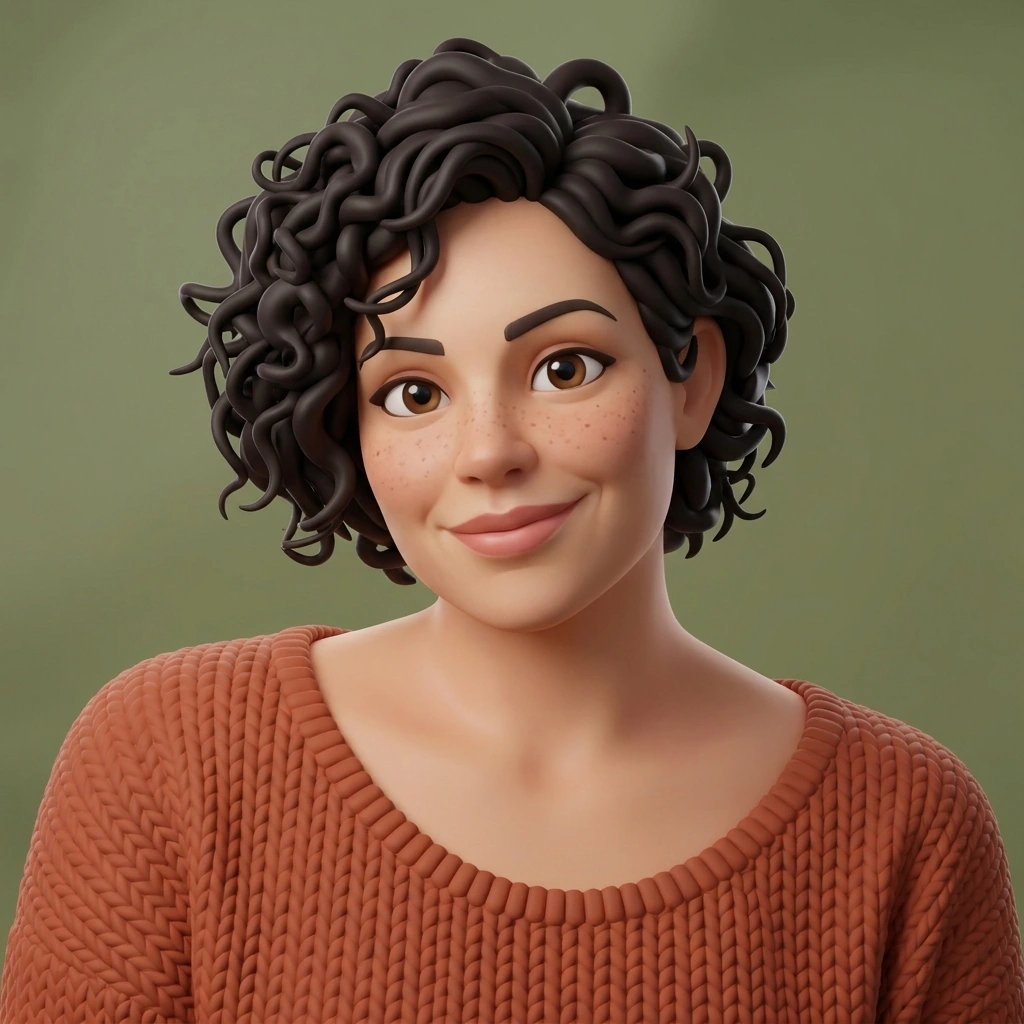
Photo to Cartoon example output with rounded 3D features and the original terracotta top
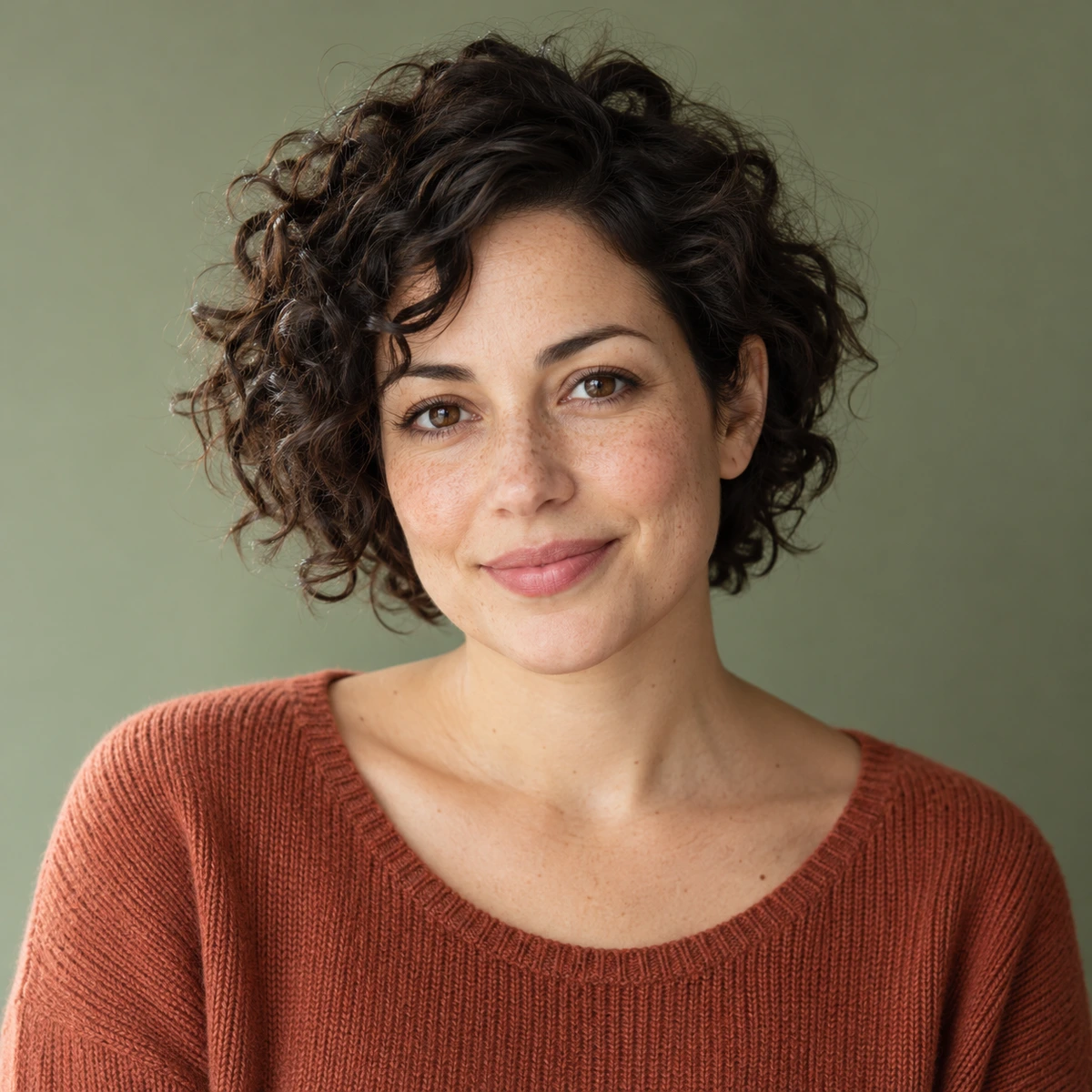
Photo to Cartoon example input showing a fictional adult with dark curls
Photo
Cartoon

Photo to 3D cartoon

Your cartoon will replace this example

FOUR WAYS TO REDRAW YOUR PHOTO

Find your Photo to Cartoon style

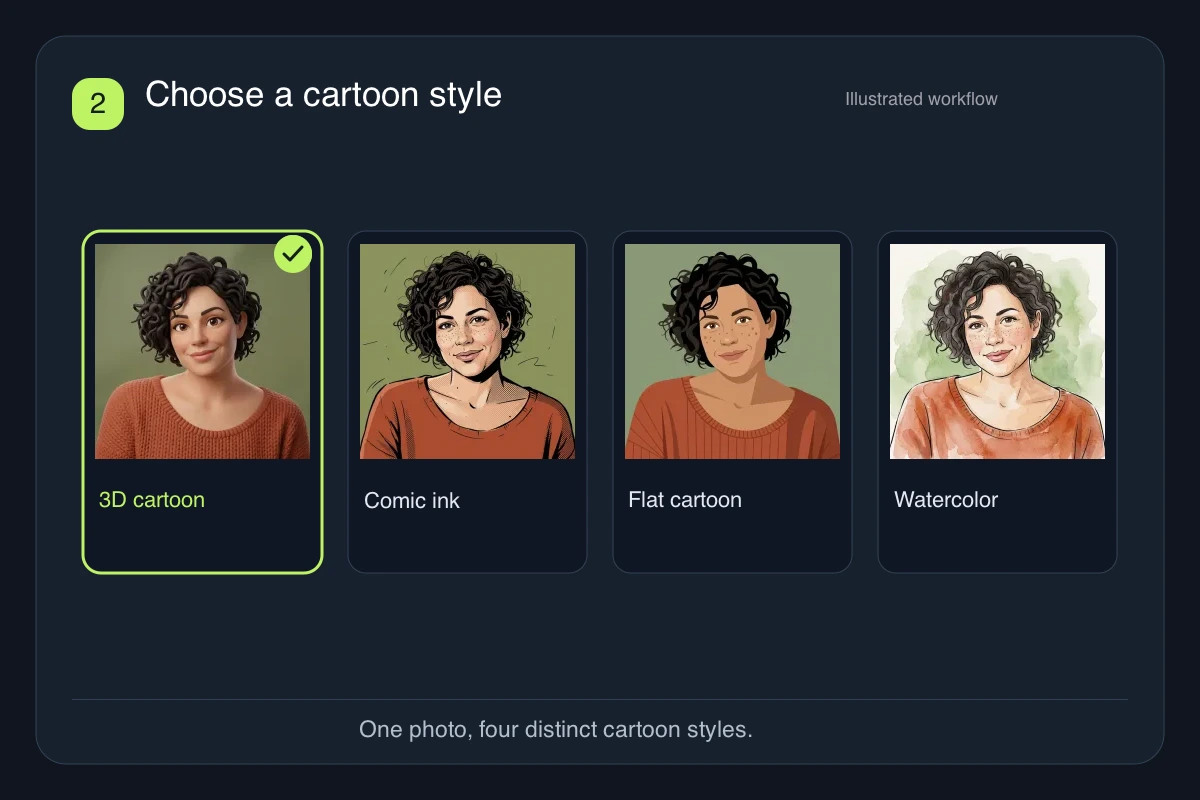
The previews use the same portrait so you can compare the drawing treatment directly. Choose depth, strong ink, simple shapes or a softer painted finish. These cards select a style in the tool while keeping your uploaded photo.

PHOTO IN. CARTOON OUT.

What an image to cartoon edit changes

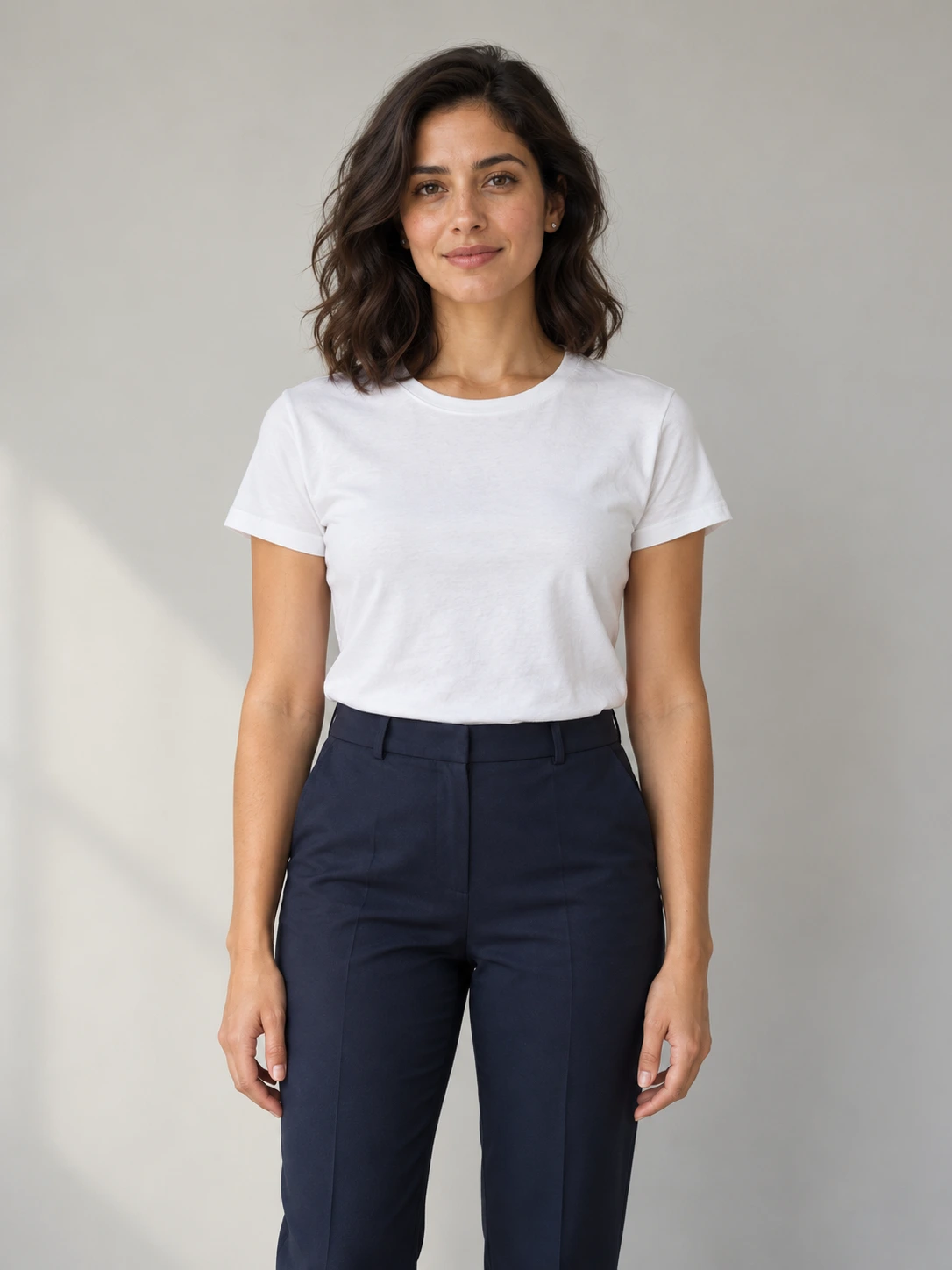
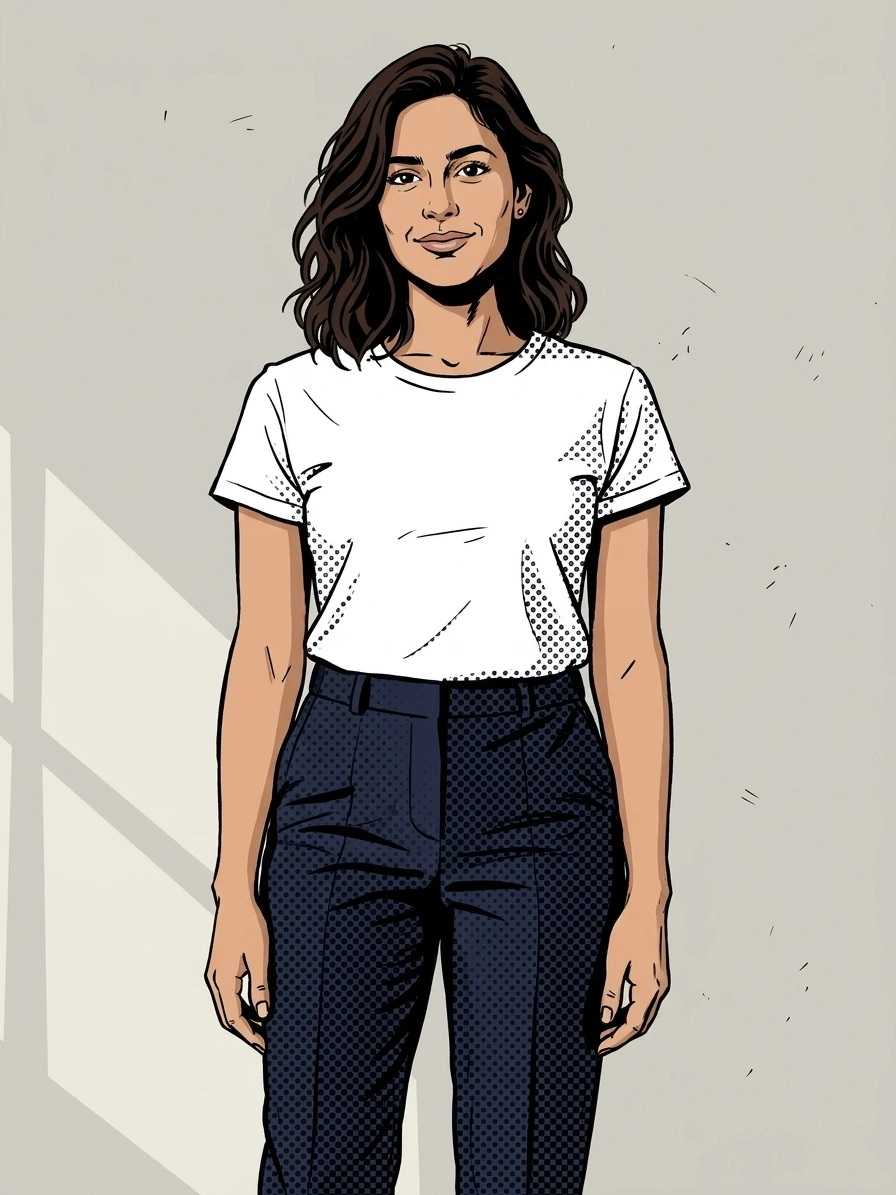
These Photo to Cartoon examples pair each source with an actual result from the corresponding style. Notice how the treatment changes outlines, shading and texture. They demonstrate individual edits; the same instructions can interpret your own picture differently.

Photo to Cartoon source portrait of an adult in a plain white T-shirtORIGINAL
Photo to Cartoon comic result with ink contours and halftone on the white-T-shirt portraitCARTOON

A casual portrait, redrawn in ink

A plain white tee and an uncluttered portrait give the comic treatment clear edges to follow. Compare the hairstyle, expression and pose before keeping the result. Small facial features and clothing folds can shift during the redraw.
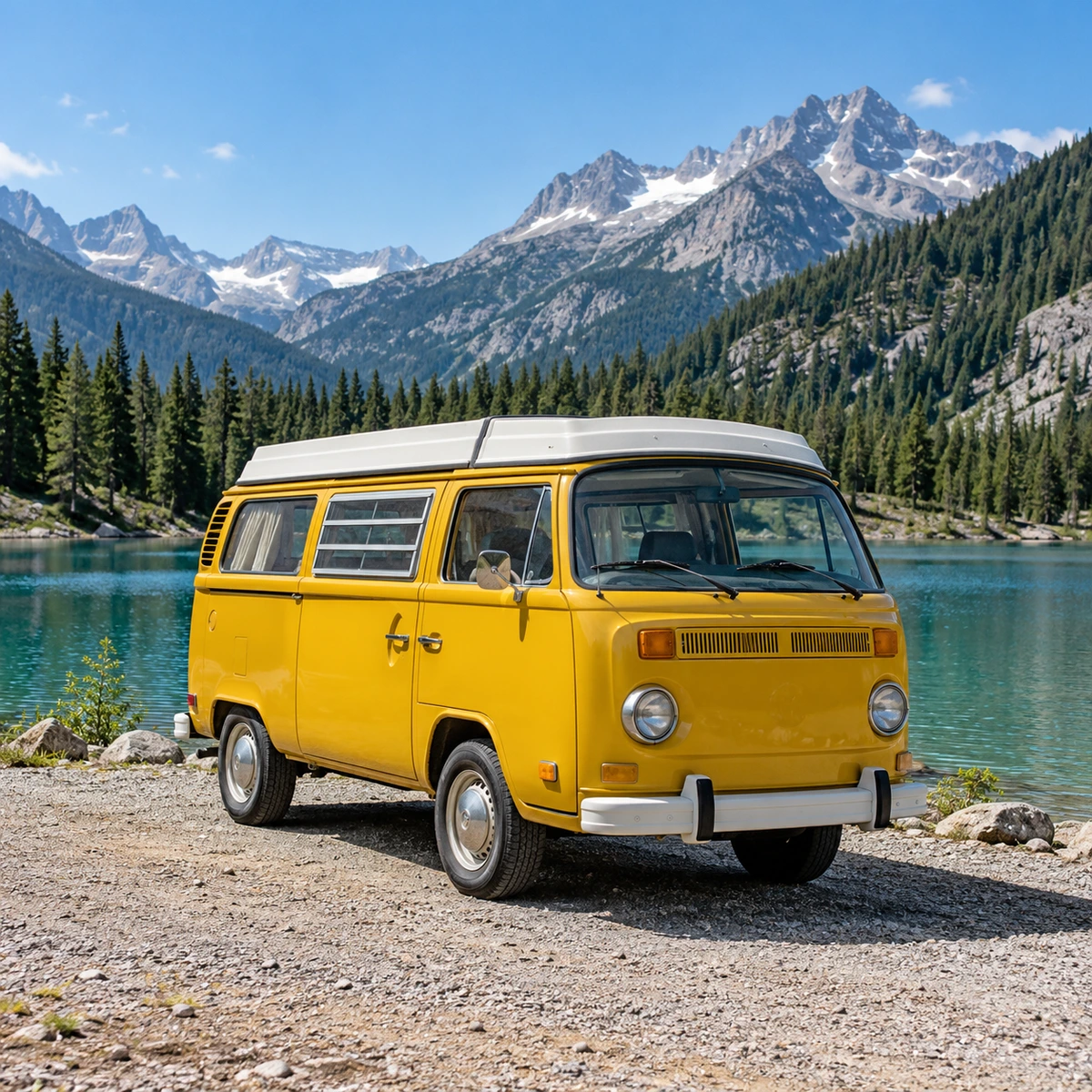
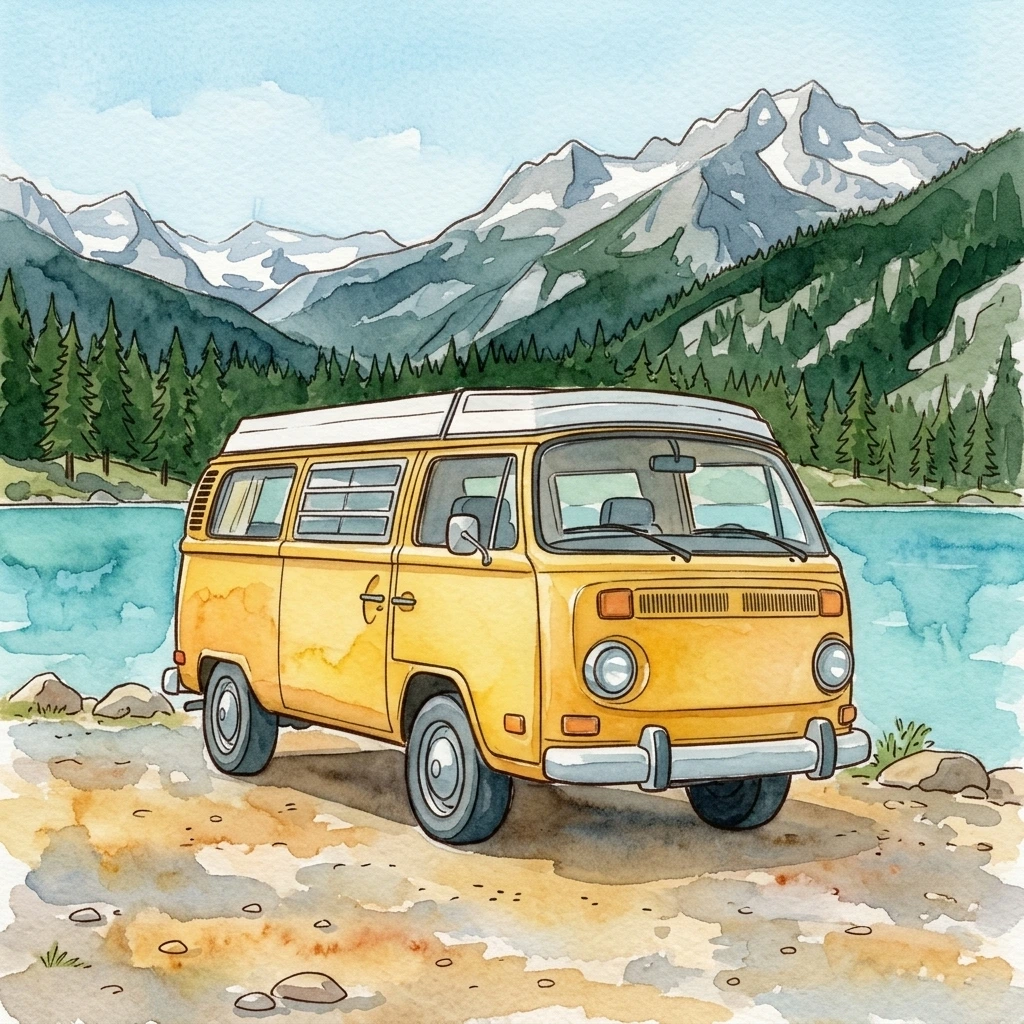
Photo to Cartoon original showing a yellow camper beside an alpine lakeORIGINAL
Photo to Cartoon watercolor result of a yellow camper with lake and mountain washesCARTOON

A travel snapshot with a painted finish

The yellow camper, lake and mountains provide distinct shapes for watercolor washes. Use this style to explore a drawn version of a favorite scene. Inspect the wheels, windows and background lines; the tool reinterprets details rather than tracing them exactly.

UPLOAD. CHOOSE. COMPARE.

How to use Photo to Cartoon

You can upload and choose a style before signing in. The example comparison stays separate from your input, so you can explore the tool without mistaking a sample for your own result.

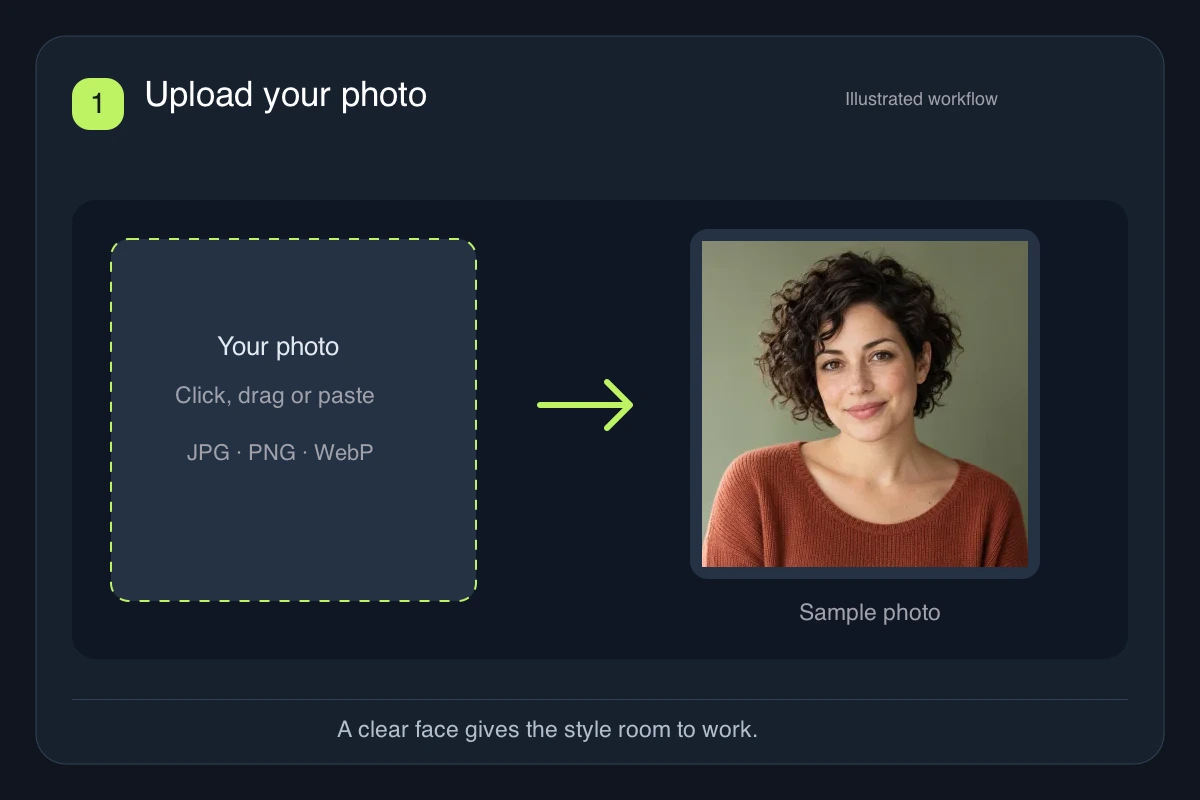
Photo to Cartoon upload step illustrated with a clear curly-haired portrait01

Upload a clear photo

Drop, paste or choose a JPG, PNG or WebP. Start with one subject, visible facial features and even lighting. Try a sample if you want to explore first, then use Replace photo to add your own picture. Keep the original for another attempt.

Photo to Cartoon style step comparing four distinct treatments of the same portrait02

Choose a drawing style

Keep the selected 3D look, or switch to comic ink, flat cartoon or watercolor. For another treatment, choose Custom and describe the linework, colors and shading you want. One clear direction is easier to evaluate than several conflicting styles in the same request.

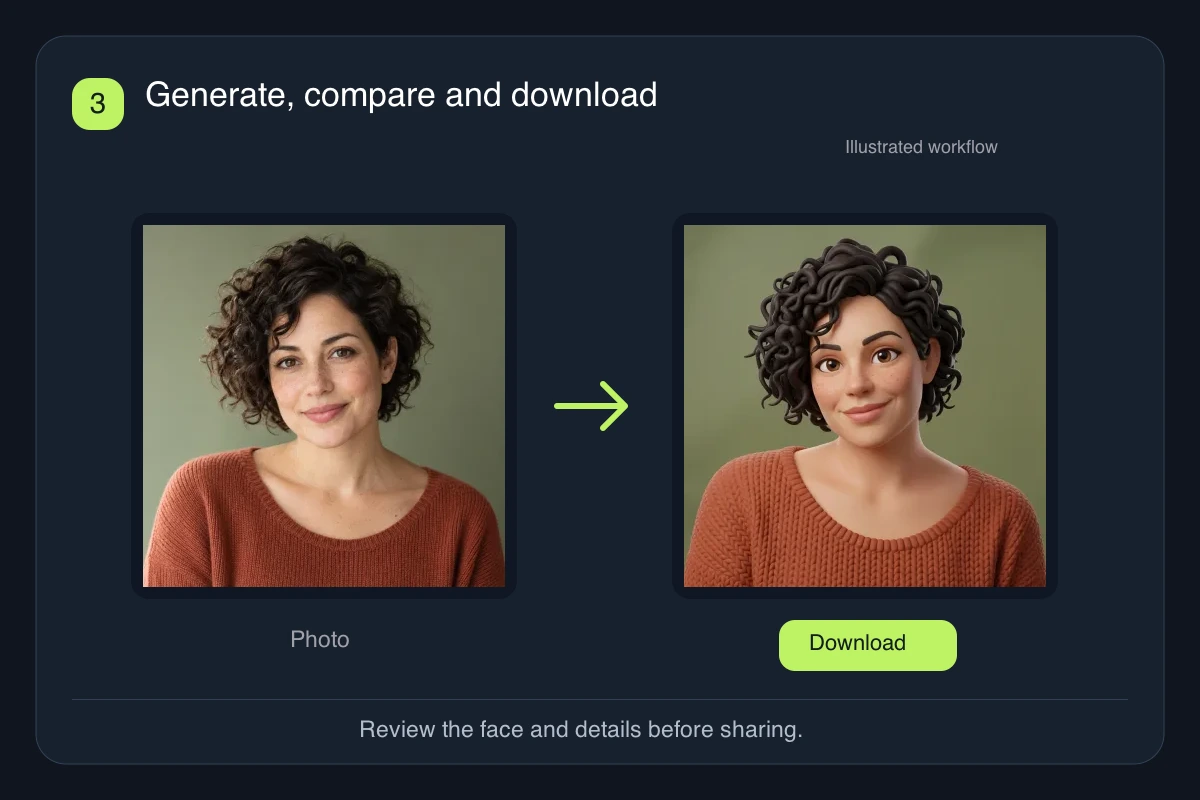
Photo to Cartoon review step pairing the original portrait with its 3D cartoon result03

Generate, compare and download

Check the cost on the button, sign in and generate. Compare the cartoon with your source using the slider. Look closely at eyes, hair, hands and any important objects. Download a version you like before trying another direction; each retry is a new generation.

KEEP THE SUBJECT RECOGNIZABLE

A better source makes a better starting point

Photo to Cartoon redraws the picture in a new visual language. Likeness is a goal, and stylization changes details. Give the tool a clear reference, then judge the finished image against the parts of the photo that matter to you.

Choose a face you can actually see

Avoid tiny faces, heavy blur, deep shadows and sunglasses when likeness matters. An evenly lit head-and-shoulders portrait is a useful first test. Leave space around the hair and shoulders so you can crop the downloaded picture without cutting off key features.

Name the treatment, not just “cartoon”

Use Custom for a focused direction such as soft pastel colors with thin outlines. Add the details you want to keep, like dark curls, a green background or the original pose. A generic request can produce a different drawing tradition than you intended.

Return to the original if likeness drifts

Repeatedly redrawing a generated cartoon can move it further from the source. Keep your original upload and change one style choice at a time. Check the face shape, skin tone, smile and headcount before sharing; a polished illustration can still misrepresent a person.

Finish exact details in an editor

Cartoon rendering can reinterpret lettering, jewelry, hands and background objects. Add precise text, logos, borders or transparent cutouts in a separate editing step. For print, check actual pixel dimensions and crop requirements. A flat-looking output is still a raster picture, not editable SVG paths.

Photo to Cartoon questions

Do I need to upload a photo?

Yes. This tool starts from one existing image and redraws its subject and composition. Upload your picture or choose Try a sample to explore the styles. Replace the sample before generating a personal result. If you want to invent a character from a text description, use the AI Cartoon Generator linked below.

Is this an image to cartoon tool?

Yes. You upload one picture and the tool redraws that picture in the style you choose. It does not invent a separate character from a written description. For an original character, use the AI Cartoon Generator linked below.

Will it keep my face exactly the same?

Exact likeness is not guaranteed. Photo to Cartoon asks the model to keep recognizable facial structure, hair, expression and pose, but the selected style can change proportions or small details. Compare with a clear original and inspect each person individually. A good result on one face does not guarantee the same result on another.

Can I cartoonize a pet or a group photo?

You can cartoonize a photo of a pet or a group, but these examples do not establish reliable pet or group performance. Fur markings, small faces and overlapping bodies may change. Use a sharp source where every subject is visible, check the number of subjects and review each face or animal. This page uses one photo and does not combine separate portraits.

Can I choose anime or another cartoon style?

Choose Custom and describe your preferred treatment, such as cel shading, expressive drawn features and a restrained color palette. Specify the features you want to keep. Custom guides the edit rather than guaranteeing an exact style match; it also works best with one coherent drawing direction.

Is Photo to Cartoon free?

Browsing the examples, uploading and selecting a style do not start a generation. Generating requires an account and credits. The default 1K image uses 5 credits, and each retry uses credits too. Check the cost shown on the button before submitting; an available account balance is required.

What file do I download? Is it an editable vector?

The tool creates one PNG in the 1K output class. The returned dimensions depend on the image and can differ from the upload. Flat cartoon describes the appearance, not the file structure: it does not create editable SVG paths or a layered drawing. Inspect the downloaded pixels before printing or using a large crop.

Try Photo to Cartoon with your own picture

Choose one clear photo and one drawing style. Compare the result with the original, keep the version you like and download it for your next profile picture or creative project.

Cartoonize your photo