
🔥LIMITED OFFER
01:58:23
GET 50% OFF

FREE ONLINE IMAGE TOOL

Green Screen Remover

Turn a green backdrop into a transparent PNG with this free green screen remover. Open an image, fine-tune the edges, and save your cutout. Your image stays in your browser.

  • No sign-up
  • No image upload
  • Transparent PNG
Your workspace
1 · Original
2 · Transparent resultExample
Green screen remover example of a long-haired presenter after the studio backdrop is removedTransparent PNG

JPG, PNG, WebP · Up to 20 MB / 12 MP

Preview

Refine your cutout

Background color

3 · Download with real transparency

Your photos stay in your browser. No account, credits or uploads. The checkerboard is a preview only.

Photo: Natbln030 · CC0

Choose an image to begin.

How to use the green screen remover

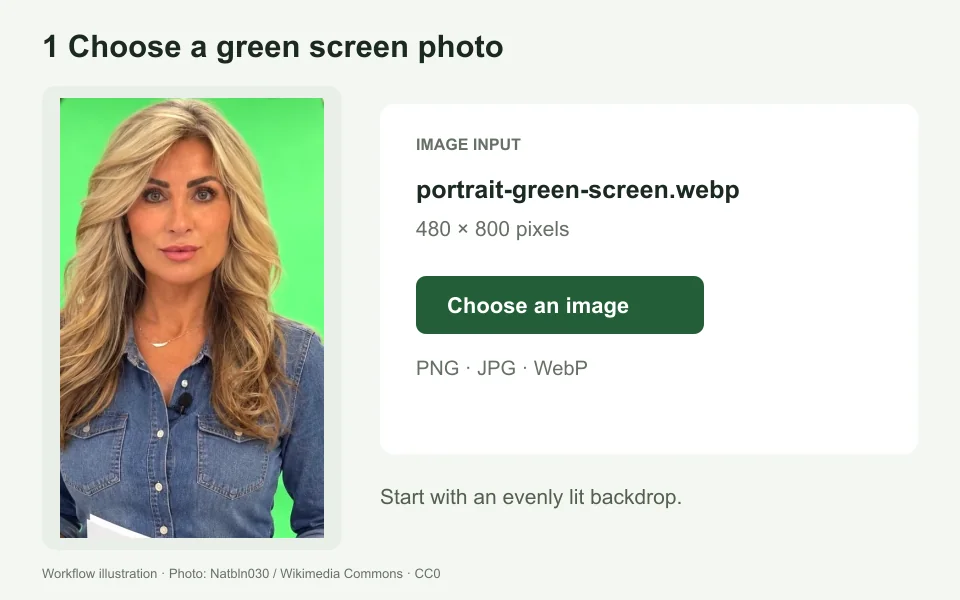
  1. Open your image

    Choose, drop or paste a JPG, PNG or WebP up to 20 MB and 12 megapixels, with no side over 6000 pixels. Start with a clear subject against a green or blue backdrop, or try the sample to explore the controls.

    Green screen remover upload step with the original portrait on a studio green backdrop
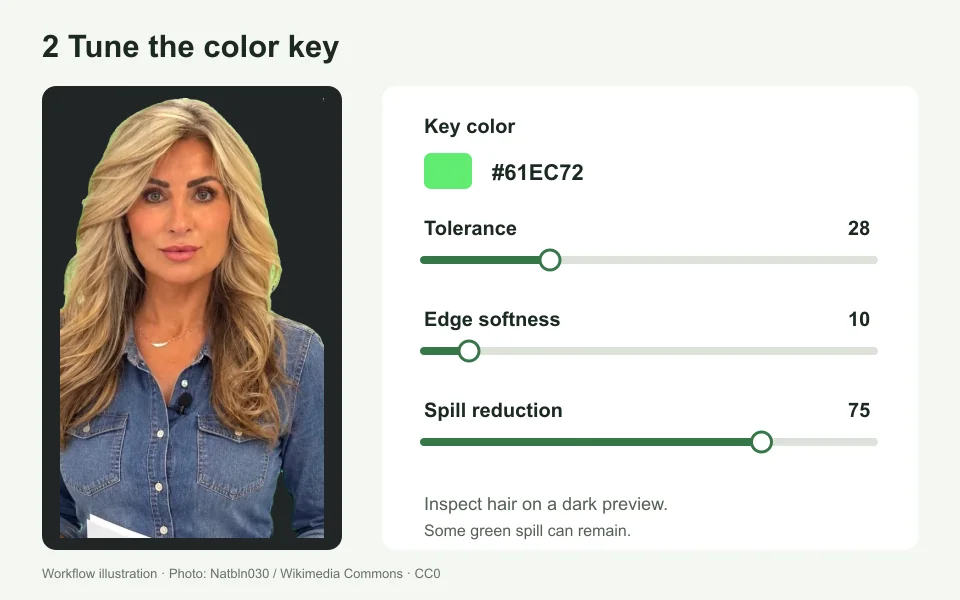
  2. Adjust the cutout

    Choose the background color, or use the color picker for a different shade. Increase tolerance to clear leftover background, then adjust edge softness and spill reduction. Compare the original and result before downloading; a stronger setting can also remove subject details.

    Green screen remover tolerance, softness and spill controls beside the actual portrait on a dark preview
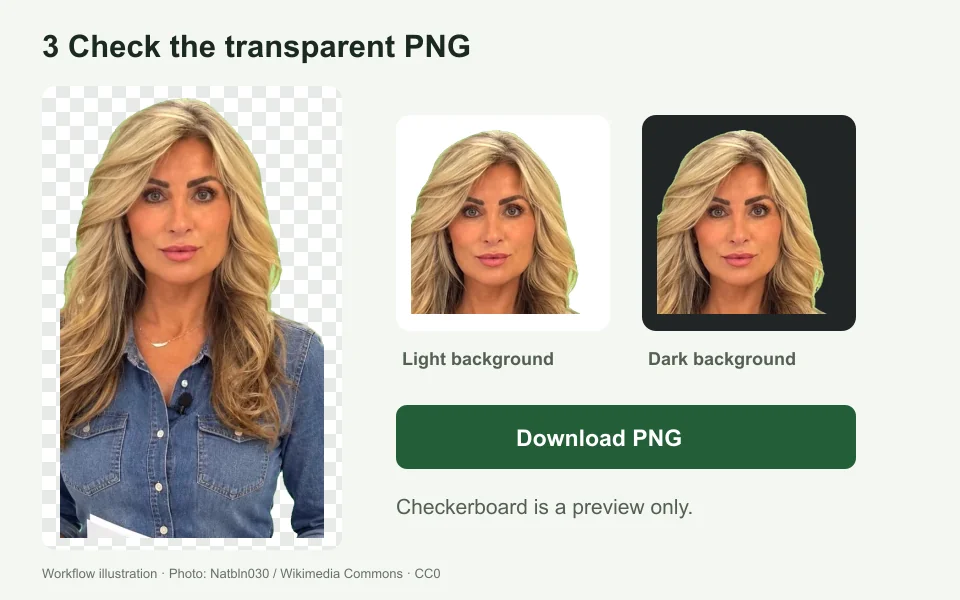
  3. Download a transparent PNG

    Check the result against light and dark preview backgrounds, especially around hair and small gaps. Save the PNG to keep transparency, then place it in your editor, presentation or product layout. Preview colors and the checkerboard are never included in the download.

    Green screen remover PNG export checked against light and dark backgrounds

Better edges start with the source image

The green screen remover uses chroma key: it makes pixels transparent according to their color. A clean, evenly lit backdrop gives it a clearer distinction between the subject and background.

Keep green clothing away from a green screen

Matching clothing, leaves and product details can disappear with the background. Lower tolerance to preserve more of the subject, or use a blue backdrop when taking the photo. Color removal cannot tell two objects of the same color apart.

Inspect hair and green reflections

Fine hair, fur, glass and motion blur mix foreground and background colors. Edge softness can smooth the transition, while spill reduction reduces green fringes. Neither control can reconstruct detail missing from the original; inspect delicate edges at a larger size.

Watch for shadows and uneven lighting

Wrinkles and dark shadows produce several background shades. A higher tolerance may clear them, but can damage similar subject colors. For future photos, light the backdrop evenly and leave space between it and the subject to reduce reflected green light.

Remove green screen from image files: PNG or JPG?

You can remove green screen from an image saved as JPG, PNG or WebP. Choose the cleanest original you have; the file you open and the transparent file you download serve different purposes.

Start with the best available original

A PNG source avoids adding JPEG compression around fine edges. JPG is still supported, but small blocks and mixed green pixels from earlier compression can leave a fringe. Converting that JPG to PNG before processing will not recover lost detail. If possible, use the original camera image rather than a screenshot or a repeatedly saved copy.

Download PNG to keep the alpha channel

The green screen remover exports PNG because JPEG cannot store transparency. PNG uses lossless compression for the processed pixels and their alpha values; it does not undo damage in the source. The interactive preview is reduced for responsiveness, while the download is processed at your original image dimensions within the supported limits.

Prepare a cutout for your next layout

Use a green screen remover to prepare a product photograph for a catalog, a portrait for a presentation, or a graphic for a thumbnail. The downloaded file contains the cutout and empty space around it. Add your chosen scene in a design editor, then match scale, light direction and any contact shadow so the subject fits. For logos, inspect small letters and enclosed spaces. For portraits, check around the ears and between strands of hair. Keep the untouched original so you can return to it if a setting removes too much.

Frequently asked questions

Is this green screen remover free?

Yes. Processing and PNG downloads are free, with no account, credits or watermark. The image is processed locally on your device.

Are my pictures uploaded to a server?

No. Choosing or pasting an image opens it in your browser for local processing. Your image file is not sent to a server by this tool.

Can I remove a blue screen or another color?

Yes. Choose blue or pick a background color. A mostly uniform backdrop works best. Detailed scenery and subjects that match the chosen color are harder to separate.

Does the downloaded image have real transparency?

Yes. The PNG contains an alpha channel. Transparent areas may appear white in some viewers; place the file over a colored background in an editor to check.

Can I remove the background from a video?

This page processes still images only. For video, use a video editor with a chroma key effect and an export format that supports transparency.

Does this use AI background removal?

It uses color-based chroma key rather than AI subject detection. For a portrait or product against a busy scene, try the separate Transparent Background Generator linked below.