
🔥LIMITED OFFER
01:58:23
GET 50% OFF

A SCENE THAT FITS YOUR NEXT IDEA

AI Background Generator

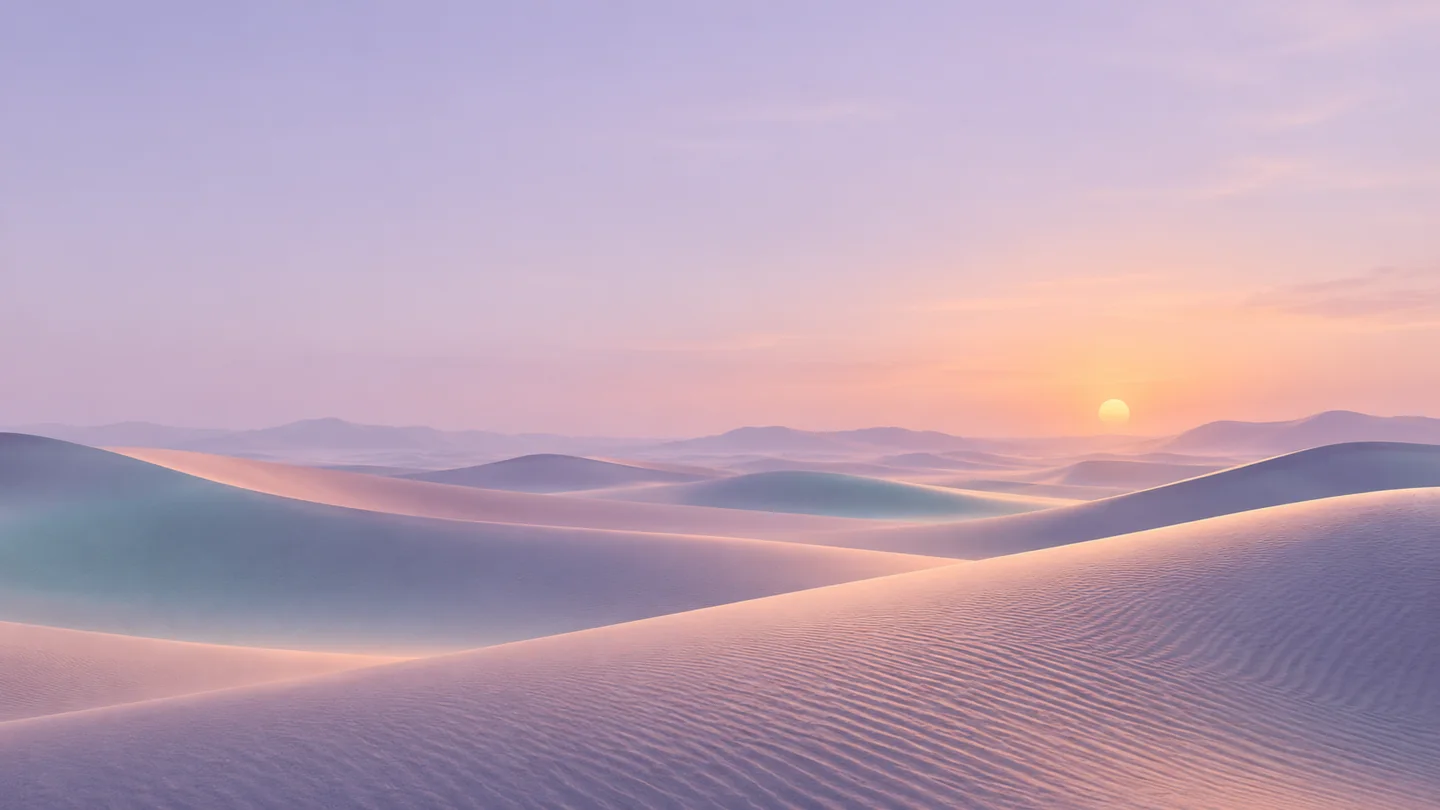
AI Background Generator pastel desert backdrop with lavender dunes, peach light and a warm sun near the horizon
Original background concept with open space for your next layout.

Make room for your message, product or next video call. Use the AI Background Generator to create custom scenes, abstract backdrops and wallpapers from a short prompt, then refine the colors, lighting and empty space for your layout.

Editable prompts · Optional reference upload · Downloadable images

Describe a scene. Leave room for your subject.

Start with GPT Image 2, a 16:9 canvas and an editable abstract-banner prompt. Choose a style below or describe your own scene, colors and lighting. No upload is needed for text-to-image. Sign in to generate; the tool shows the credit cost before you submit.

265/3000
Image History
No images yet. Start generating!

AI Background Generator examples and editable prompts

Choose a starting point that matches the job your background needs to do. Each example pairs a different visual style with a prompt you can change. Replace the setting or palette, specify where your subject will sit, and keep the most important area uncluttered.

AI Background Generator abstract banner with pale cyan flowing ribbons on the right of a warm ivory canvas

Abstract banner

A light background for landing pages, newsletter headers and announcements. Put the main detail at one edge and reserve the opposite side for a headline. Add the actual text later in your design tool so it stays sharp and easy to revise.

Generate an abstract website banner background: warm ivory, pale cyan flowing ribbons along the right edge, soft diffused light, subtle depth, generous empty space across the left half for later text, wide 16:9 composition, no people, no objects, no text, no logos.
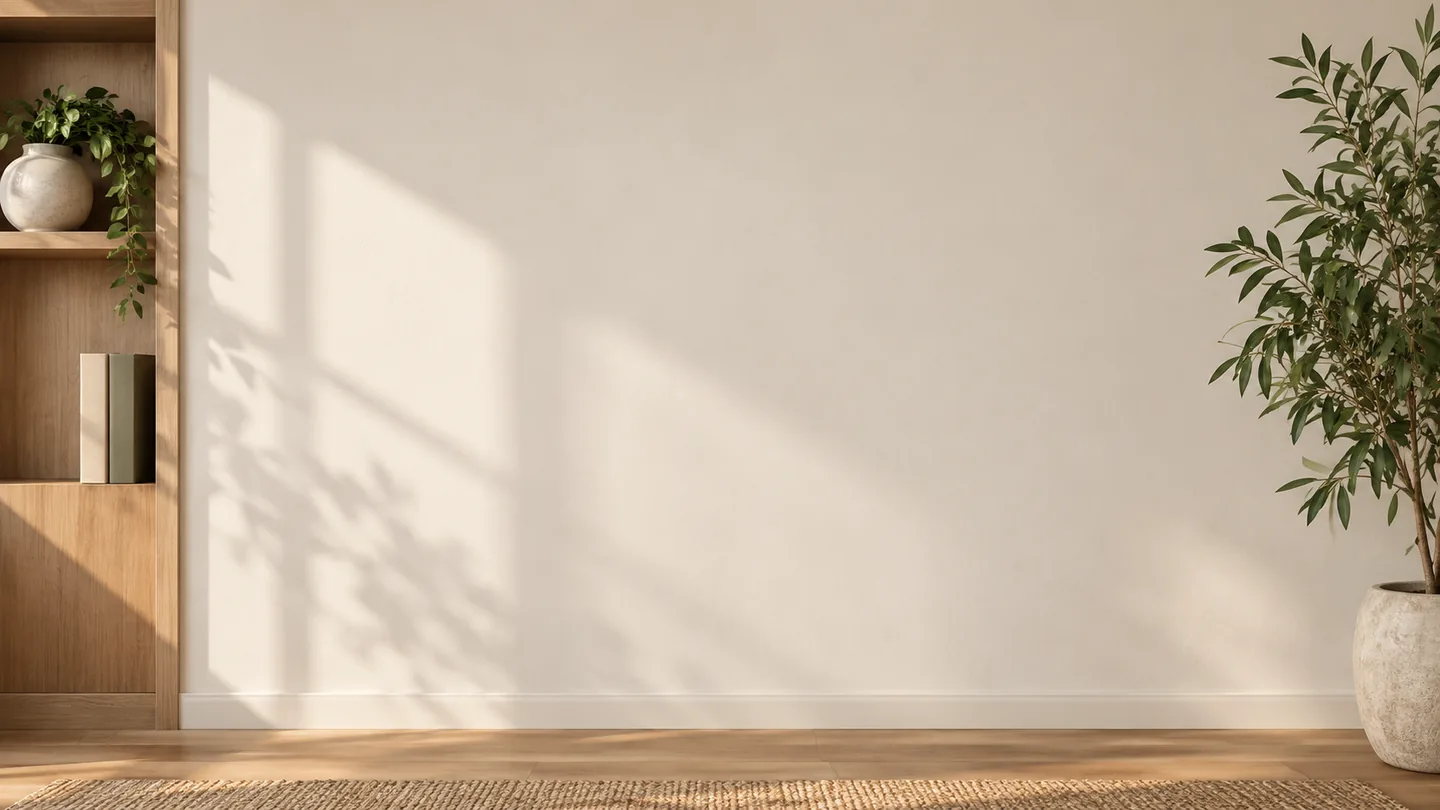

AI Background Generator neutral meeting-room wall with a wooden alcove on the left and a plant on the right

Meeting room

A believable room wall for video meetings, interviews or presentations. Leave the center quiet so your face remains the focus. Keep shelves and plants at the edges, then check your camera crop and hair edges in the meeting app before using it.

Generate a realistic professional video-call background: warm off-white plaster wall, a small wood alcove at far left, one plant at far right, soft daylight from the left, uncluttered central wall, eye-level view, wide 16:9, no desks, chairs, people, text or logos.

AI Background Generator empty cream product studio with a round stone plinth and soft directional shadows

Product studio

An empty stage for a product visual or campaign layout. Choose a light direction that matches the product photograph you plan to add. The backdrop alone does not create a finished composite: the product still needs a convincing contact shadow and consistent perspective.

Generate an empty product-photography backdrop: warm cream seamless wall and surface, one low round travertine plinth in the lower third, broad daylight from upper left, soft shadows to the right, generous calm space above, wide 16:9, no product, packaging, people, text or logos.

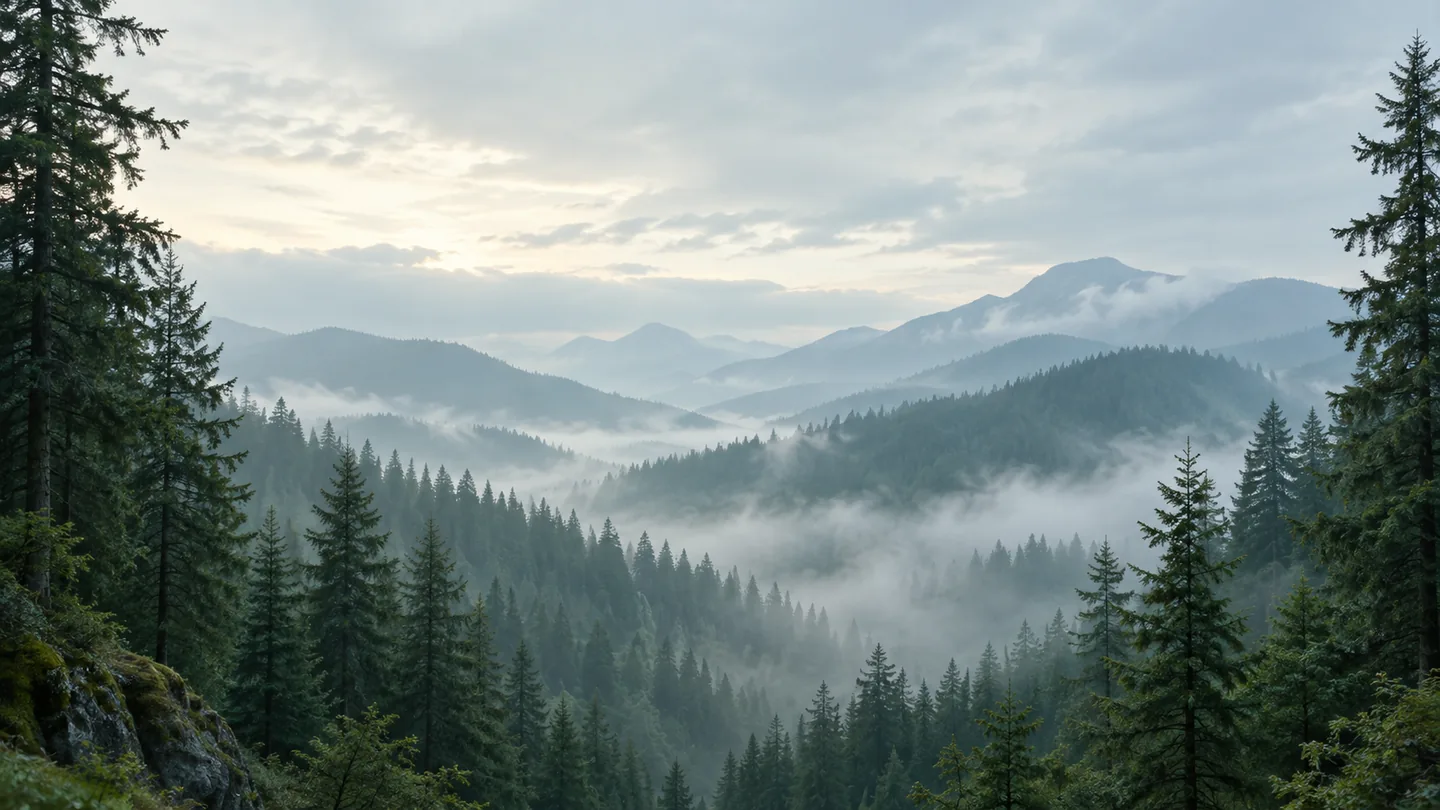
AI Background Generator misty teal forest with layered evergreen ridgelines and a clear pale sky

Misty forest

A calm landscape for desktop wallpaper, presentation slides or nature-themed content. Keep the horizon low and foliage near the edges when you need space for icons or titles. Use a small set of colors rather than asking for every season and weather effect at once.

Generate a serene forest background: evergreen trees framing both edges, low distant ridgelines fading into blue-green morning mist, open softly lit sky in the upper center, restrained teal palette, gentle contrast, wide 16:9 composition, no buildings, people, animals, text or logos.

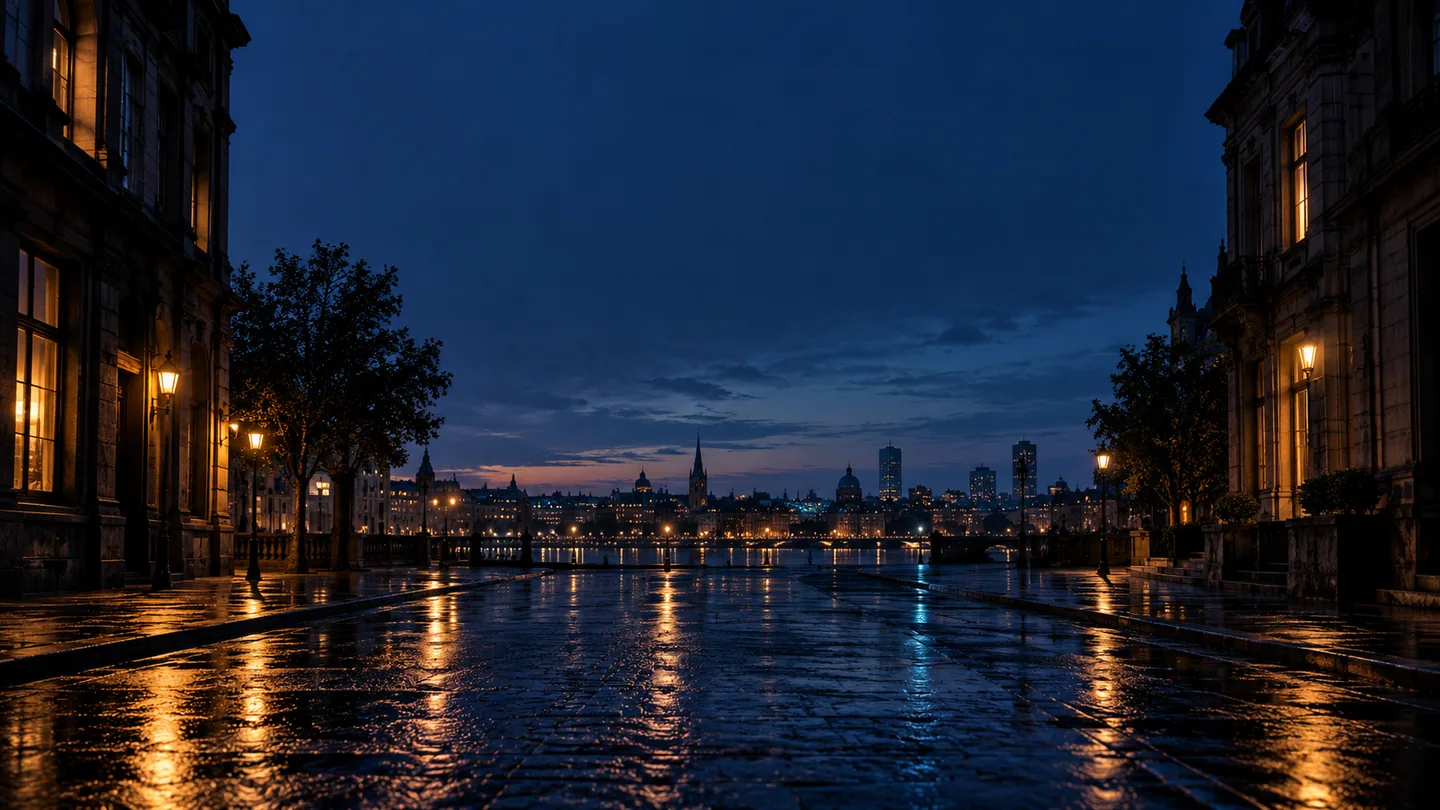
AI Background Generator empty city street at blue hour with amber windows and reflections on wet pavement

Dusk city

A cinematic setting for a stream overlay, music cover layout or story title. Keep bright details away from your text area and use a consistent perspective. Ask for unmarked buildings instead of elaborate signage, then check the downloaded image for invented letters or symbols.

Generate a cinematic blue-hour city background: an empty rain-damp street, dark buildings framing the edges, distant low skyline, subtle amber window light and cyan reflections, spacious navy sky for later titles, believable perspective, wide 16:9, no traffic, people, readable signs, logos or text.

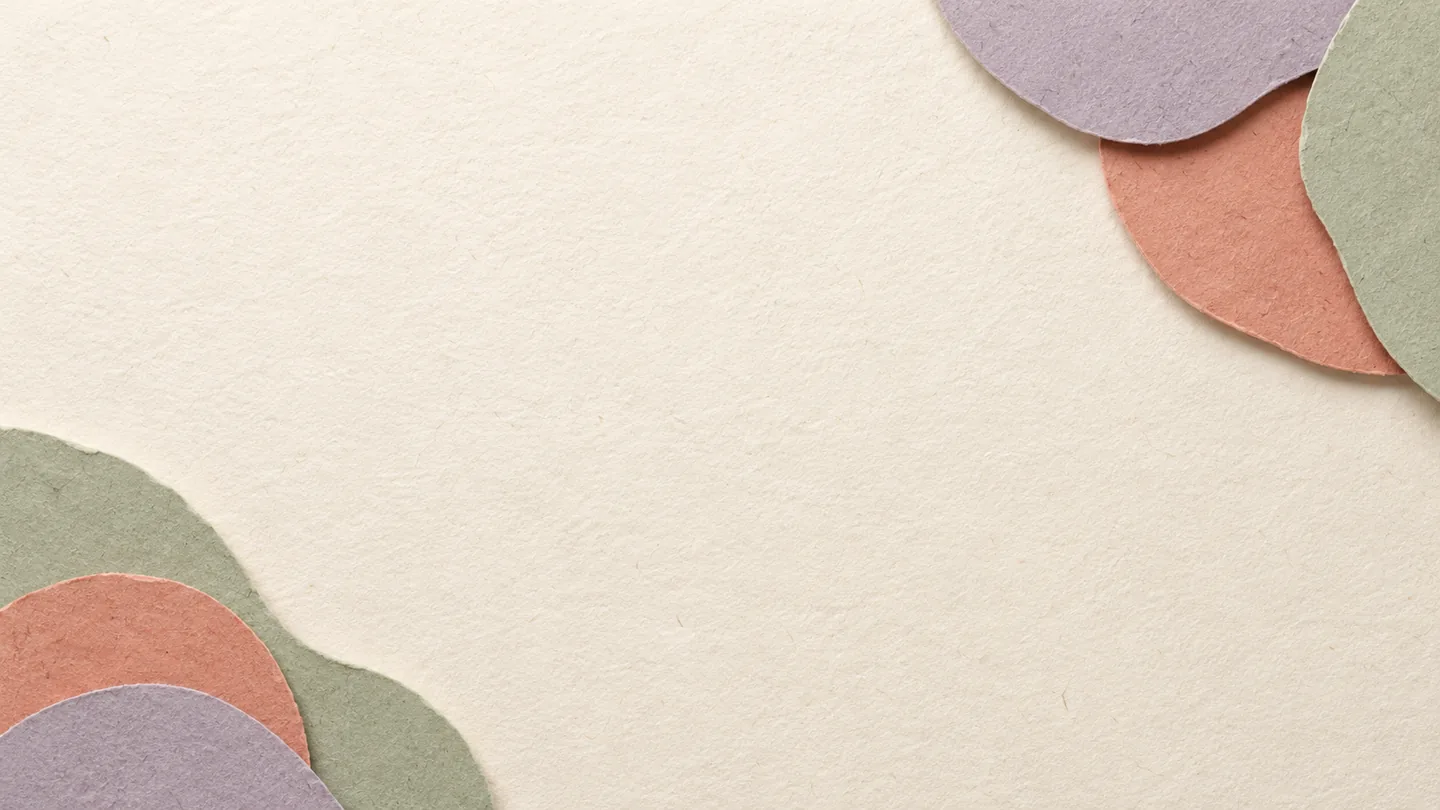
AI Background Generator ivory paper background with lavender, coral and sage cut-paper shapes at the corners

Paper collage

A tactile background for social cards, invitations and editorial layouts. Keep cut-paper shapes away from the center so a title or photograph can sit comfortably on top. A few restrained colors and subtle shadows create depth without filling the entire canvas with decoration.

Generate a tactile paper background: warm ivory paper grain, rounded cut-paper shapes in dusty lavender, muted coral and pale sage at the upper-right and lower-left corners, soft contact shadows, clear central area for later content, overhead view, wide 16:9, no lettering, symbols or logos.

Original illustrative background examples. Generated results vary by model and prompt; these samples do not promise an identical output.

Design the space around your content

The AI Background Generator works best with a clear composition brief. A backdrop should support what you place in front of it. Decide where the person, product or headline will sit before adding details, then describe the areas that should remain quiet.

Reserve usable empty space

Name the area you need: an open left half for a headline, a clear center for a meeting speaker, or a simple lower surface for a product. Keep strong shapes at the edges. Test with a rough text or subject overlay before choosing the final background.

Match light and perspective

Specify the light source, softness and camera height together. A straight-on wall works differently from an overhead paper layout. When adding a real product or portrait, compare its shadow direction and color temperature with the scene so it feels grounded instead of pasted on.

Control the amount of detail

Use a restrained palette and one main visual idea. Ask for no lettering, logos or foreground people if they are not needed. Inspect corners, furniture, reflections and repeated patterns at full size. Change one part of the prompt at a time when an image becomes too busy.

How to use the AI Background Generator

Build a useful background in three passes: describe its purpose, generate a small set of directions, and finish the image in the layout where it will be used. Keep the prompt editable so the next variation has a clear reason to exist.

1. Write a composition brief

Start with the destination: a website banner, video-call wall, product scene or wallpaper. Add the setting, two or three colors, light direction and the area that must stay empty. The presets provide complete examples; edit the details instead of stacking unrelated style words.

2. Generate and compare

The page starts in text-to-image with GPT Image 2, 16:9, PNG and 1K. Change the model, ratio or supported resolution if your layout needs something else. Compare the structure before chasing fine details. If using your own reference, check that important subjects and edges still look correct.

3. Download and finish

Download the result, then crop it for the final layout and add your actual text, logo or product in an editor. Check readability and the subject placement at the size viewers will see. For meetings, upload the image in your conferencing app and test its crop with your camera on.

AI Background Generator questions

What can I make with the AI Background Generator?

You can generate standalone image backgrounds for website banners, social layouts, product scenes, virtual meetings and wallpapers. Describe the scene and its intended use, choose a model and generate. The six presets cover different starting points; you can change their colors, materials and composition.

Does the AI Background Generator replace a photo background?

The default workflow creates a new standalone image from text. You can switch to image-to-image and upload your own reference to request a scene change, but this page does not add a dedicated background-removal or masking workflow. Generative edits may also change the foreground, so review faces, products, lettering and edges carefully.

Do I need to upload an image?

No upload is needed for the default text-to-image mode. Start with a preset or describe your scene directly. Use image-to-image when a room, photo or visual reference helps communicate your idea. Only upload images you have permission to use, and explain both what should change and what should remain.

Can I use the image as a meeting background?

You can download a still image and add it through the background settings of your meeting application. Keep the center clear, use believable eye-level perspective and test the crop. The generator does not control the app’s subject cutout, hair-edge quality or camera lighting, and this page creates still images rather than animated meeting backgrounds.

What size and format will I get?

The defaults are a 16:9 aspect ratio, PNG output and 1K resolution. Available ratios, resolutions and formats depend on the selected model and are shown in the tool. Confirm the pixel dimensions of the actual download before using it for a large display or print layout. Cropping to a different shape can remove important details.

Will the background preserve my product exactly?

An empty product-studio background contains no product. Add your original product photograph in an editor when exact labels, packaging and shape matter. If you use image-to-image instead, inspect the edited subject closely; generative results can alter details. Match perspective, contact shadows and light direction when making a composite.

Is generation free, and can I use the result commercially?

Sign in to generate; the chosen model and settings determine the credit cost shown before submission. Commercial use depends on the relevant service terms and any rights in your inputs or generated content. Review the downloaded image for unintended logos or protected material before including it in a campaign.

Give your idea the right setting

Choose a style, describe the empty space you need and create your next backdrop with the AI Background Generator.

Start with a background prompt