
Make room for a headline
Turn a close crop into a horizontal header, presentation slide or video thumbnail. Keep the subject to one side when you want a larger background area for text. Add your headline afterward in your design editor.
YOUR IMAGE. A BIGGER CANVAS.
Give your photo room to breathe. Our AI Image Expander generates beyond the edges, so you can turn a tight crop into a banner, story or new layout while keeping the original image in place.
Drop an image or click to upload
JPG, PNG or WebP · up to 4 MB
256–2048 px per side · max 2 MP
Sign in to generate. Your images stay out of the public gallery.
Example
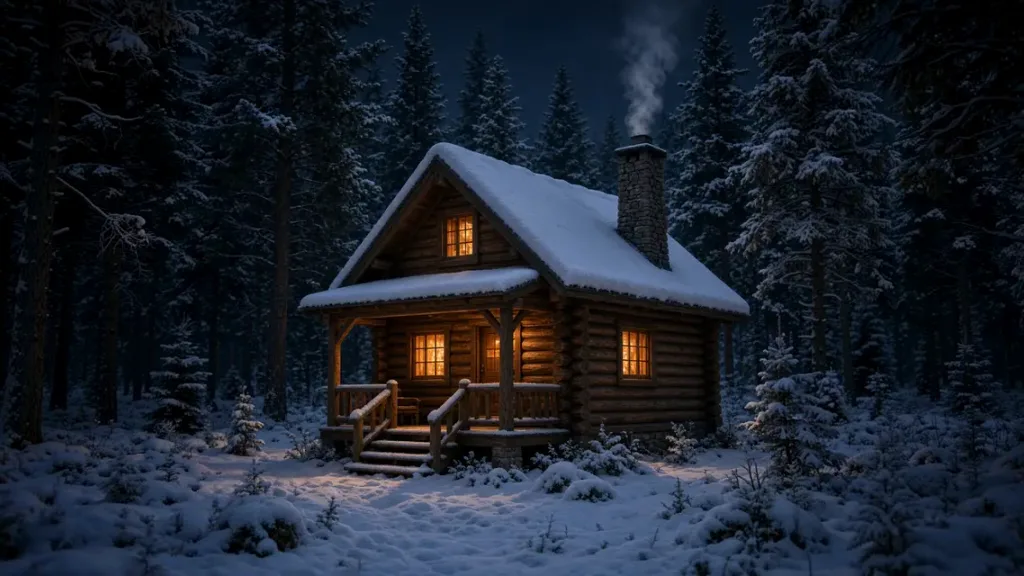
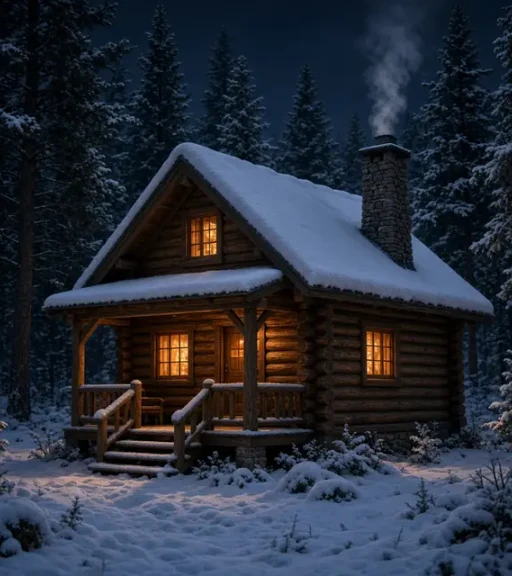
Drag to compare the original canvas with the expanded scene.
Keep the original
Pixels stay in place
Make more room
Generate beyond the edges
Download PNG
Ready for your next design
ONE IMAGE. MORE PLACES TO USE IT.
Start with the photo you want to keep, then choose where it needs to fit. A preset changes the surrounding canvas, while the position controls determine which edges gain room. Use Custom canvas when you need space on one particular side.
Turn a close crop into a horizontal header, presentation slide or video thumbnail. Keep the subject to one side when you want a larger background area for text. Add your headline afterward in your design editor.
Extend a landscape or square image into a tall composition for a phone screen. Preview the new space above and below, and check that trees, buildings and other long lines continue naturally.
Fit a rectangular photo into a square post without cutting off its edges. A small extension can leave the whole original visible and give a tight subject a little breathing room.
Adapt a photo to a portrait feed layout. Leave room around a product, person or scene, then inspect any new shadows and background details before using the result in a campaign.
REAL EXPANSION. ORIGINAL KEPT.
This AI Image Expander example starts with a square cabin image and adds forest on both sides. The cabin, existing trees and original snow remain in their original positions. Only the added surroundings are new; they are an imagined continuation of the scene.
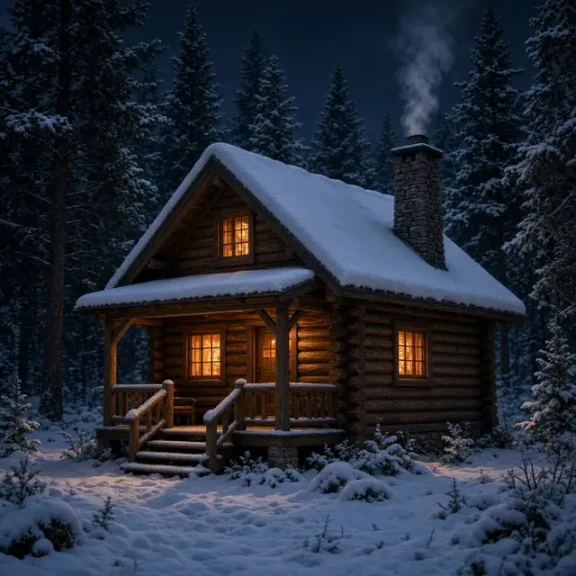
Original · 1:1
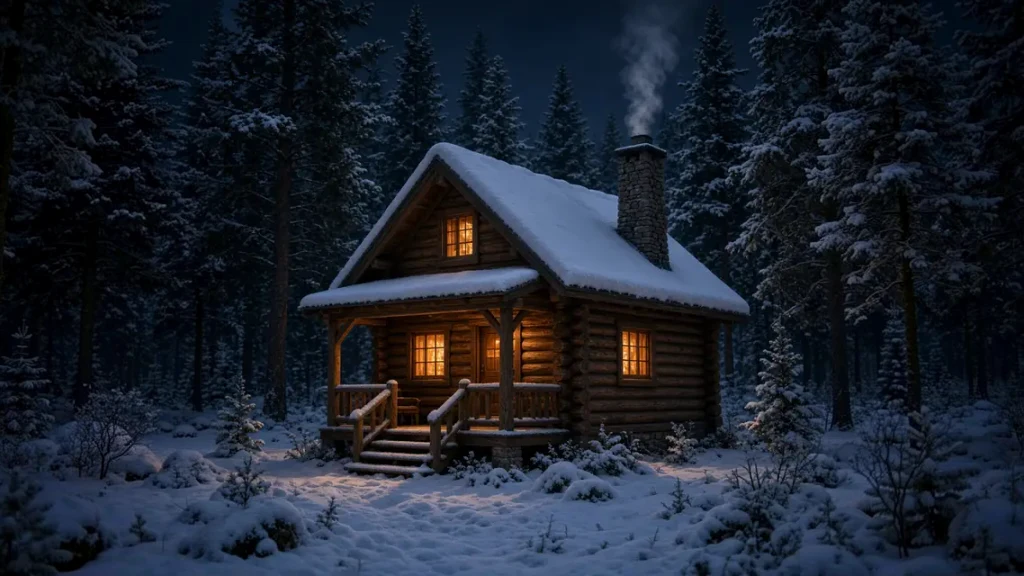
Expanded · 16:9
FROM TIGHT CROP TO FINISHED CANVAS
Upload a clear JPG, PNG or WebP, or try the cabin sample. You can choose an image and explore canvas options before signing in. The original provides the colors, lighting and visual context for the added background.
Choose a ratio or enter the pixels to add at each edge. Use the preview to check where the original will sit. Keeping it left adds room to the right; keeping it at the top adds room below. Nothing is stretched to fill the gap.
Check the credit cost on the button, sign in and expand. Drag the comparison slider to inspect the added space. Review transitions at the original edges, then download the completed PNG for your layout.
A LITTLE ROOM CAN BE ENOUGH
A wider canvas is useful only when the new scene makes visual sense. Start with a modest amount of room and inspect the result at a useful viewing size before placing text or publishing it.
Sky, snow, studio backdrops and other simple surroundings can be easier to continue than detailed architecture or crowded scenes. New areas may contain invented objects. Look closely when an edge cuts through a person or product.
Follow horizons, tabletop edges, shadows and repeating patterns across the boundary. Preserving the original does not guarantee a seamless join. If an extension looks distracting, try a smaller margin or a different position.
Add exact lettering, logos and layout elements in your design editor after expansion. Keep your source file, and check the final crop on the platform where it will appear. Generated scenery is a creative addition, not evidence of what was outside the photo.
These solve different problems. Choose the operation that matches what is missing from your image before you spend credits.
Outpainting generates new surroundings outside the existing edges. Choose it when you need a wider composition, a different aspect ratio or space beside a subject.
An upscaler increases the pixel dimensions of the same composition. It is useful for a larger version of an image, but it does not create the missing scene beyond its borders.
A resizer changes dimensions, and a crop removes content to fit a frame. They work for simple formatting; an expansion is useful when you want to keep the complete original visible.
BEFORE YOU EXPAND
It adds a larger canvas around an uploaded image and generates content in the new space. This is also called outpainting, image extension or uncropping. It changes the composition around your original instead of simply making the same image larger.
Yes. Both names describe AI outpainting: adding generated content beyond a photo's existing edges. Use the ratio presets to expand image borders for a new layout, or choose Custom canvas to add space to individual edges. This changes the canvas rather than just increasing resolution.
The prepared source image is placed back into the completed canvas at its chosen position. It is not resized or redrawn to fit. Preparing an upload applies its camera orientation and converts it to sRGB; transparent areas are placed on white. Newly generated pixels outside that region still need review.
Yes. Custom canvas lets you set separate left, right, top and bottom margins. Each edge accepts up to 2,000 added pixels, subject to the overall canvas limit. Ratio presets also let you keep the original centered or against one side.
Use a still JPG, PNG or WebP up to 4 MB. Each source side must be 256–2,048 pixels, with no more than 2 million pixels in total. The expanded canvas can contain up to 4 million pixels and be at most 4,096 pixels on each side. Large originals are rejected rather than silently reduced.
You can upload locally, try the sample and preview different canvases before signing in. Generation requires an account and credits, starting at 5 credits for a small image and canvas. Larger canvases cost more. The button shows the cost before generation, and failed tasks return the charged credits.
No. It creates a plausible continuation from the visual context that remains in the image. The result may add details that never existed. Use it for creative layouts, and keep the unedited source whenever an accurate record of the original scene matters.
Start with your photo, choose the canvas and see what can grow beyond its edges.
Expand an image