YOUR IMAGE, A NEW DIRECTION

Image to Image

Use Image to Image to transform a photo, sketch or illustration into a new visual. Choose watercolor, pencil, clay or a night scene, or describe your own change while keeping the source as a reference.

Compare your reference with a new look

1. Upload

Drop an image or click to uploadOr paste an image here

2. Choose a transformation

3. Generate

Example
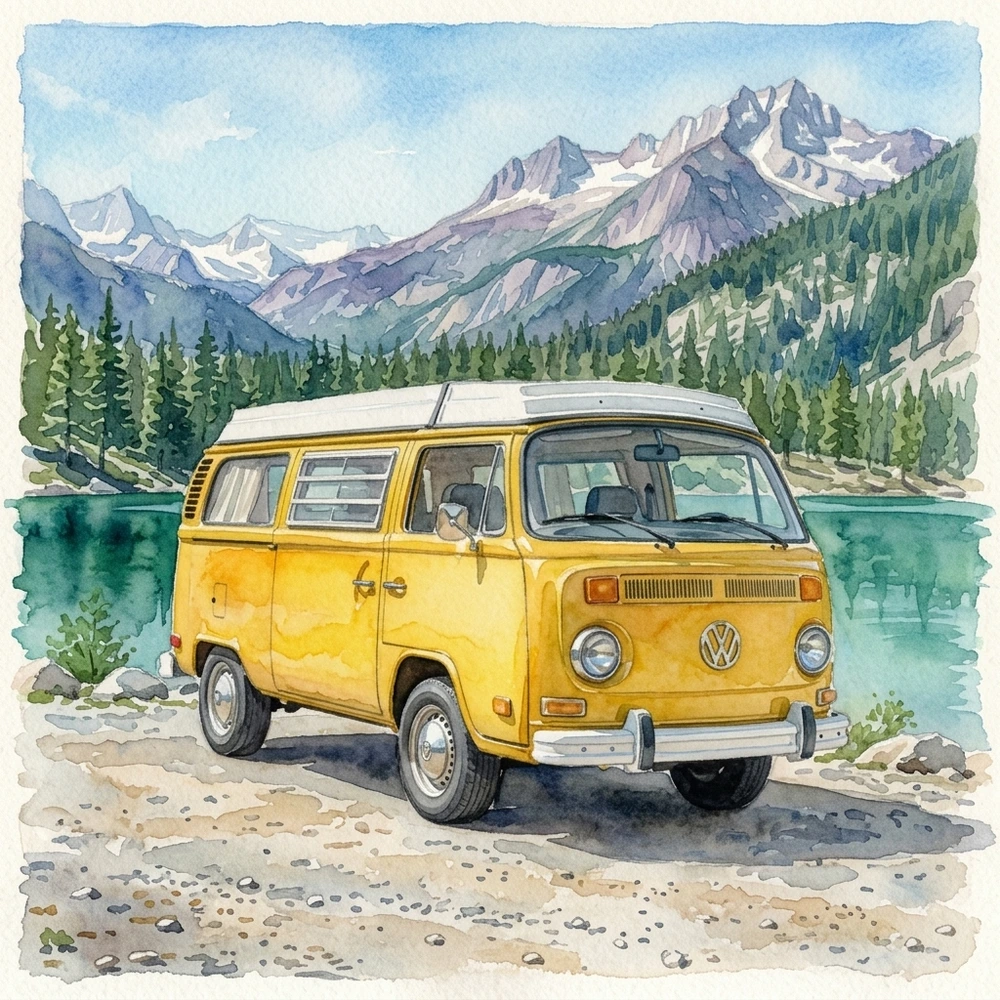
Painted lakeside camper scene used as the watercolor example result
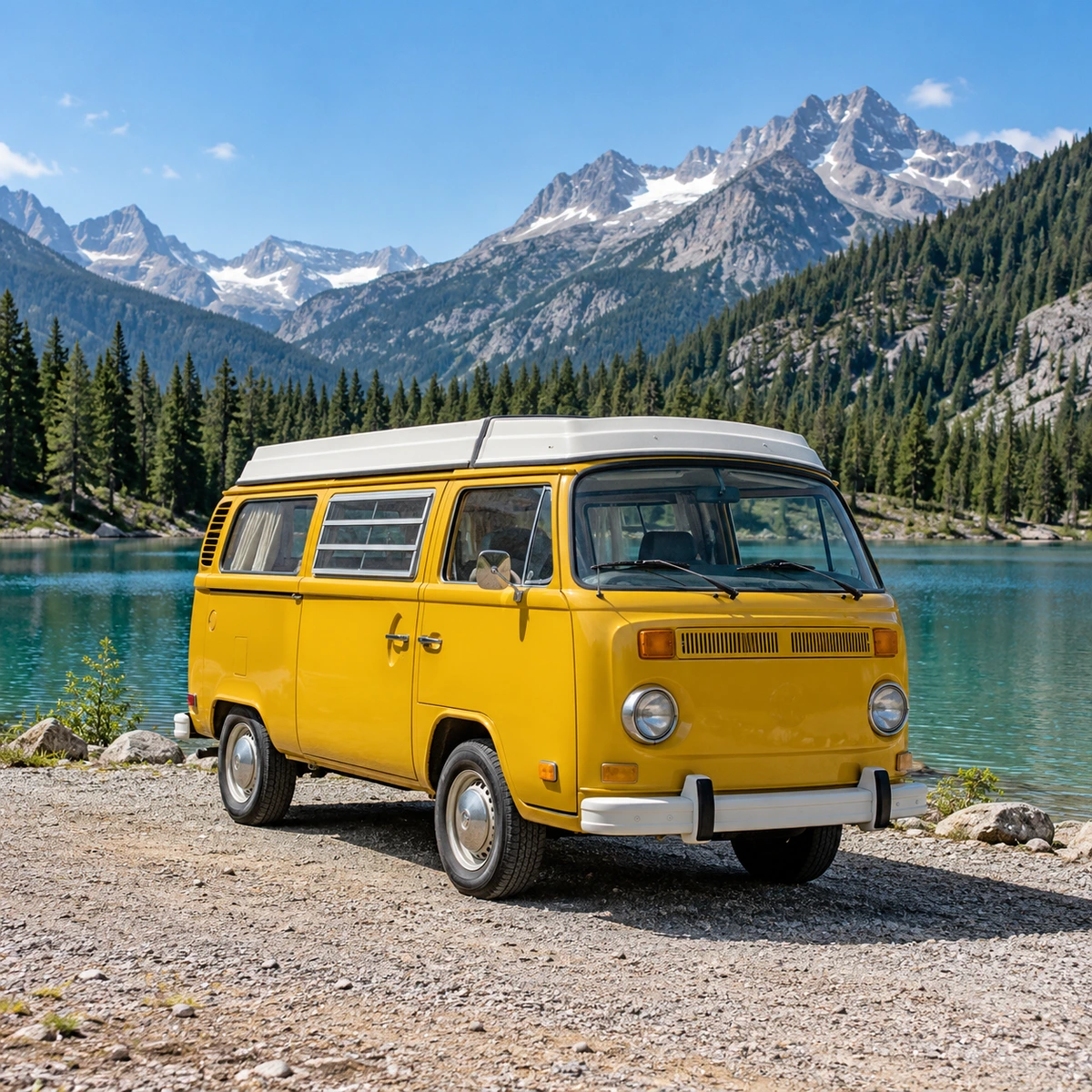
Yellow camper van beside an alpine lake with pine trees and mountains in daylight
Original
AI image

Photo to watercolor

Your transformed image will replace this example

ORIGINAL / AI IMAGE

See a reference become a different visual

These Image to Image pairs use this page’s preset instructions on the originals beside them. Compare the requested transformation and the details that remain; a recognizable subject does not mean every feature was preserved.

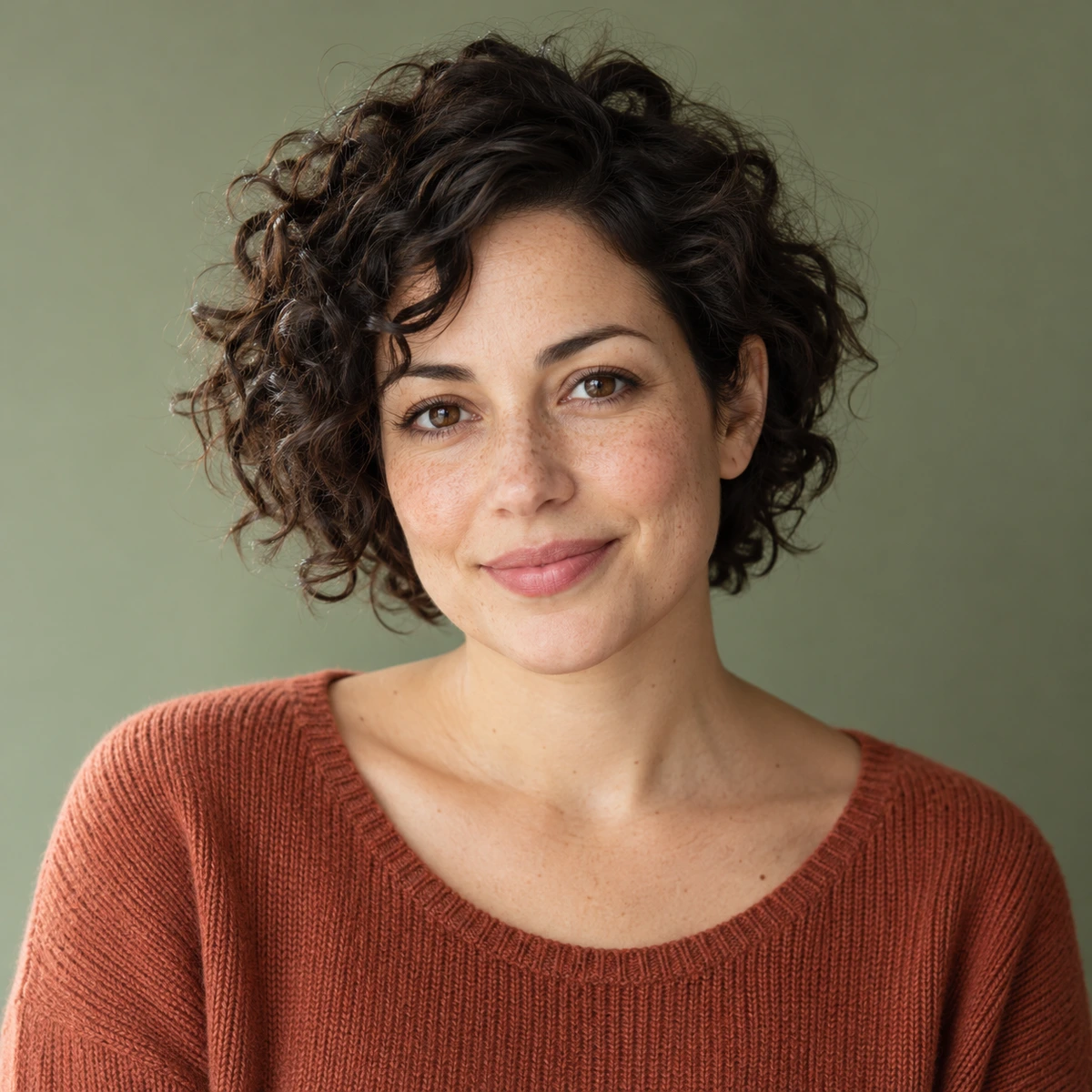
Fictional adult portrait used as a reference for a painted imageORIGINAL
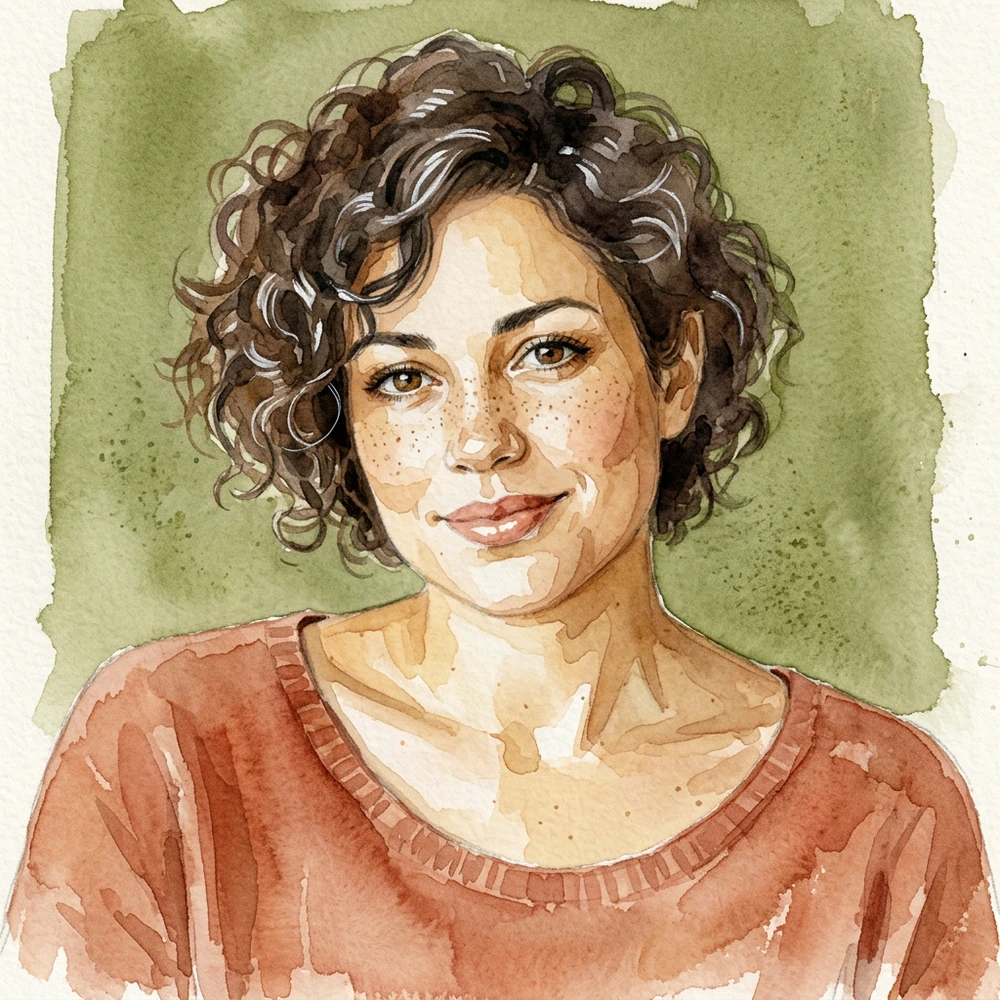
Portrait reinterpreted with watercolor pigment and a lightly textured paper surfaceAI IMAGE

A portrait, painted in watercolor

Reinterpret a portrait with transparent washes, painted edges and paper texture. The source guides the face and pose, but likeness and fine facial details can change. Review the face and hair before using a stylized portrait as a profile image.
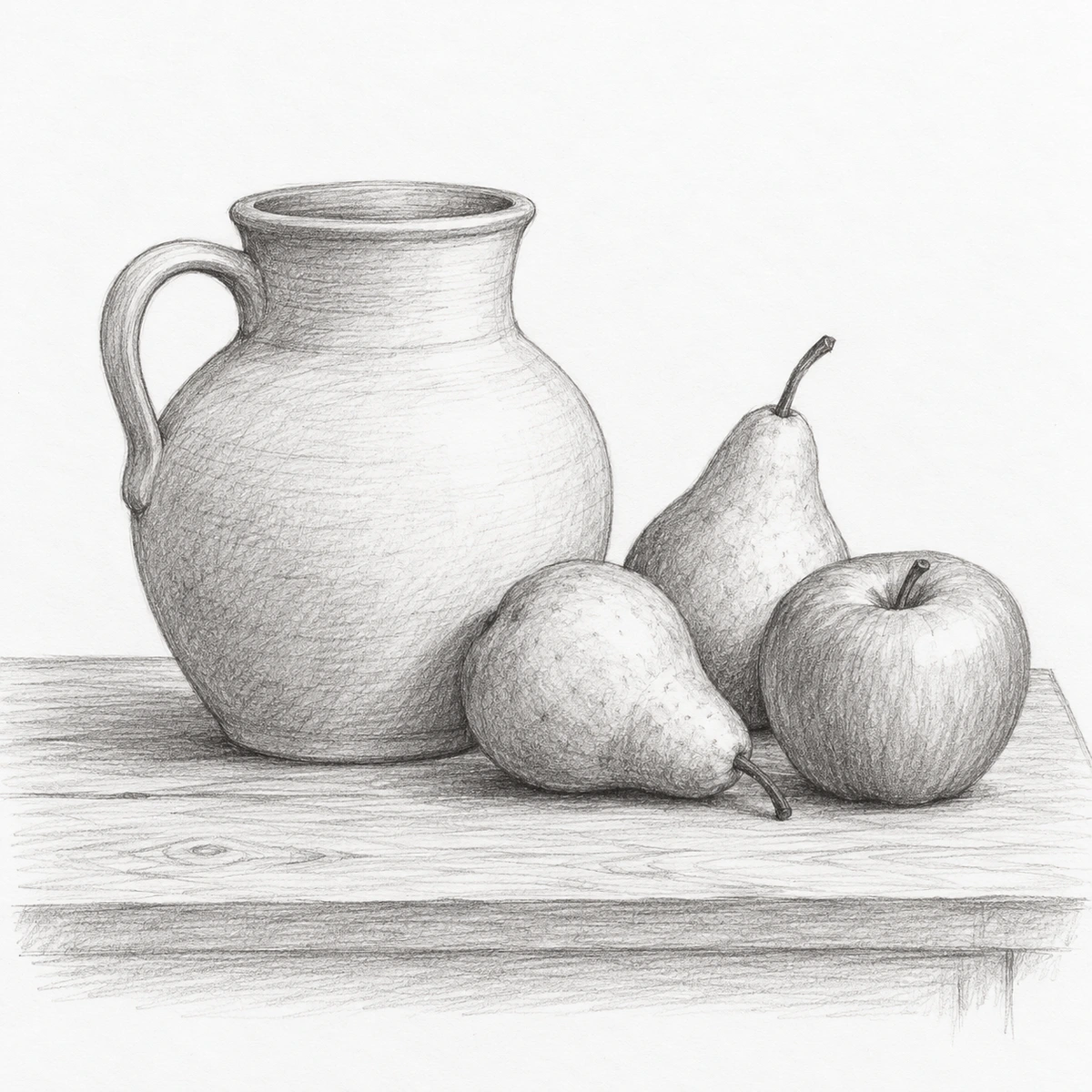
Pencil still-life drawing with a ceramic jug, two pears and an apple on a tableORIGINAL
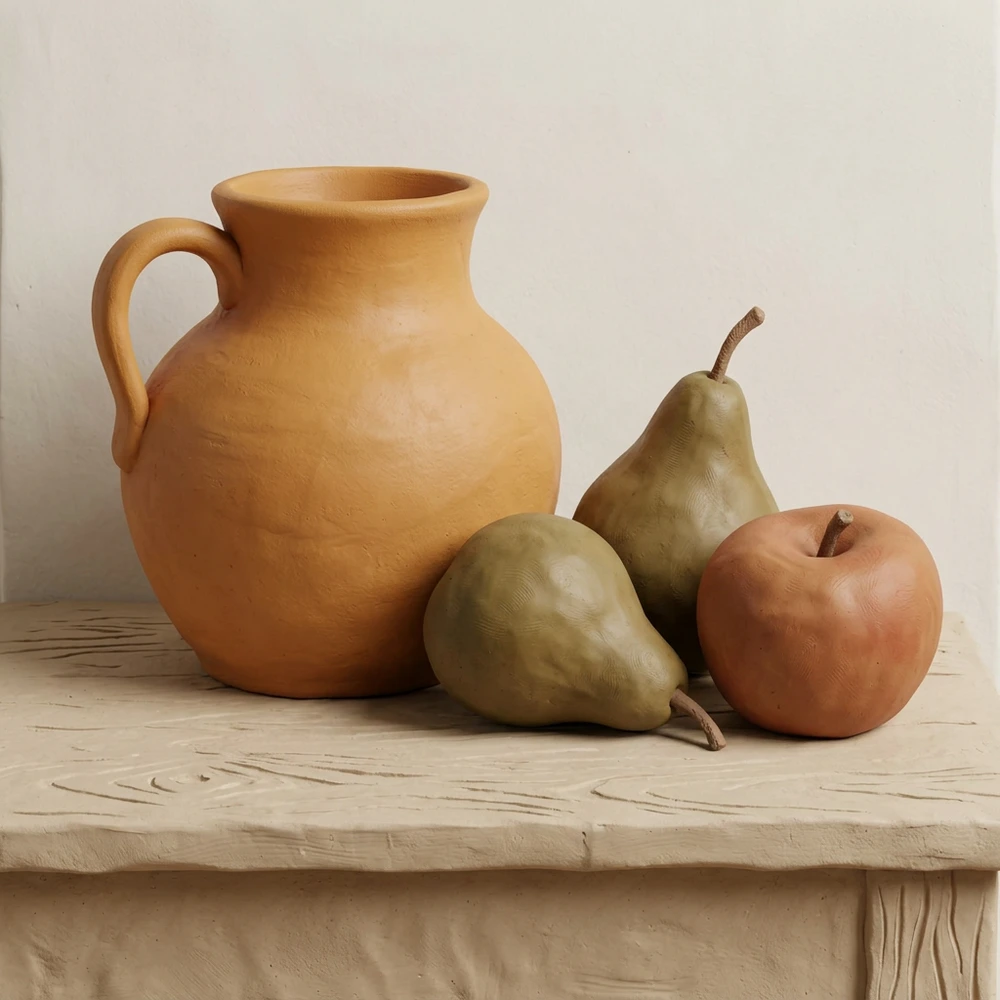
Still-life drawing transformed into a dimensional clay illustrationAI IMAGE

A sketch becomes a clay concept

Use a simple still-life drawing to guide a dimensional clay interpretation. Check whether the main shapes and object arrangement survived the change of medium. A sketch gives the AI a visual starting point; it does not define exact measurements or materials.

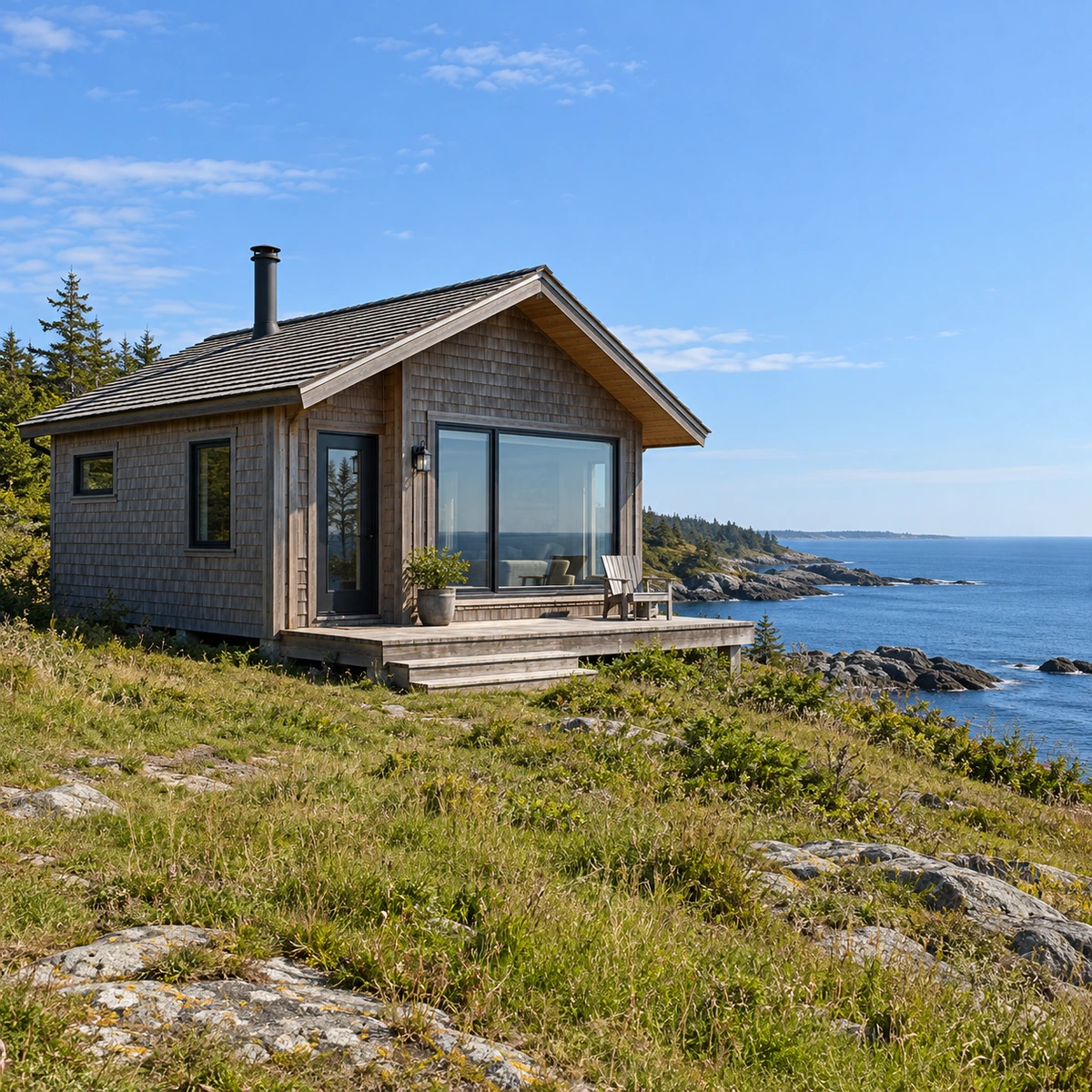
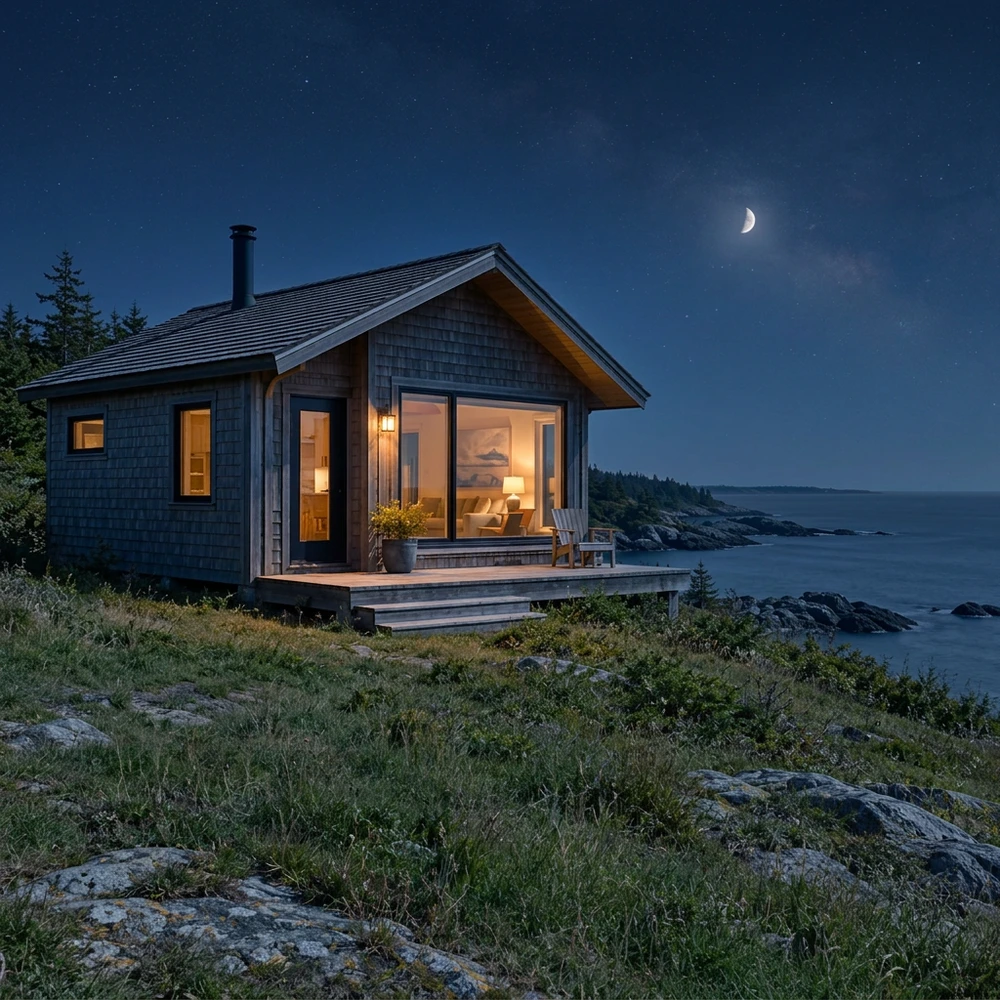
Daylight exterior scene before a nighttime lighting transformationORIGINAL
Exterior scene transformed with dark blue nighttime ambience and warm lightAI IMAGE

The same setting, after dark

Explore a nighttime version of a daylight scene. Look at the sky, existing lights and shadow direction together, rather than judging darkness alone. Small structures, foliage and textures can drift even when the overall camera view remains recognizable.

ONE REFERENCE, THREE STEPS

How to use Image to Image in three steps

Start from a source you want the new image to follow. A photo gives detail and lighting cues; a sketch provides shapes and layout. Choose a clear direction before asking the AI to transform it.

01

Upload a useful reference

Drop, paste or choose a JPG, PNG or WebP, or try the sample first. A sharp, uncluttered image makes its subjects easier to identify. Keep the original file so you can compare changes and start another attempt from the same reference.

02

Choose a look or describe a change

Start with a preset for watercolor, pencil, clay or nighttime. Choose Custom for another edit and name both the change and the details that should remain. “Make this a snowy evening; keep the cabin and camera angle” gives a clearer direction than “make it better.”

03

Generate, compare and download

Check the button’s credit cost, then generate one image. Drag the comparison slider across the source and result. Review the subject, composition and rebuilt details before downloading. If the change is too broad, try again from the original with a more focused instruction.

GIVE THE REFERENCE A CLEAR JOB

Describe the change and the details worth keeping

Image to Image instructions guide a generative interpretation. They do not lock the original pixels. Use a clear source and a focused request, then inspect the result where accuracy matters most.

Name the anchors in the source

Identify the objects or people that make the image recognizable: the yellow camper, the vase, the roofline or the person’s pose. Add the camera view or object arrangement when those matter. A short instruction about what should stay is more useful than a long list of unrelated styling words.

Ask for one coherent transformation

A medium change, a lighting change and a background replacement are different requests. Start with one, inspect the result, then decide what else you need. In Custom, describe the desired outcome in ordinary language. There is no need to invent model settings or paste a complex workflow.

Check likeness, text, color and texture

Style can change more than the surface. Faces, hands, product shapes, lettering, small markings and material texture may drift. A believable image can still be inaccurate. For brand artwork or product photography, compare those details closely and keep the original available for a precise manual edit.

Retry from the original

Repeatedly transforming an already edited image can compound small changes. Return to the source and narrow the request when the result loses an important detail. Each generation or retry has its own credit cost. Keep a useful version before exploring a substantially different direction.

Questions about transforming an existing image

What is Image to Image AI?

It generates a new image using an uploaded photo, drawing or illustration as a visual reference, together with an instruction. You can reinterpret the look or request a change while the source guides the subjects and composition. The result is a new AI image, so unrequested details can also change.

How is Image to Image different from text to image?

Text-only generation begins with a written description. Here, an existing visual supplies shapes, placement and scene information. Your instruction describes how the result should differ from that reference. You need a source image for this page; it is not a blank-canvas text generator.

What should I write in Custom?

Give Image to Image one clear change and name the details to keep. For example: “Turn this courtyard into a rainy evening; keep the bicycle, buildings and camera angle.” Concrete objects and visible positions are easier to judge than a vague request for a better image. Preservation is still a goal rather than a guarantee.

Can I use a sketch or illustration instead of a photo?

Yes. A clear sketch can guide a different rendering, and an illustration can be reinterpreted in another medium. The AI may invent detail that the source does not define. A drawn outline does not supply exact geometry, hidden surfaces or a production-ready 3D model.

Will the original face, product or layout stay exactly the same?

Exact preservation is not guaranteed. The source guides the output, but faces, colors, text, materials and composition may change. Use a sharp reference, name the important anchors and compare carefully. If you need a pixel-precise selection or unchanged product layer, use an editor that provides those controls.

Is there a strength slider or brush selection?

This tool provides transformation presets and a Custom instruction. It does not expose denoise strength, a seed, a brush or a mask editor. Use the prompt to state a focused change; choose a manual editor when you need direct control over a specific region or individual pixels.

How much does a result or retry cost, and what size is it?

Each generated image uses 5 credits, and a retry is another generation at the same cost. This page uses the 1K output class, automatic aspect ratio and PNG output. Returned dimensions can differ from your source; the original resolution and exact framing are not guaranteed.

Image to Image starts with what you already have.

Upload a reference, choose one clear transformation and compare the result. Keep the source as your starting point for the next idea.

Transform your image