
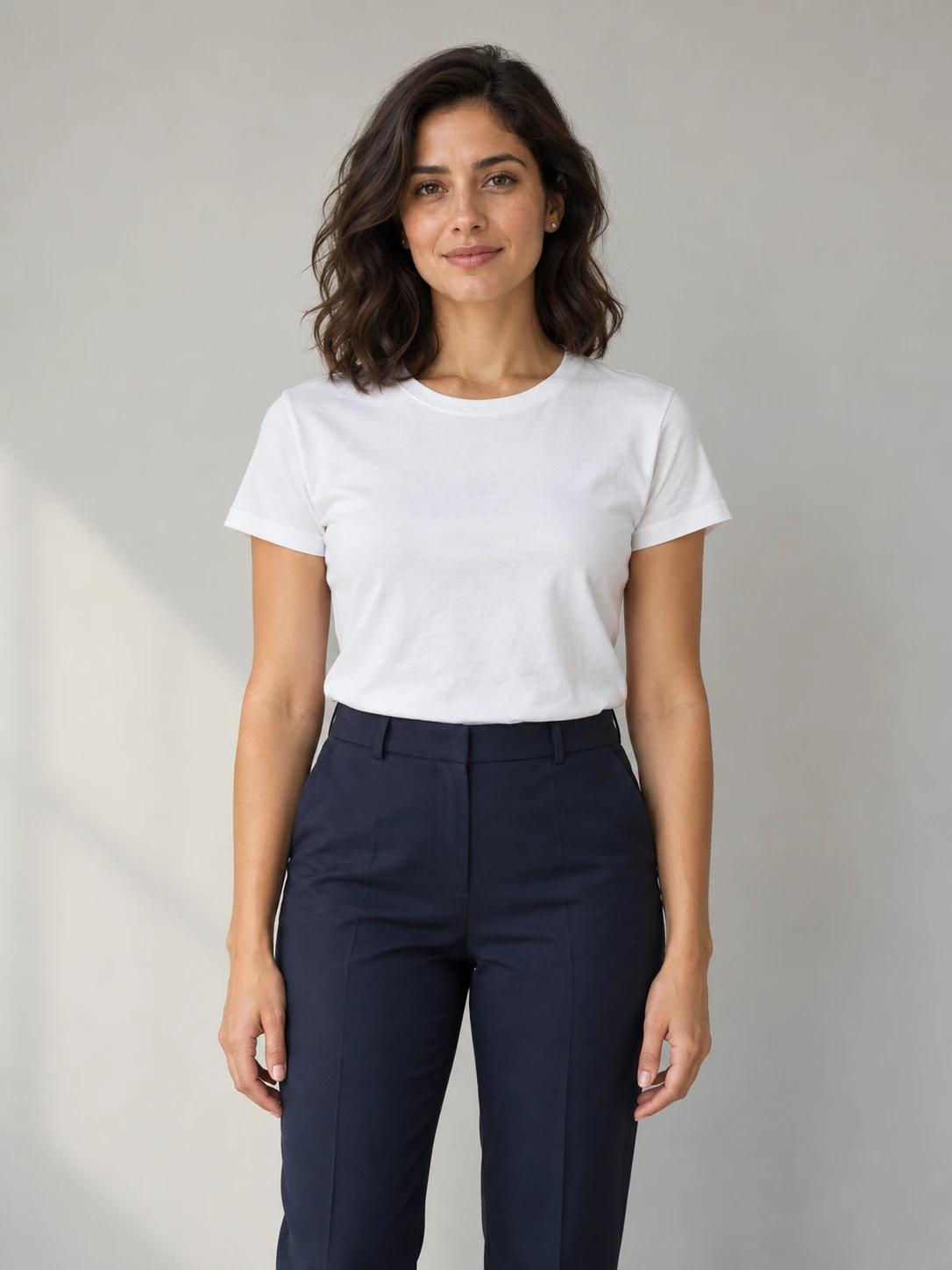
 ORIGINAL
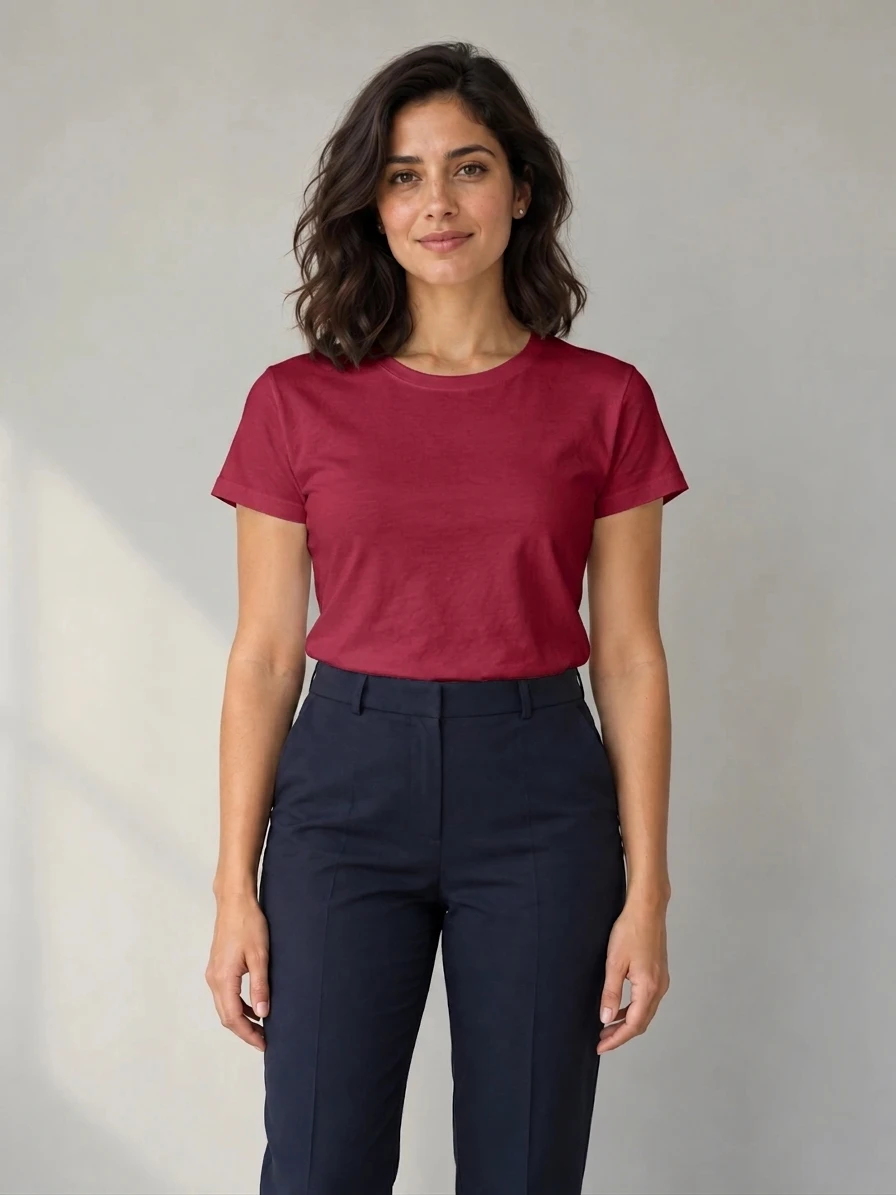 AI COLOR EDIT
White tee → ruby red
Change the shirt color while using the original fit, seams and folds as the reference. Look closely at skin, hair and the neckline when comparing a clothing edit.
SAME PHOTO. A DIFFERENT COLOR.
Use Change Color of Image to recolor one object in your photo. Choose a color, name the target and compare the AI edit.
5 credits per 1K image · Compare before you download
Sample photo loaded. Replace it, name an object and choose a color. Use Custom for other shades.
Your photo
One clear object or area to recolor
5 credits. Per 1K image. AI colors are approximate.
The sample is an example input. Each generated result or retry uses 5 credits.
BEFORE / AFTER
These are edits of the originals shown alongside them, made with the same underlying tool. Use Change Color of Image to explore a color direction, then compare the subject, texture and surrounding scene before keeping a result.
ORIGINALAI COLOR EDITChange the shirt color while using the original fit, seams and folds as the reference. Look closely at skin, hair and the neckline when comparing a clothing edit.
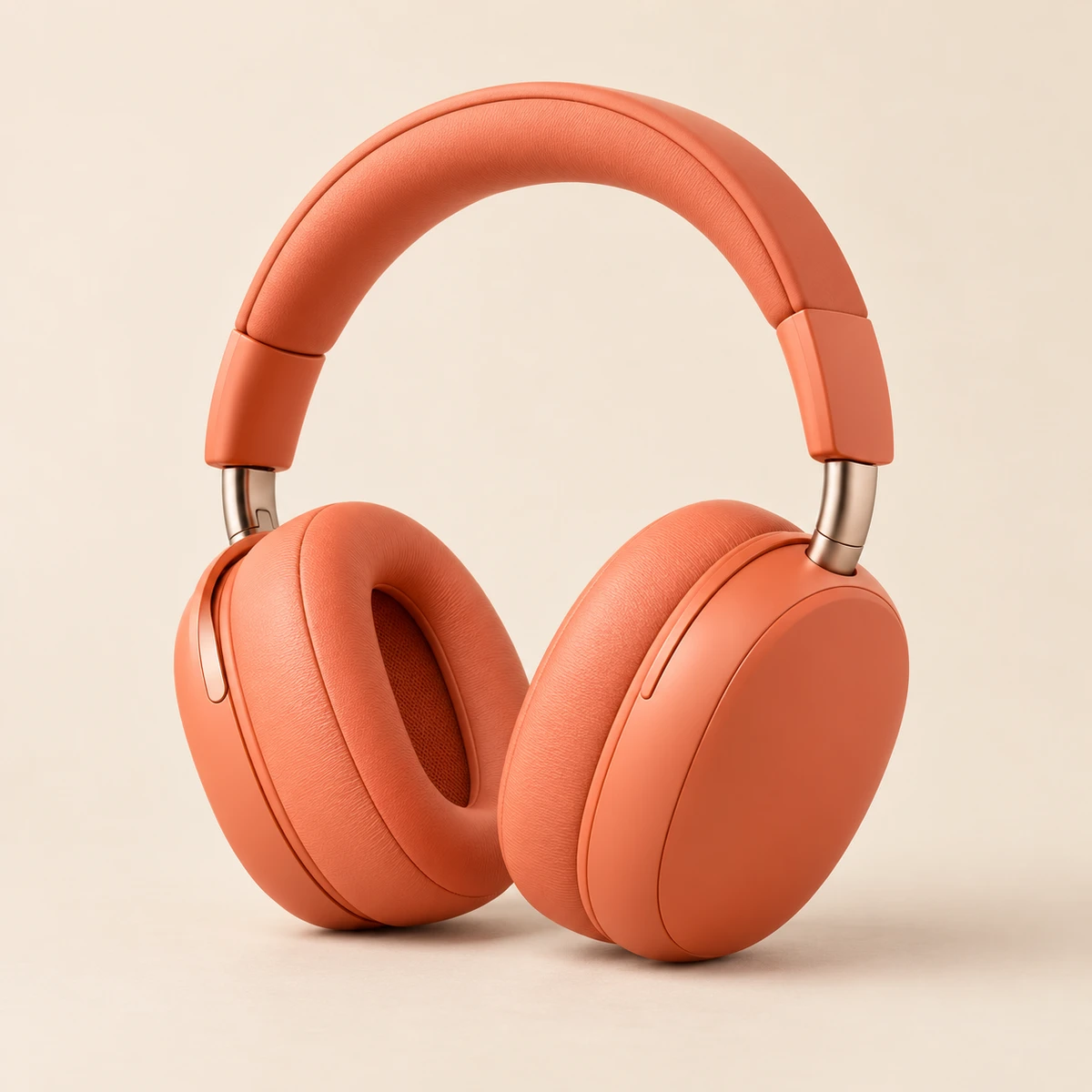
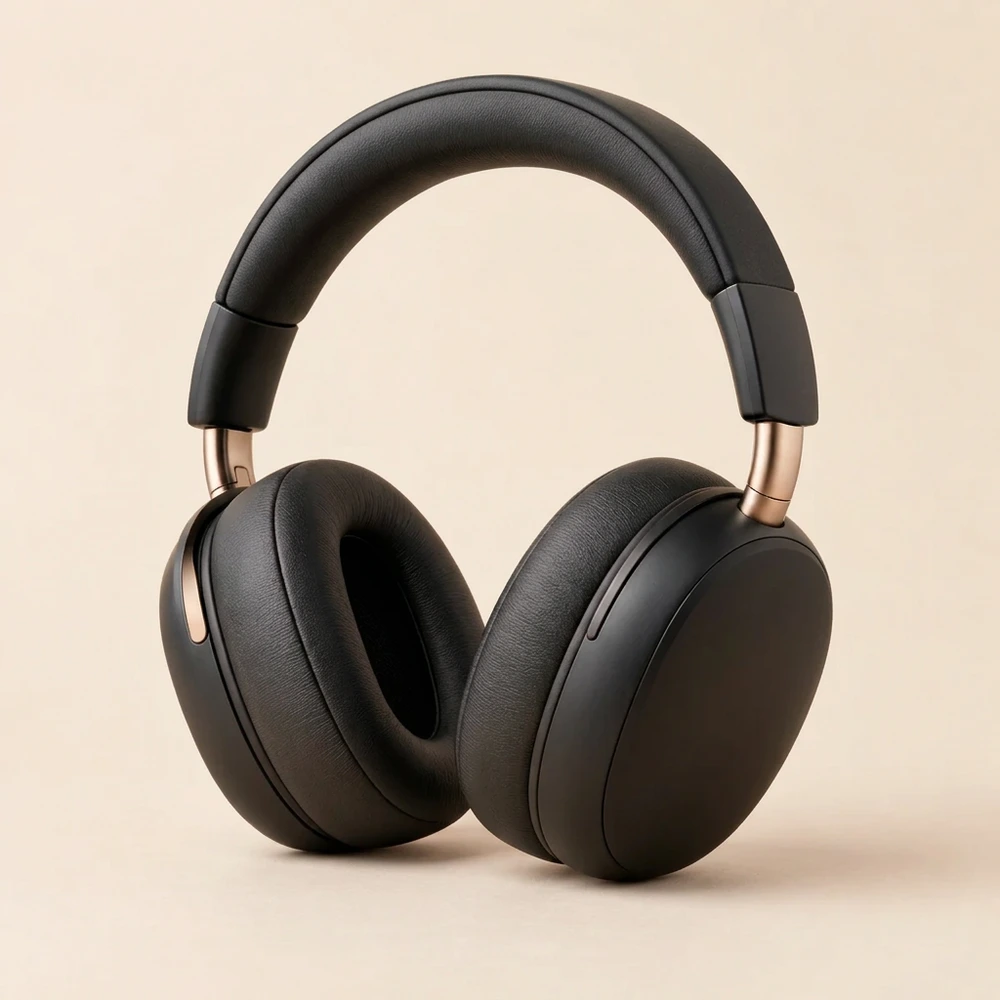
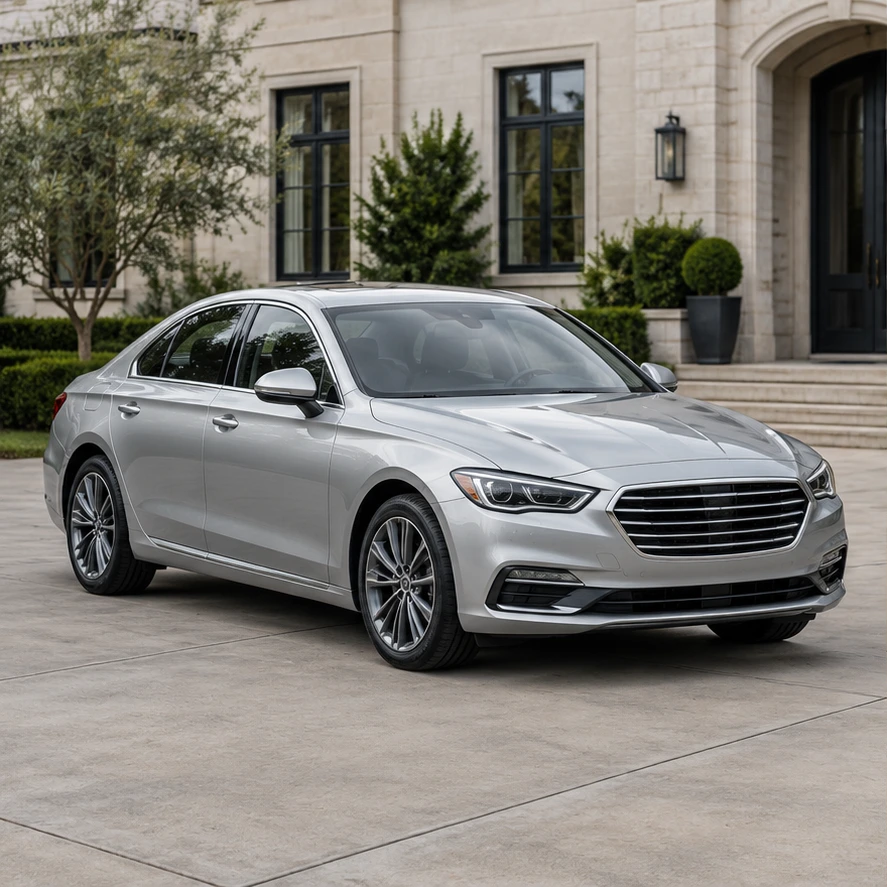 ORIGINAL
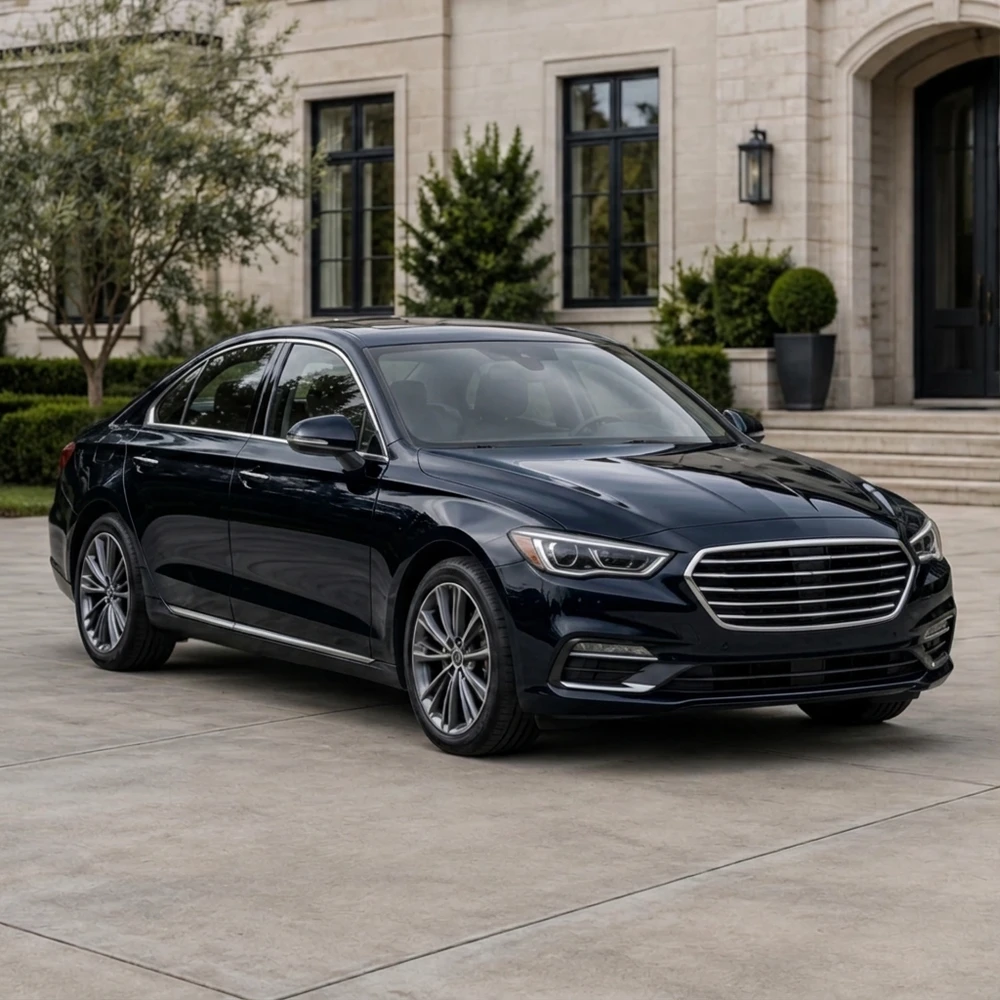 AI COLOR EDIT
Preview a different body color without requesting a new car. Check the windows, wheels, lights and trim, especially where reflections cross the paintwork.
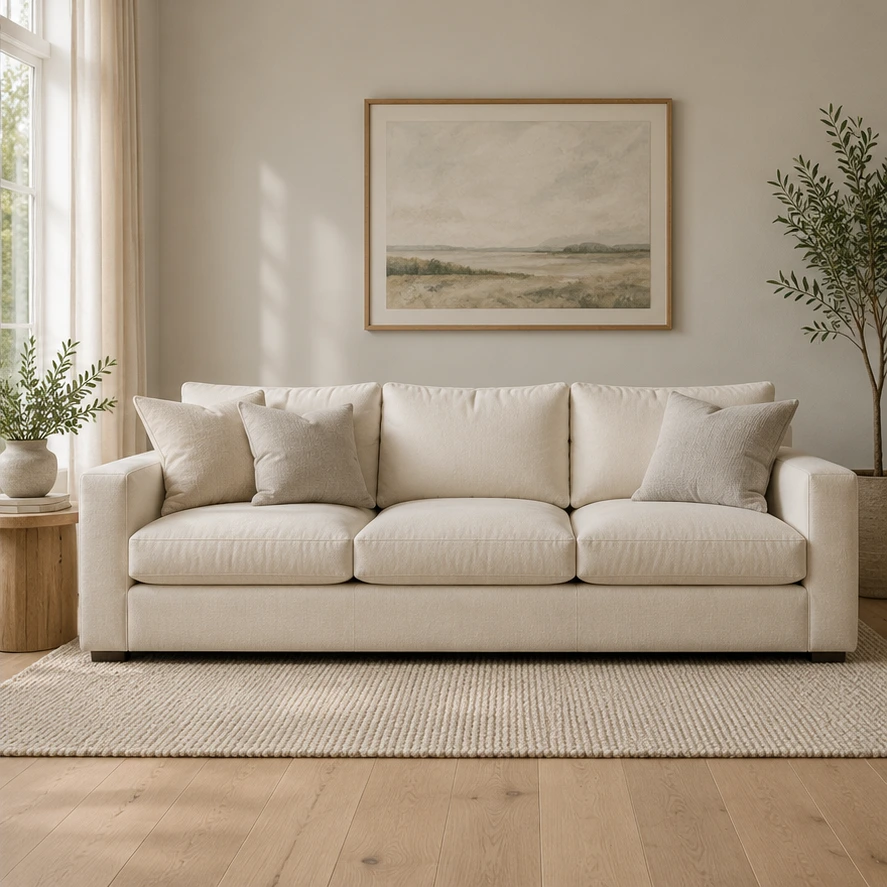 ORIGINAL
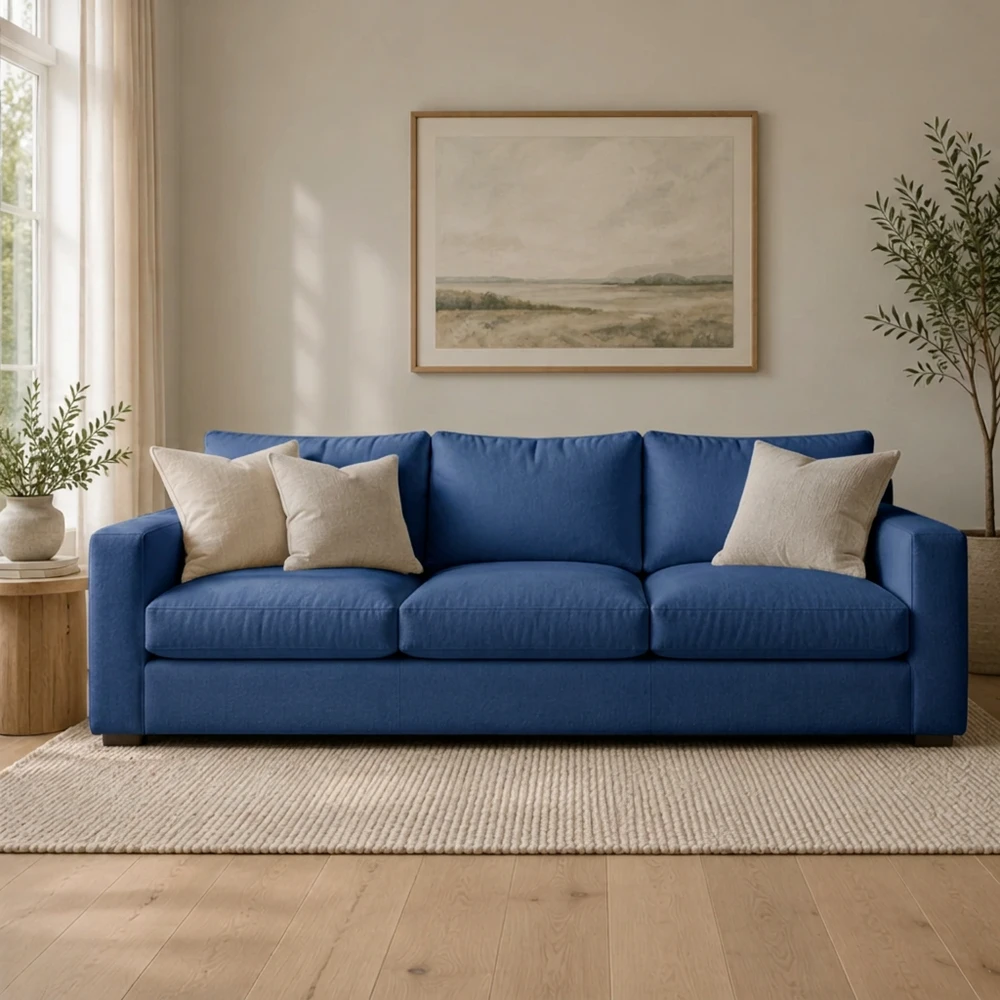 AI COLOR EDIT
Explore a bolder upholstery color in the existing room. Compare the fabric weave, cushion edges, legs and nearby objects to judge whether the preview is useful.
ONE PHOTO, ONE FOCUSED EDIT
Start Change Color of Image with a clear source and a single target. A narrow request gives you a simpler comparison than asking for several color, design and lighting changes together.
Use a sharp JPG, PNG or WebP with the object or area clearly visible. Keep an unedited copy. A simple background and distinct boundaries make it easier to judge the edit; heavy blur, overlapping objects and deep shadows can make the target ambiguous.
Choose midnight black, ruby red, cobalt blue or ivory white, then identify the target: “the shirt” or “the car body.” For another shade, choose Custom and describe it. If several objects share a color, say which one should change and which should stay as they are.
Check the button’s cost of 5 credits per 1K image, then generate. Compare the original and result, checking both the target and surrounding details. Download a useful version or retry from the original with a more specific request. Each new result or retry uses credits.
MORE PRECISE BRIEFS, EASIER REVIEWS
Change Color of Image asks the editor to retain shape, material, lighting and composition. Those instructions guide an AI edit; they cannot lock every pixel. Use these checks to spot unwanted changes.
“The sofa upholstery” is clearer than “everything beige.” For a car, distinguish painted panels from tires, windows and trim. For clothing, name the garment and ask to retain its buttons, print and cut. A precise target helps avoid recoloring neighboring objects.
Color should still follow fabric folds, highlights and shadows. Use Custom to name a material or finish that should remain, such as brushed metal or woven cotton. Reflective, transparent and very dark surfaces need extra review because color and lighting are closely connected.
Zoom in on faces, hands, hairlines, seams, object outlines and nearby surfaces. AI may redraw small details even when you only request a color change. Lettering, logos and complex patterns can drift. Start again from the original rather than repeatedly editing an already changed result.
You can describe a shade or include a HEX code in Custom, but the output may only approximate it. Lighting and material affect its appearance. For exact brand colors, intact logotypes or verified product listings, work from the original asset in an editor with selections and color controls.
It uses an existing photo as the reference for an AI color edit. You identify an object or area, choose a preset color or describe one in Custom, and review the result. It is intended for localized recoloring rather than creating a new scene or replacing the object.
Exact preservation is not guaranteed. The instructions ask to keep the rest of the photo close to the original, but AI can redraw faces, textures, edges or background details. Compare both images before using the edit. Choose an editor with a precise selection when untouched pixels are essential.
Choose Custom and include the color name or HEX code in your request. It guides the edit, but it does not guarantee a measured color match. Use the original asset and a color-controlled editor for exact brand shades, and review the result under your intended display or print conditions.
Yes, you can request those edits in Custom and name the area in Object or area. Hair strands, wall boundaries and small logo details may need cleanup. This tool has no brush or mask selection control. For a logo that must retain exact lettering and shapes, edit the original vector or layered asset.
You can request either, but complex patterns and large brightness changes are more difficult to evaluate. Some details may be reinterpreted or lost. Start with one clear target and inspect folds, patterns, highlights and shadow detail. A solid-color object is a useful first test.
Each 1K image costs 5 credits, including each retry. Choosing a preset and viewing the examples does not generate an image. Sign in and check the cost shown on the button before submitting; your account needs an available balance.
Open Change Color of Image with your original, name one object and choose a shade. Compare the details before downloading your edit.
Open the color editor