🔥LIMITED OFFER
01:58:23
GET 50% OFF

Your wedding look, imagined together

AI Wedding Photo Generator

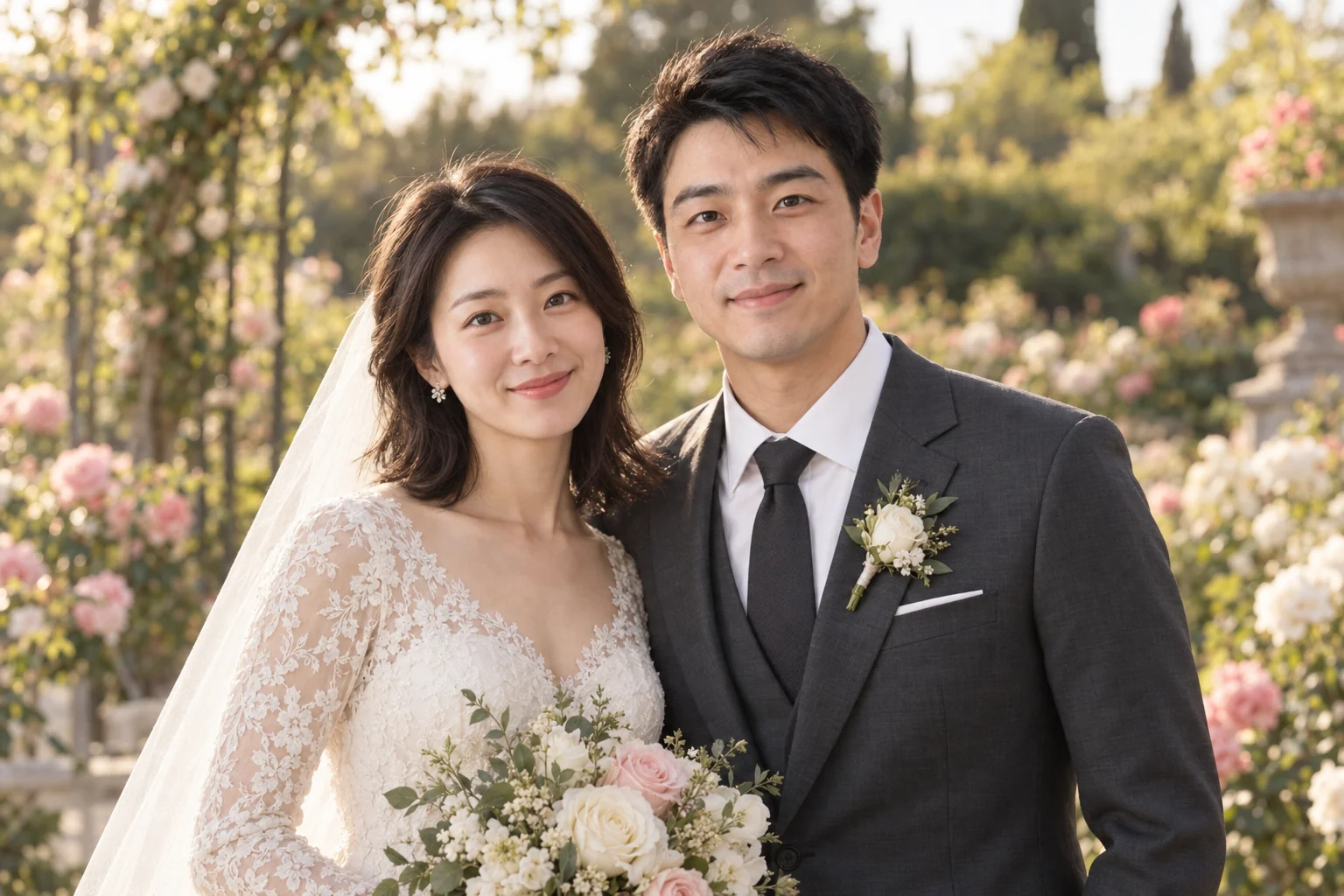
AI Wedding Photo Generator illustration of the fictional reference couple in lace bridal wear and a charcoal suit in a rose garden
Original AI style illustration using a fictional couple. This is not a captured result from the on-site model.

Picture yourselves in wedding outfits before choosing the setting. Upload a couple photo, describe your preferred gown or suit, and explore garden, studio or beach portraits. Start with the fictional demo below, then replace it with your own reference for a personal version.

Sign in to generate. Credits apply; check the cost shown in the tool.

Style your wedding portrait

The AI Wedding Photo Generator opens in Image to Image with a fictional couple reference and an editable garden portrait prompt. Remove the demo photo and upload your own couple photo, or try the sample first. Change the outfits, setting and light in the prompt; review both faces after each result.

460/3000

Google Search

Use Google Search to inform generation

Image History
No images yet. Start generating!

Two more ways to picture the day

The garden direction is prefilled in the tool. Try a studio or beach prompt to compare a different mood, then personalize the clothing and pose. These shortcuts change the written brief; wedding styles are prompt instructions rather than dedicated outfit or venue controls.

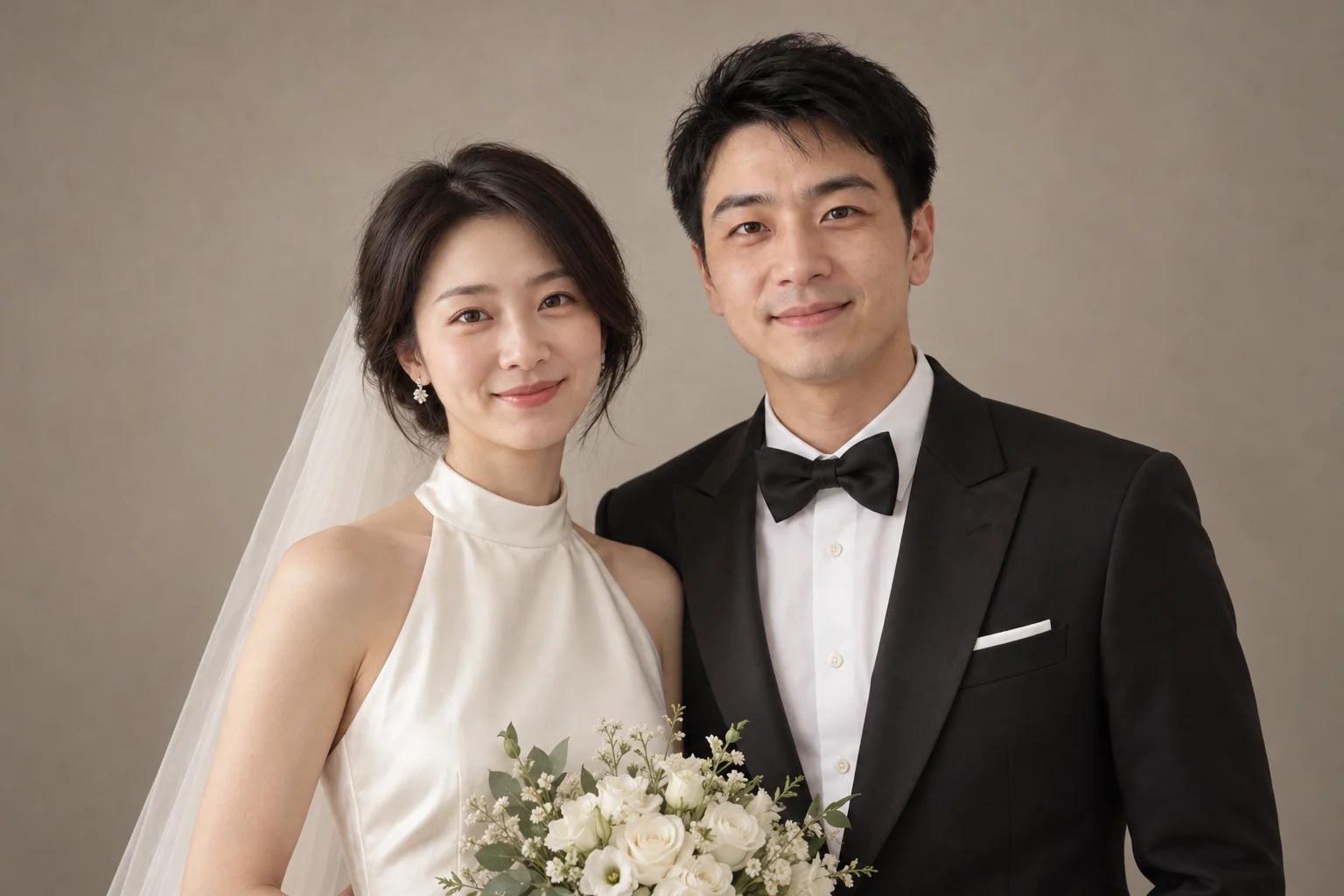
AI Wedding Photo Generator studio illustration of the fictional couple in an ivory satin gown and black tuxedo against warm gray

Classic studio

Compare satin and a tuxedo against a quiet backdrop. Soft light and a simple pose keep attention on the couple; specify a different outfit for either person if that suits your wedding.

Use the uploaded couple photo as a reference for both people. Keep their facial features, skin tones, hair and relative positions recognizable. Create an elegant studio wedding portrait: an ivory satin gown for the person on the left and a black tuxedo for the person on the right, warm gray backdrop, soft diffused light, waist-up framing, relaxed posture, both faces clearly visible. Realistic skin and fabric, exactly two adults, no text, no logo, no watermark.
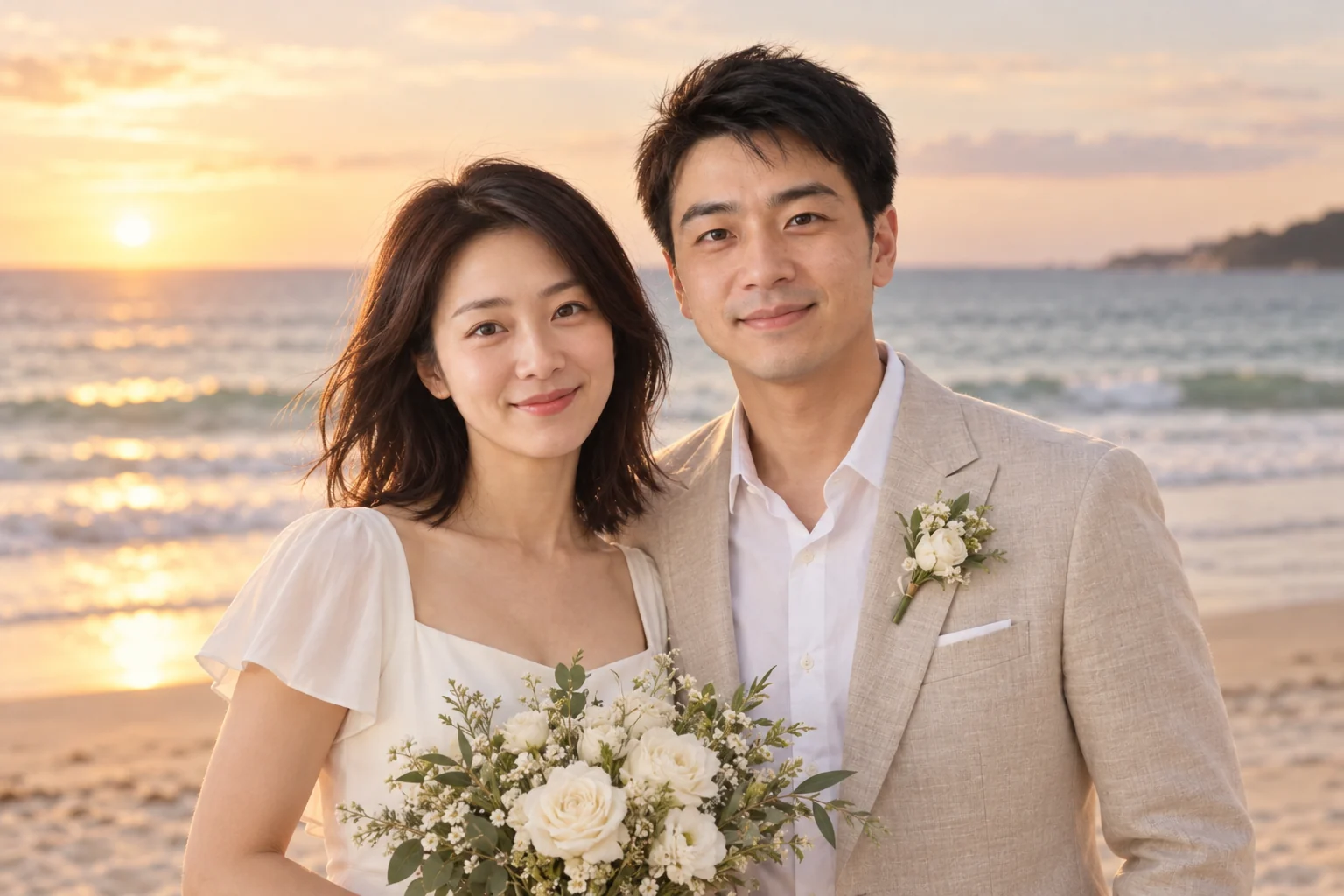
AI Wedding Photo Generator beach illustration of the fictional couple in an ivory dress and beige suit beside the sea at sunset

Beach at sunset

Explore a coastal portrait with a lighter suit, a simple dress and a calm horizon. Keep the faces unobscured when requesting wind in the hair or veil, and check the result for changed expressions.

Use the uploaded couple photo as a reference for both people. Keep their facial features, skin tones, hair and relative positions recognizable. Create a beach wedding portrait: a simple ivory bridal dress for the person on the left and a light beige suit for the person on the right, calm sea in the background, soft sunset light, waist-up framing, gentle breeze, both faces clearly visible. Realistic skin and fabric, exactly two adults, no text, no logo, no watermark.

Original AI illustrations made from the same fictional reference using imagegen. They show style directions, not guaranteed likeness or outputs from Nano Banana 2. Your results will vary.

Give the AI Wedding Photo Generator a useful reference

A clear starting photo makes it easier to judge whether a result still feels like the two of you. Choose a recent picture with both faces visible, similar lighting and enough detail around the hair and shoulders. Keep an untouched copy of the original so every edit remains easy to compare.

Start with one couple photo

Use an image where neither face is hidden by sunglasses, heavy shadow, hair or motion blur. A front-facing or gently turned pose is a useful first attempt. Avoid distant group photos and strong beauty filters that obscure the features you want the model to follow.

Describe each person clearly

Refer to the person on the left and the person on the right when assigning outfits. Specify a gown, suit, tuxedo or other wedding attire for each. You can request two suits or two gowns as well; the sample pairing is simply a starting brief you can change.

Replace the demo for your portrait

The preloaded photo contains fictional adults and is there to make the example easy to try. Remove that thumbnail before uploading your own image, so the sample faces do not compete with yours. Upload only photos you may use and that both people are comfortable having transformed.

Write a scene that keeps attention on the couple

Use the AI Wedding Photo Generator to compare one visual direction at a time. Name the setting, clothing, light and framing, then say which reference features should remain recognizable. A short, consistent brief is easier to refine than a long request containing several venues, poses and outfits.

Choose one setting and light

Try a rose garden in late-afternoon light, a studio with a plain gray backdrop, or a calm beach at sunset. Describe a small number of background elements. Keep the light soft around both faces and avoid asking for many distant guests or elaborate scenery in your first portrait.

Keep the pose simple

Start waist-up with both people looking toward the camera and relaxed shoulders. Complex embraces, crossed arms, long veils and overlapping bouquets can make anatomy harder to judge. Once you like the faces and outfits, try a different framing or pose in a separate attempt.

Request one revision at a time

Upload a saved result and ask to change the suit color while keeping the faces, gown, pose and backdrop. These instructions guide the model; they cannot lock pixels. Check the entire next image for unintended changes before using it as the reference for another edit.

Make a concept you both want to keep

Wedding portraits are personal. Compare the image with your reference together, decide which style feels right, and keep useful details for your moodboard. Generated pictures can support planning and creative announcements, while your actual ceremony photos preserve the people and moments that were there.

Check likeness before scenery

Zoom in on each face and compare eye shape, smile, nose, hairline and skin tone. Watch for swapped features or one person becoming less recognizable. Simplify the request or use a clearer reference if the faces drift, and avoid accepting a flattering result just because the background looks convincing.

Inspect hands and wedding details

Look for extra fingers, uneven eyes, strange teeth, distorted sleeves, jewelry that changes shape and fabric that blends into skin. Keep lettering out of early concepts. If you need names or a wedding date, add them in a layout editor afterward and proofread the finished design.

Plan the final use

Save the portrait separately from your original photo. Share a favorite as an AI concept for a wedding website, outfit discussion or invitation draft. Before printing, check the downloaded dimensions and the printer’s requirements. A convincing preview alone does not establish print quality or real garment fit.

AI Wedding Photo Generator questions

What can I create with the AI Wedding Photo Generator?

Create reference-guided wedding portrait concepts with different outfits, backgrounds and lighting. The default garden prompt and two style shortcuts are editable. Switch to Text to Image for a fictional wedding moodboard without a personal reference. The tool makes new images; it does not document a real event.

Will both people look exactly like the uploaded photo?

A reference and clear preservation instructions can guide likeness, but facial identity is not guaranteed. Expressions, skin texture and other features may change. Compare both people with the original after each generation, use a clearer photo if needed, and keep the best version before making another focused edit.

Can we upload separate portraits instead of a couple photo?

Nano Banana 2 supports multiple image references in the existing tool. You can add separate clear portraits and explain which outfit belongs to each person. Combining them may introduce inconsistent scale, lighting or swapped features. Start with a photo of you together when available and review a combined result carefully.

Is the AI Wedding Photo Generator free?

You can browse the styles and edit prompts without generating. Image generation requires sign-in and uses account credits; the selected model and settings determine the cost shown in the tool. Check your available credits before starting. Additional attempts to improve a portrait also use credits.

Can I use this to retouch my real wedding album?

You can upload a wedding photo and request a change, but generation may alter faces, clothing and scene details. Keep the original files and save new versions separately. For faithful exposure, color or skin correction across a real album, use a photo editor or work with your photographer rather than relying on a generated reconstruction.

Can I use the portrait on an invitation or wedding website?

It can be a creative illustration once both people approve the likeness and intended use. Check cropping and image dimensions for your layout, and add important text separately. Treat the picture as an AI-created concept, especially if it shows a venue, outfit or moment that was never photographed.

Find a wedding look that feels like you

Start with a clear couple photo, choose one style direction and refine the details together. Save a concept you can compare with your plans.

Create our wedding portrait