YOUR PHOTO, FEWER DISTRACTIONS

Remove People from Photo

Use Remove People from Photo to clear unwanted bystanders, tourists or a specific person. Keep your main subject, or choose an empty scene, then review the AI-filled background.

Compare the original and result

1Upload

Drop a photo or click to uploadOr paste an image here

2Who to remove

3Generate

Example
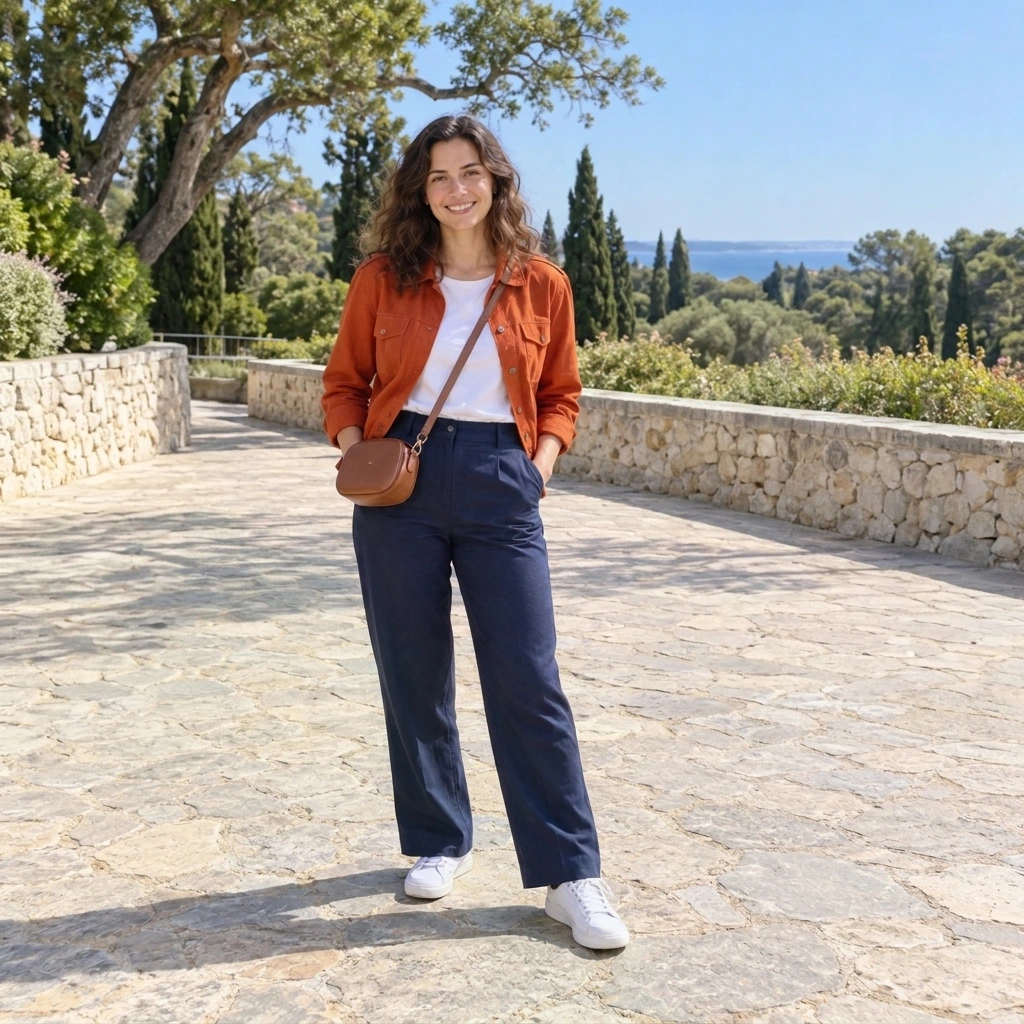
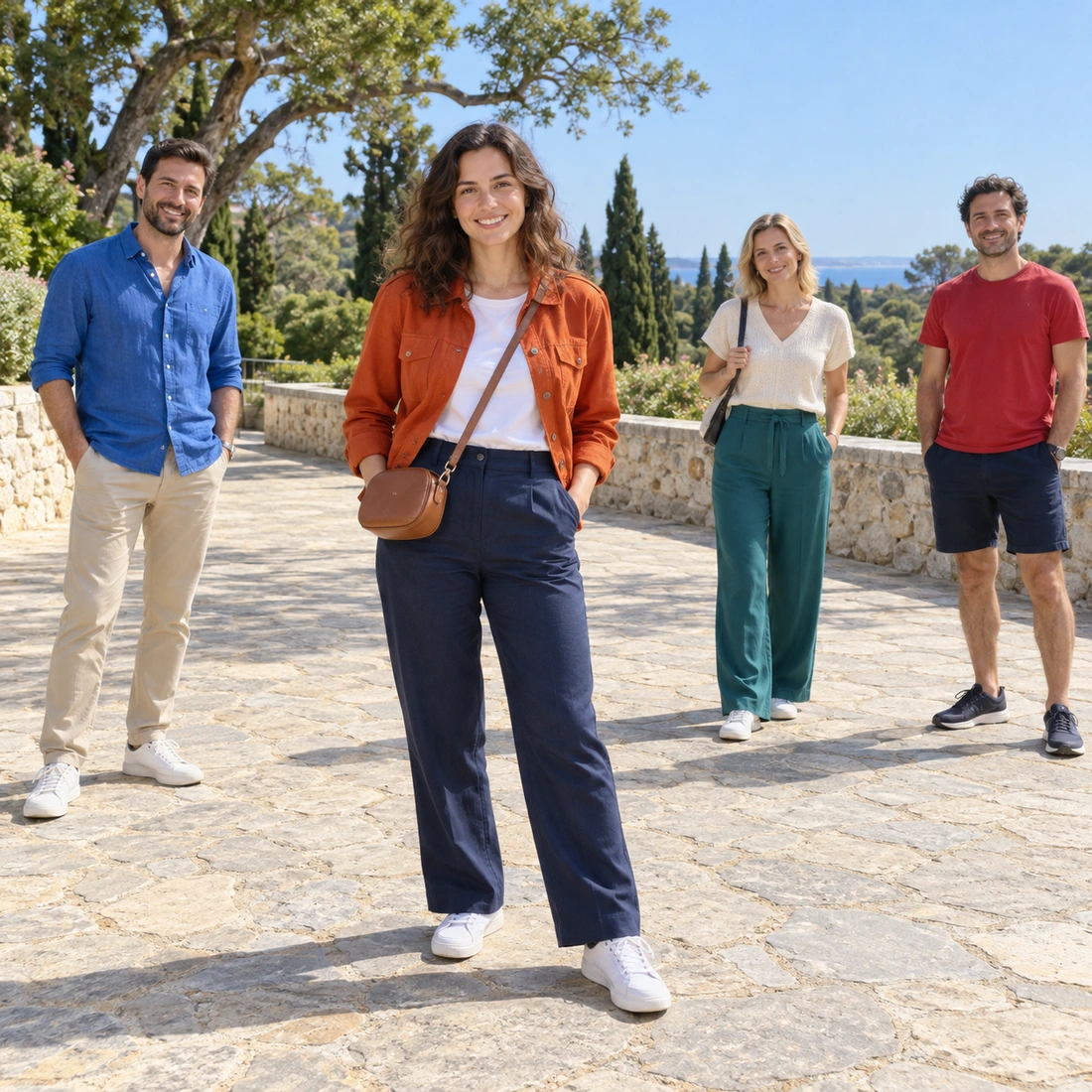
Example edit retaining the main woman and removing all three bystanders
Main woman in a rust jacket with three clearly separated bystanders on a stone promenade
Original
AI edit

Original / AI edit

Your edited photo will replace this example

ORIGINAL / AI EDIT

Remove tourists, passersby or one person

These pairs show edits of the originals beside them, made with the same tool and preset instructions. Remove People from Photo rebuilds the area a person covered; compare both the removal and the people or scenery you wanted to keep.

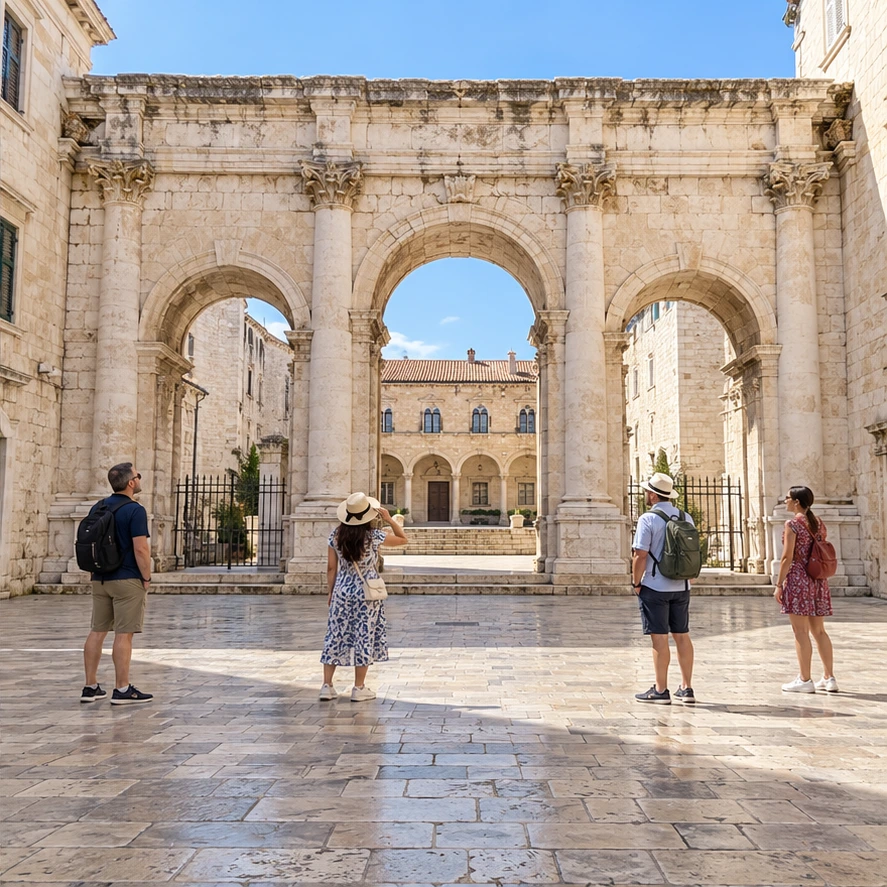
Visitors standing in front of a travel landmark before removalORIGINAL
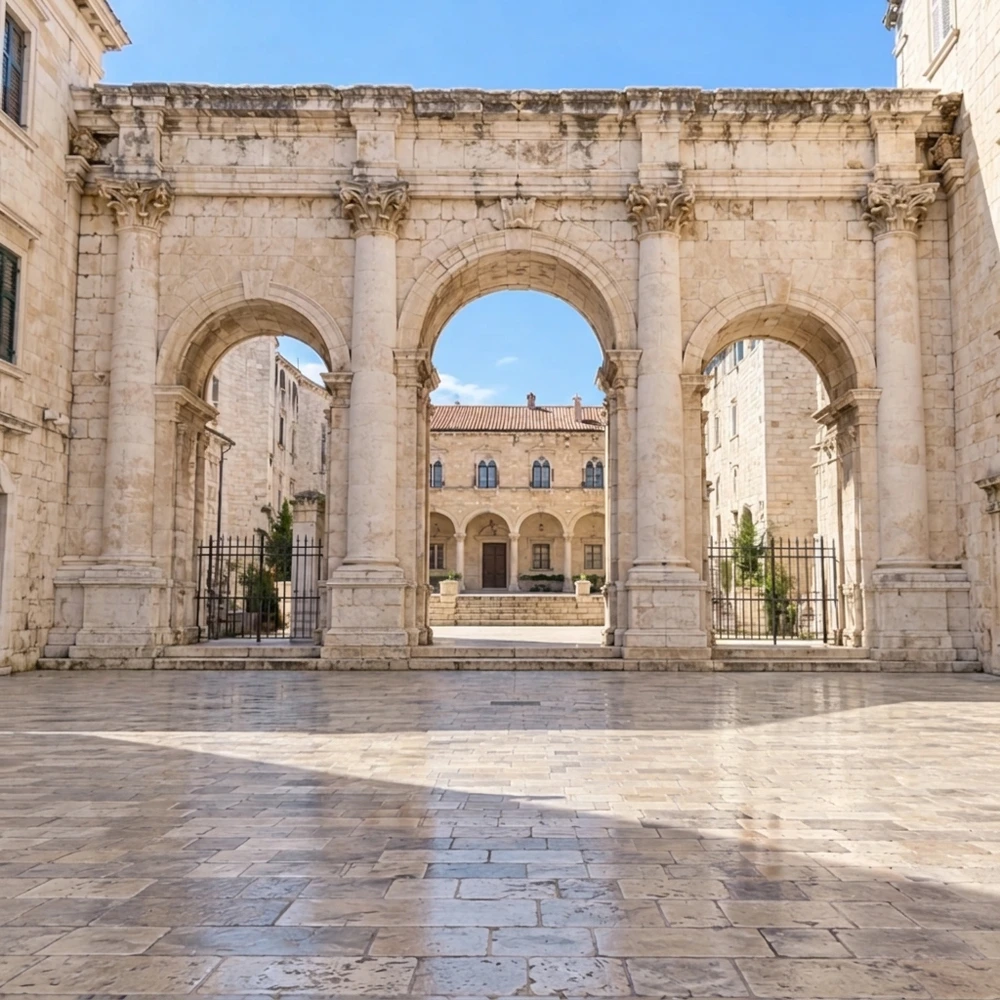
Travel landmark after the visitors were removed and the open space filledAI REMOVAL

A quieter landmark view

Remove every visitor from a travel scene to preview the architecture without a crowd. Follow paving lines, steps and building edges across the filled areas; an empty-looking result can still contain invented details.
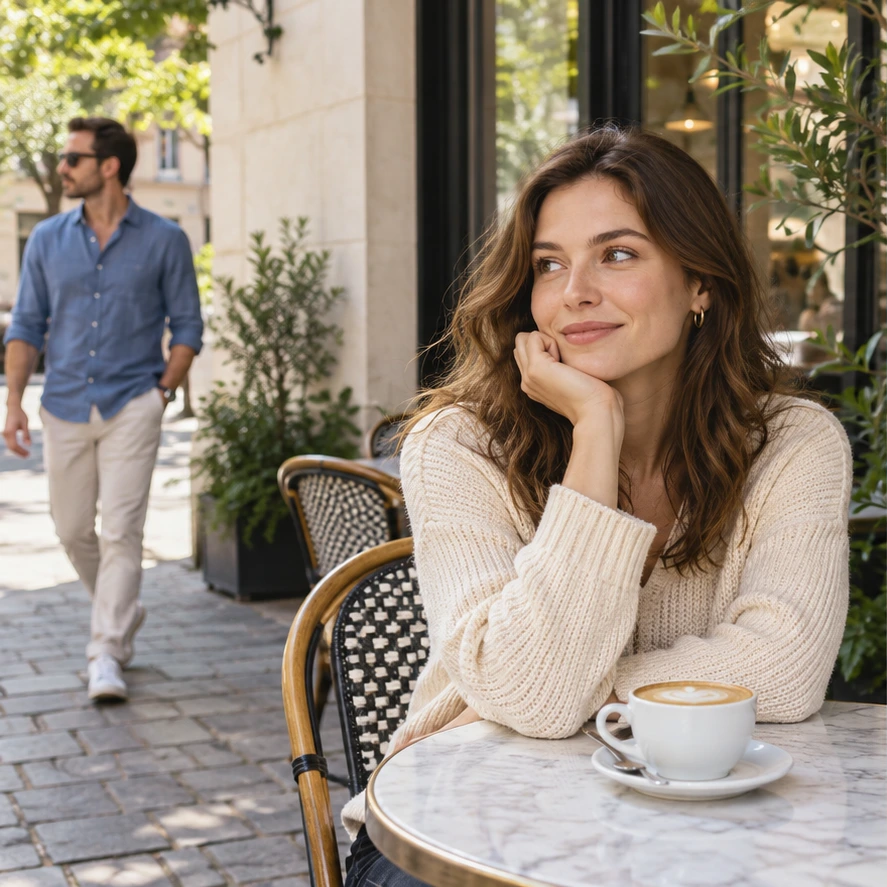
Café photograph with a main subject and another person on the leftORIGINAL
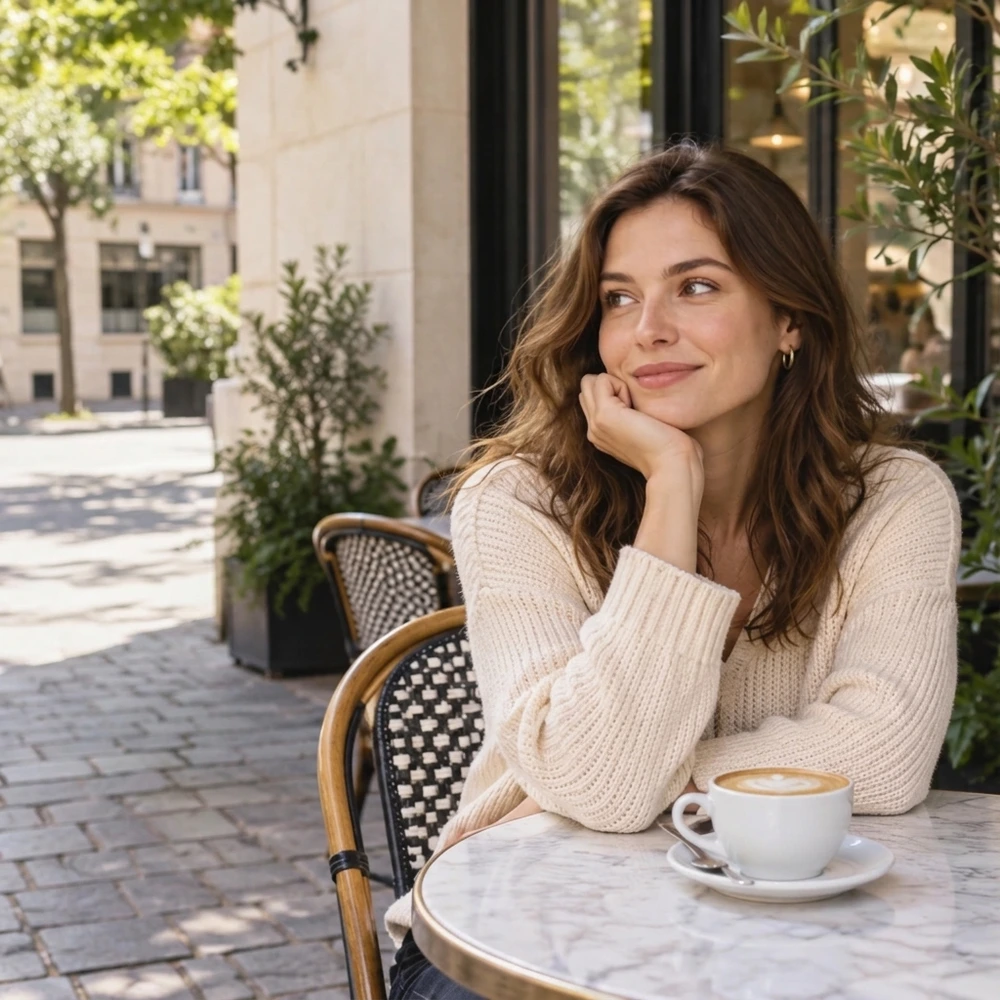
Café scene after removing the leftmost person while keeping the main subjectAI REMOVAL

Keep the café subject

Remove the person at the left edge while retaining the other café visitor. The preset refers to the image as you see it. Check the kept face, furniture and shadows before deciding whether the edit is useful.

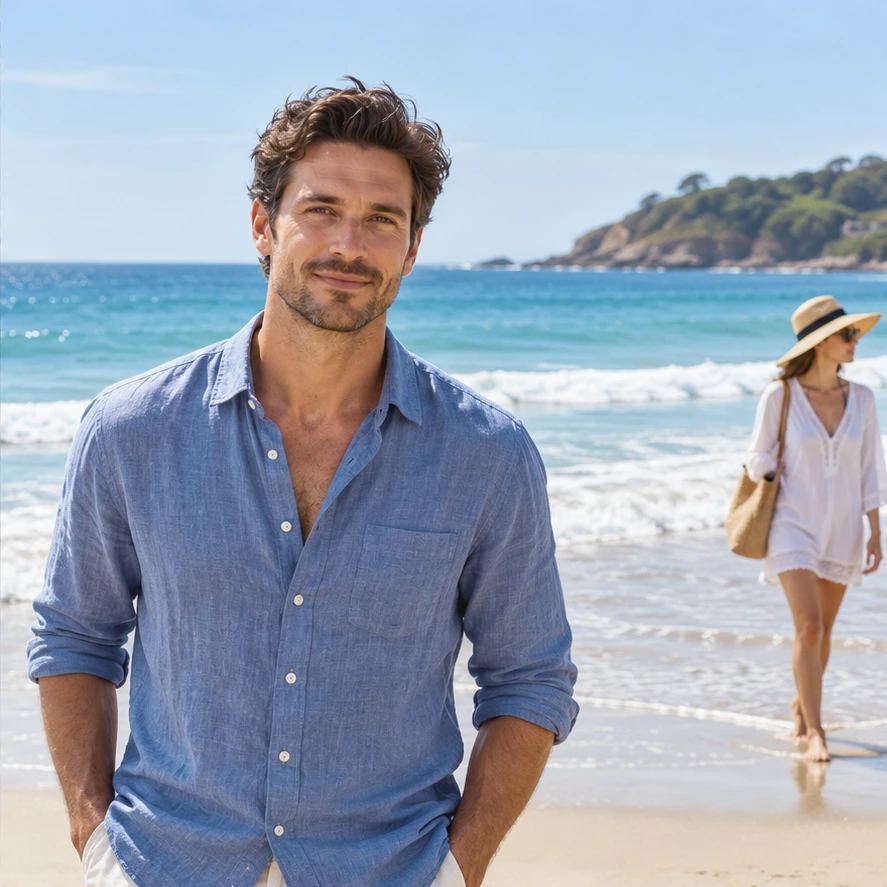
Beach photograph with a main subject and a person on the rightORIGINAL
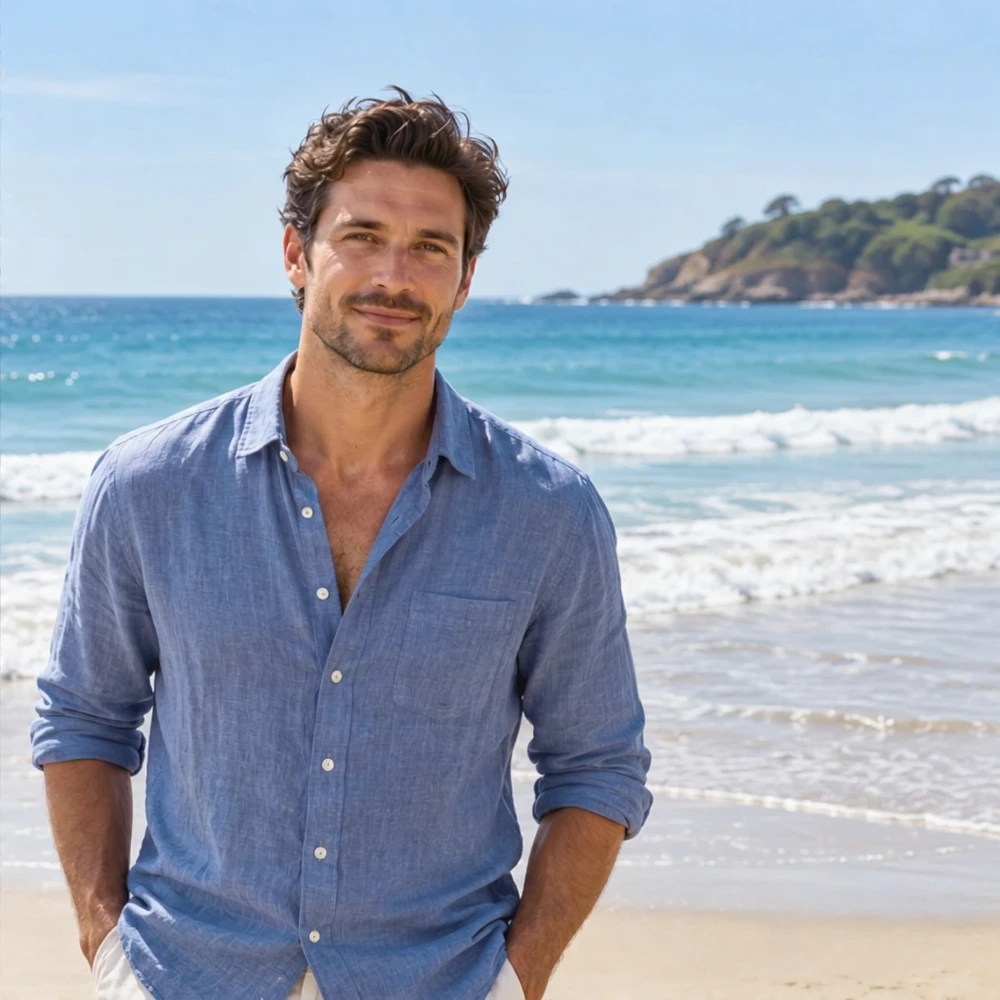
Beach scene after the rightmost person was removed and the sand rebuiltAI REMOVAL

Clear a beach distraction

Take the rightmost person out of a beach photograph while keeping the other subject. Inspect the horizon, sand texture and any shadow left behind; water and fine boundaries can need another attempt.

ONE PHOTO, A FOCUSED REQUEST

How to remove unwanted people in three steps

Start Remove People from Photo with your original image and decide which people matter to the shot. A clear removal request is easier to evaluate than a general instruction to clean up everything.

01

Upload your original photo

Use a sharp JPG, PNG or WebP with the unwanted person clearly visible. Keep an unedited copy. A visible floor, wall or stretch of scenery around the person gives the AI a clearer reference for filling the gap. Heavy blur and overlapping bodies make the target harder to separate.

02

Choose who should be removed

Background people keeps the main foreground subject. Everyone removes all people, including the subject. Left-side person and Right-side person remove the outermost person on that side, from your viewing perspective. For a specific jacket, position or group, choose Custom and describe both who should go and who should stay.

03

Compare, then download

Generate an edit at the displayed cost of 5 credits per 1K image. Compare it with the original, looking at the removed area and the parts you kept. Download a useful version or retry from the original with a narrower request. Each new result or retry uses another 5 credits.

BETTER TARGETS, BETTER REVIEWS

Protect the subject and check the filled space

Remove People from Photo uses AI instructions to guide a local edit. They cannot lock every pixel or reveal scenery that was never visible. Use these checks before sharing a finished photograph.

Describe a person with position and clothing

“The person in the blue jacket on the left” is clearer than “the stranger.” If there are several people, add who should remain: “keep the couple in the center.” For mirrored photos, refer to the image currently on screen. Try one clearly identified target before asking for several separate changes.

Leave a reference around the removal

Simple paving, grass or a plain wall is easier to judge than a crowded background with railings and signs. A person covering another person, a hand or a key architectural detail leaves less visual information to work from. The filled area is a plausible reconstruction, rather than a recovered view of the real place.

Inspect faces, edges, shadows and reflections

Compare the people you kept as closely as the area you removed. Faces, hair, hands and clothing may drift. Look for stretched floor tiles, broken straight lines, repeated textures, leftover feet and inconsistent reflections. Zoom in for small distant figures that may remain. Removing a person does not automatically mean every trace is convincing; a difficult overlap may need a manual editor.

Retry from the original image

Start a new attempt from the original instead of repeatedly editing an already altered result. Narrow the request or describe the unwanted person more precisely. For important portraits or documentary photographs, keep the original and review any reconstructed content carefully before using the edit.

Questions about removing people

What does Remove People from Photo do?

It uses your uploaded image as a reference, removes the people named by a preset or Custom instruction, and fills the space with a plausible continuation of the scene. It is intended for editing an existing photograph rather than creating a new location or replacing the whole background.

Can I keep myself and remove the people behind me?

Choose Background people when one foreground person or couple is clearly the main subject. If the scene is ambiguous, use Custom to name who should be removed and who should stay. Review the kept people afterwards; an AI edit can still alter faces or nearby details.

Can I remove just one person from a group?

Use Left-side person or Right-side person for the outermost person at that edge. For someone elsewhere, describe their clothing and location in Custom. Closely overlapping people are harder to separate, so a precise selection in a manual editor may be more suitable for a difficult group photograph.

Is there a brush or mask selection?

This page uses removal presets and written instructions. It does not provide a brush or mask editor. Describe the target in Custom when a preset is too broad; choose an editor with a precise selection if you need direct control over individual pixels.

Does the tool recover the real background behind a person?

No. The hidden area was not captured in the photograph. AI estimates what might fit the surrounding scene, and it may invent textures, objects or geometry. Compare straight edges, repeated patterns, shadows and reflections; do not treat reconstructed details as a record of what was actually there.

How much does an edit or retry cost?

Each generated 1K image costs 5 credits. A retry is a new generation and also uses 5 credits. The button shows the cost before you sign in or generate. Download a useful result after comparing it with your original.

Will the download keep my original dimensions?

This page uses the 1K output class with an automatic aspect ratio. The returned dimensions can differ from your input, and original-size output is not guaranteed. Keep the source file for any work where resolution or exact framing is essential.

Remove People from Photo. Keep the shot you wanted.

Start with one clear target, compare the AI edit and inspect what was filled. Your original remains the reference for the next attempt.

Try a people-removal edit