
Ask for the final prompt as text
Have ChatGPT combine the chosen subject, style, layout, exact wording and constraints into one complete brief. Replace references to earlier messages with explicit visual details.
Bring your image idea or a prompt written with ChatGPT. Start a fresh ChatGPT image generation job with GPT Image 2.5 Flare, or choose Sunburst for edits that need closer attention to reference details. Set the model, size and background before submitting.
Nanabanana2 is an independent tool and is not affiliated with, endorsed by, or sponsored by OpenAI. ChatGPT and GPT are trademarks of OpenAI.
Powered by GPT Image 2.5 via API
Paste a standalone prompt or add reference images to start a new image job. Flare is selected first; switch to Sunburst when precise reference-guided editing is the priority. Both variants use 3 / 5 / 10 site credits per image at 1K / 2K / 4K.
Choose around the workflow you need. A conversation can help develop an idea; a direct form makes the final prompt and settings explicit. If you are comparing an OpenAI image generator with this tool, check the model and controls available in each product rather than assuming the interfaces are identical.
| Your workflow | In ChatGPT | In this generator |
|---|---|---|
| Developing the brief | Discuss the idea and refine instructions in a chat. | Write or paste a complete image prompt into a dedicated form. |
| Context for an edit | Supported image workflows can build on images and instructions already in the conversation. | Each job uses the prompt and reference images you submit. Reattach any image the edit depends on. |
| Choosing the model | Available models and image controls depend on the ChatGPT surface and plan. | Select the labeled GPT Image 2.5 Flare or Sunburst model, then choose its available settings. |
| Aspect ratio / resolution | Image shape and resolution controls depend on the ChatGPT product, plan and available image workflow. | Choose Auto or a supported ratio and 1K, 2K or 4K. The 27:16, 16:27, 9:8 and 8:9 ratios are limited to 1K in this integration. |
| Account and payment | Access and usage limits belong to your ChatGPT plan. | Sign in to this site and use site credits. A ChatGPT subscription does not transfer here. |
| Continuing a result | Continue with the image in the chat where that workflow is supported. | Download the result or upload it as a reference for another job, with a complete change request. |
| Commercial use | Review the applicable ChatGPT terms and the rights attached to your input images before publishing. | Review this site’s terms and your input-image rights. Check outputs for trademarks, likenesses and other third-party material; a paid generation is not a rights-clearance check. |
Bring the final brief from your chat gpt image generator workflow. A useful prompt can travel between tools; earlier messages and unspoken assumptions do not travel with it. Turn the brief into one complete instruction before pasting it here.
Make it like the last one, but use the second image’s colors. Keep the text we agreed on.
Create a portrait botanical workshop poster on a warm ivory background. Use coral red, cobalt blue and leaf green. Put “GROW SOMETHING” in large dark sans-serif type at the top and “SATURDAY STUDIO” at the bottom. Include one sculptural blue vase and three simple green leaves. Keep the composition simple. Add no other text.
Have ChatGPT combine the chosen subject, style, layout, exact wording and constraints into one complete brief. Replace references to earlier messages with explicit visual details.
An image mentioned in ChatGPT is not automatically attached here. Add the files this request needs and explain which image defines the subject, style or composition.
The same words can lead to different images when context, model variant or settings change. Compare the output against your brief, then revise the specific details that drifted.
Each output below uses the standalone brief above with the same 2:3 ratio, 1K resolution and opaque background. These are new GPT Image 2.5 API generations made for this page. They are not images exported from the ChatGPT app; variations can occur even between runs with the same model.
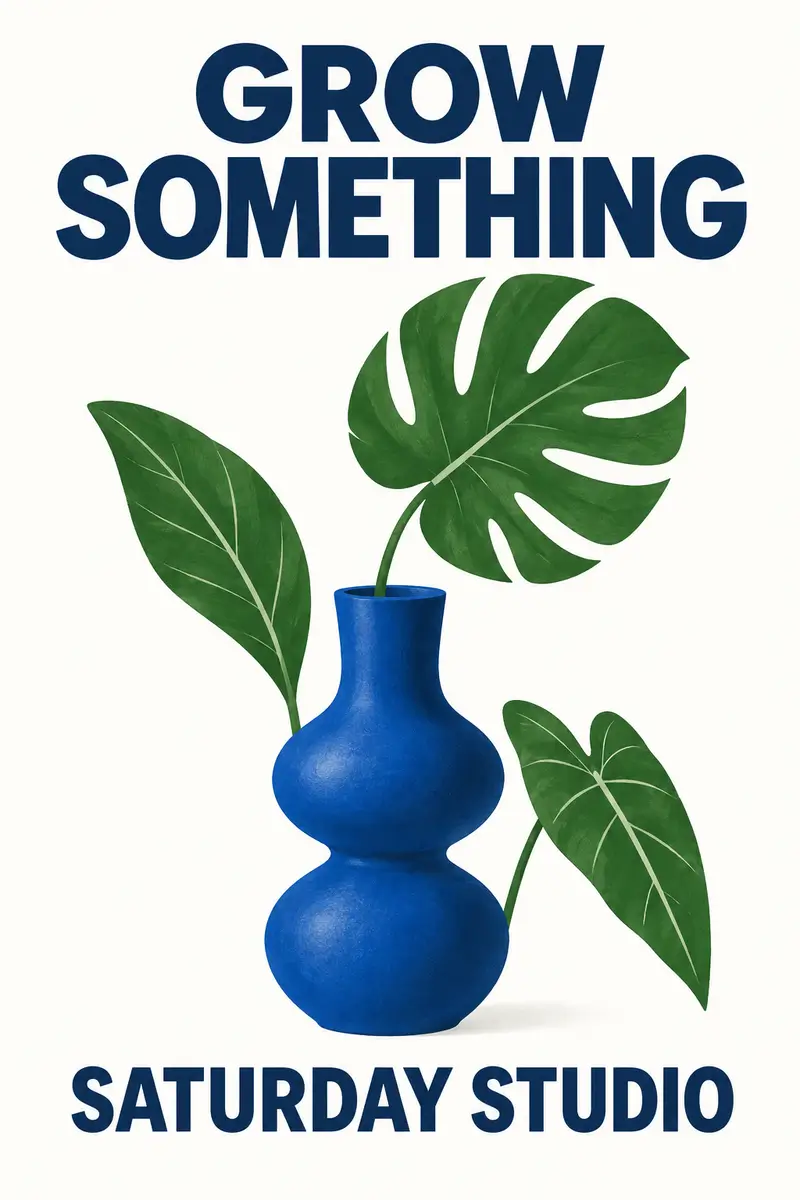
First interpretation
GPT Image 2.5 Flare · Run A
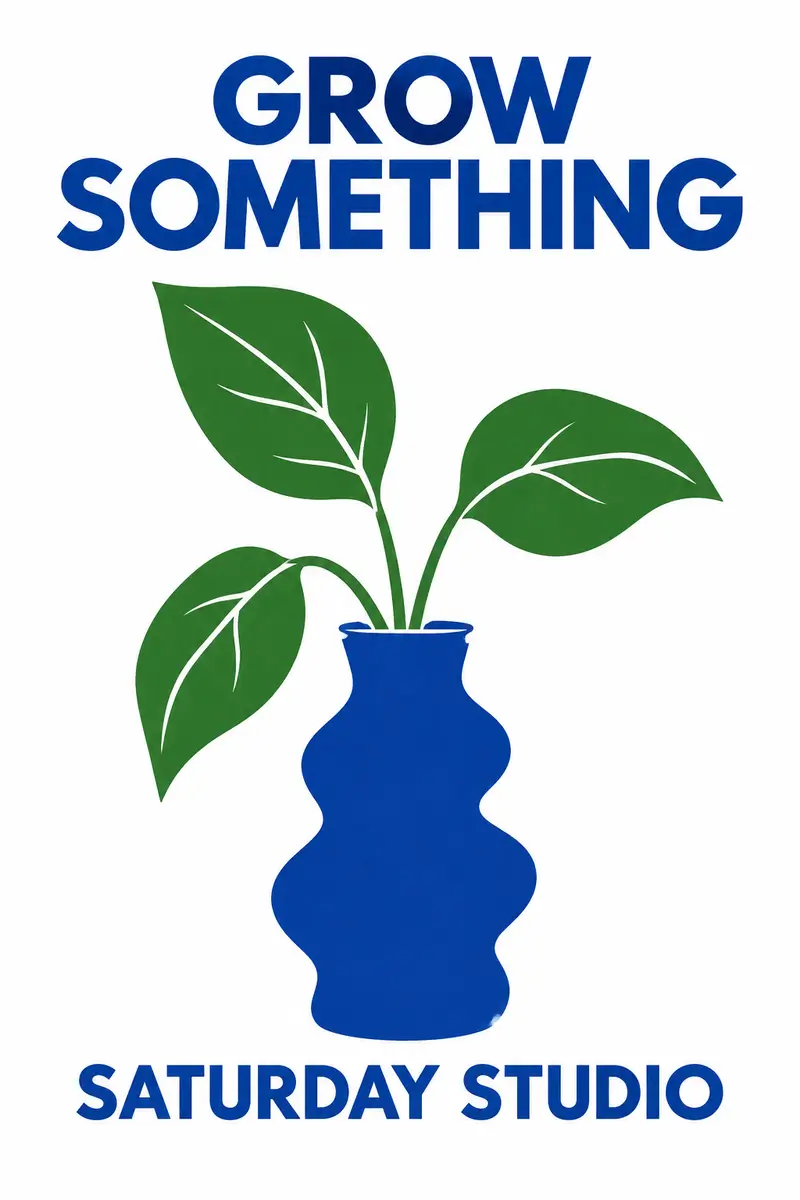
A second run of the same brief
GPT Image 2.5 Flare · Run B
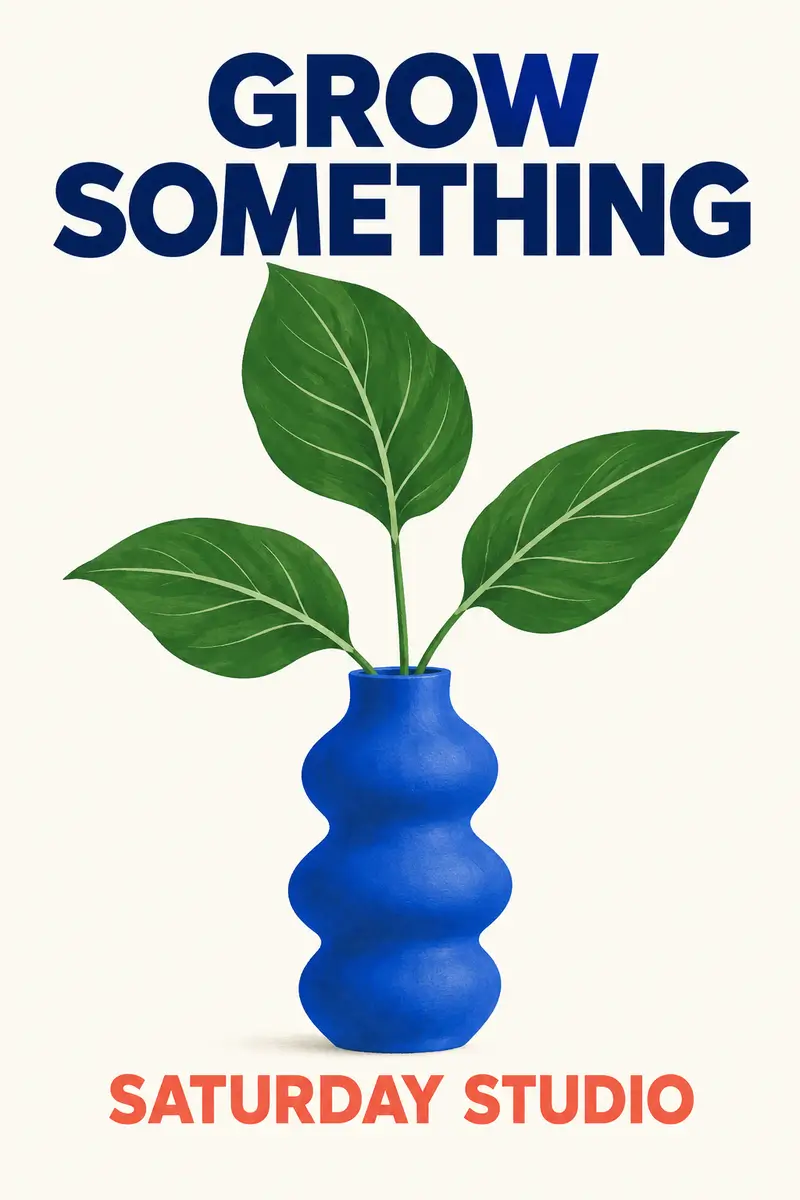
The same brief with Sunburst
GPT Image 2.5 Sunburst
These site-generated samples show the creation and editing path. If you use this tool as a ChatGPT picture generator alternative, test a narrow brief first, inspect the downloaded result, and increase output count only after the direction works.
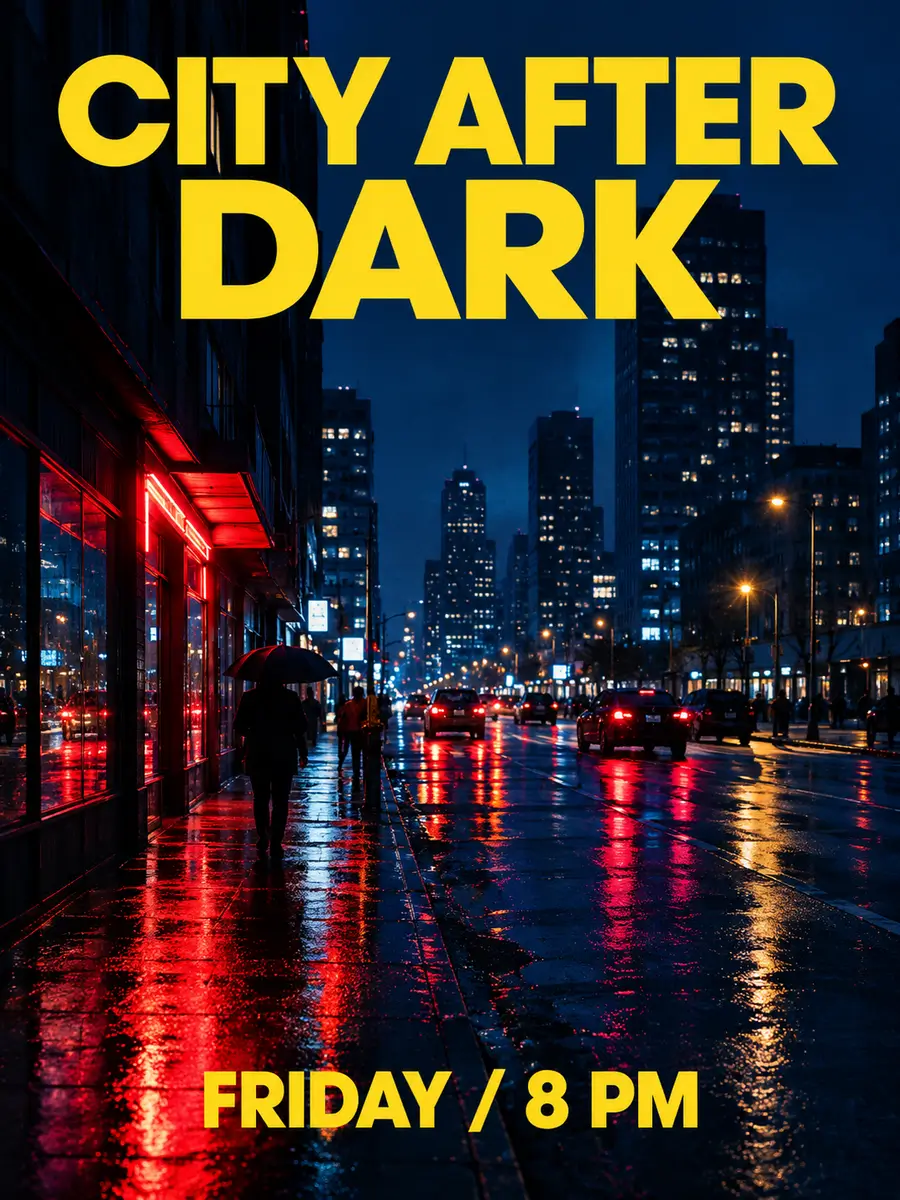
This Flare poster uses two exact text strings and a nighttime palette. Quote the required wording, describe its placement, and inspect lettering and layout before publishing the finished image.
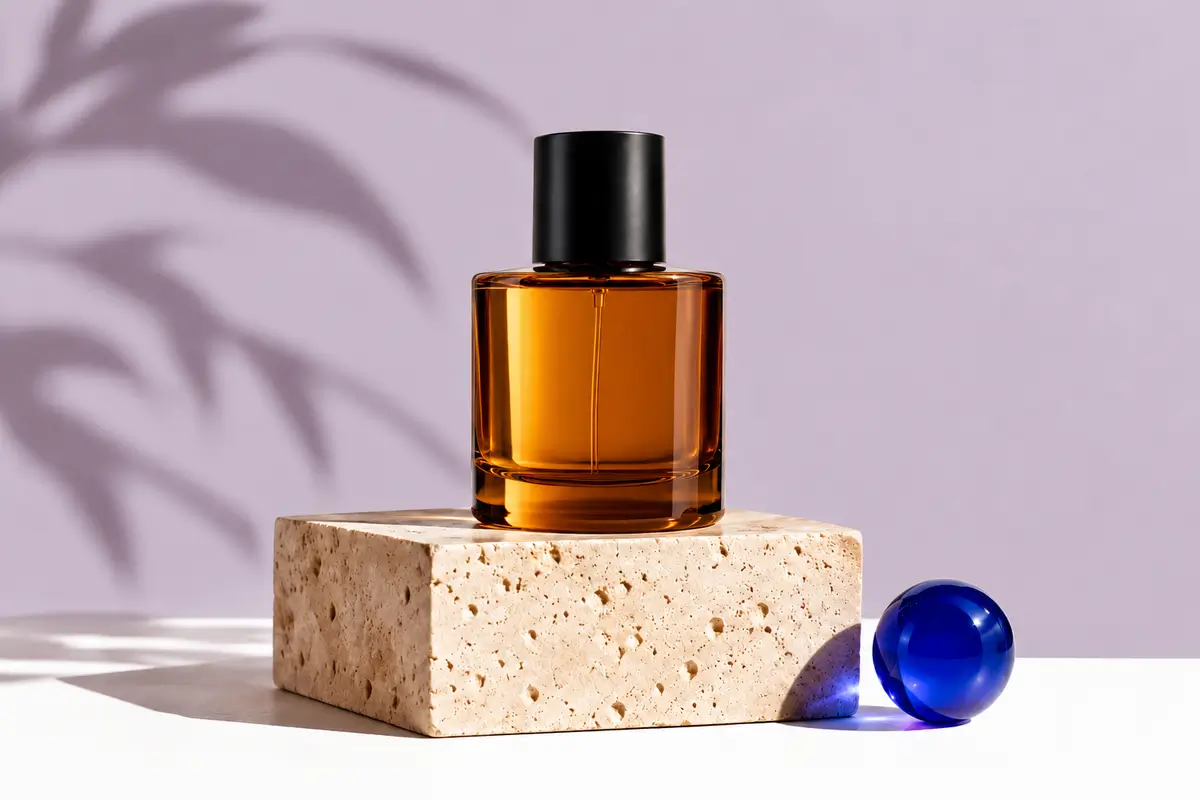
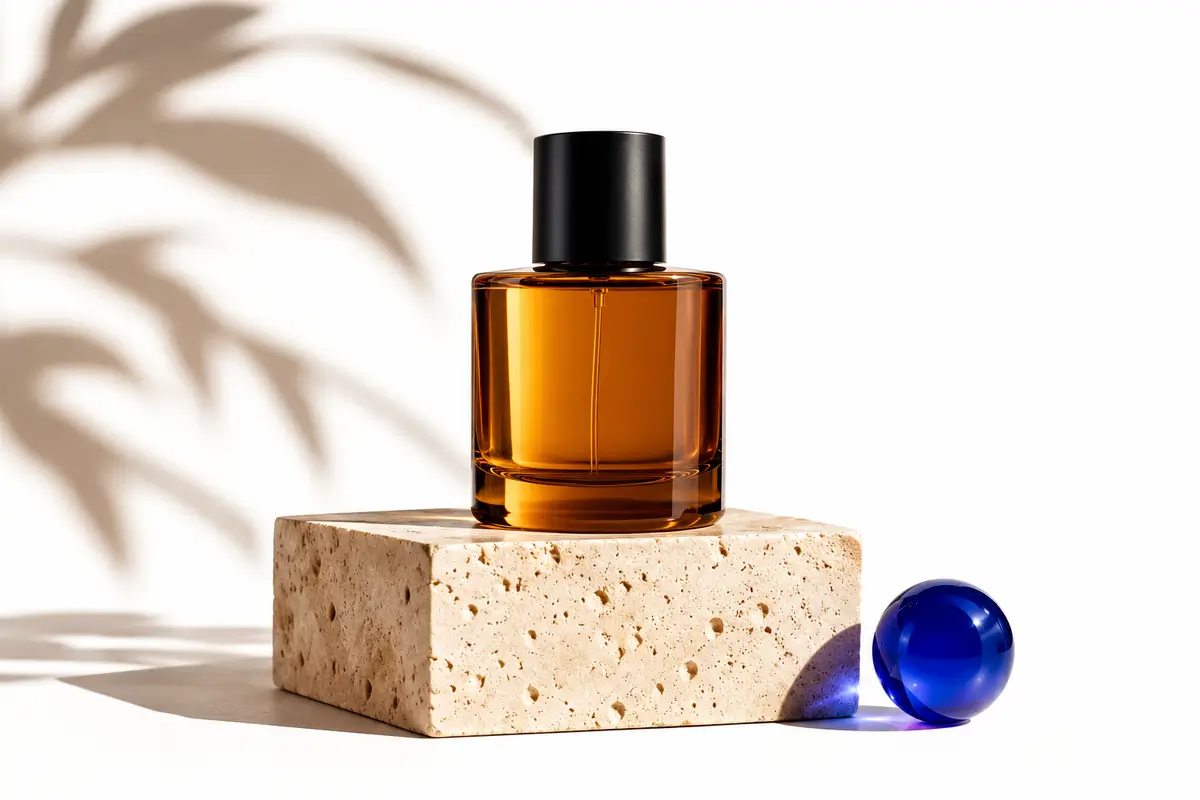
Sunburst received the amber perfume reference and a request to change the wall to lilac while preserving the bottle, pedestal, sphere and lighting. Compare those details with the source: a focused edit can still alter nearby shapes or textures.
For a ChatGPT photo generator workflow that starts from an existing image, switch to Image to Image and upload the source. Describe the change and what must remain recognizable. This form uses complete prompts and references for each job; it has no brush, mask or editable-layer interface.
Name the subject, ask for one clear change, and identify details to preserve: face, product silhouette, label text, lighting or viewpoint. Review the result because an edit can still alter those details.
If your saved brief was written for GPT 4o Image, open its dedicated page to check that workflow before deciding which model to use. This page starts with GPT Image 2.5.
Explore GPT 4o Image →For a broader model choice, compare the Muse and GPT Image 2 workflows, including their supported inputs and practical tradeoffs, before adapting the same brief.
Muse Image vs GPT Image 2 →Keep the brief, source files and generation choices together so that your next revision starts from clear inputs rather than a remembered chat.
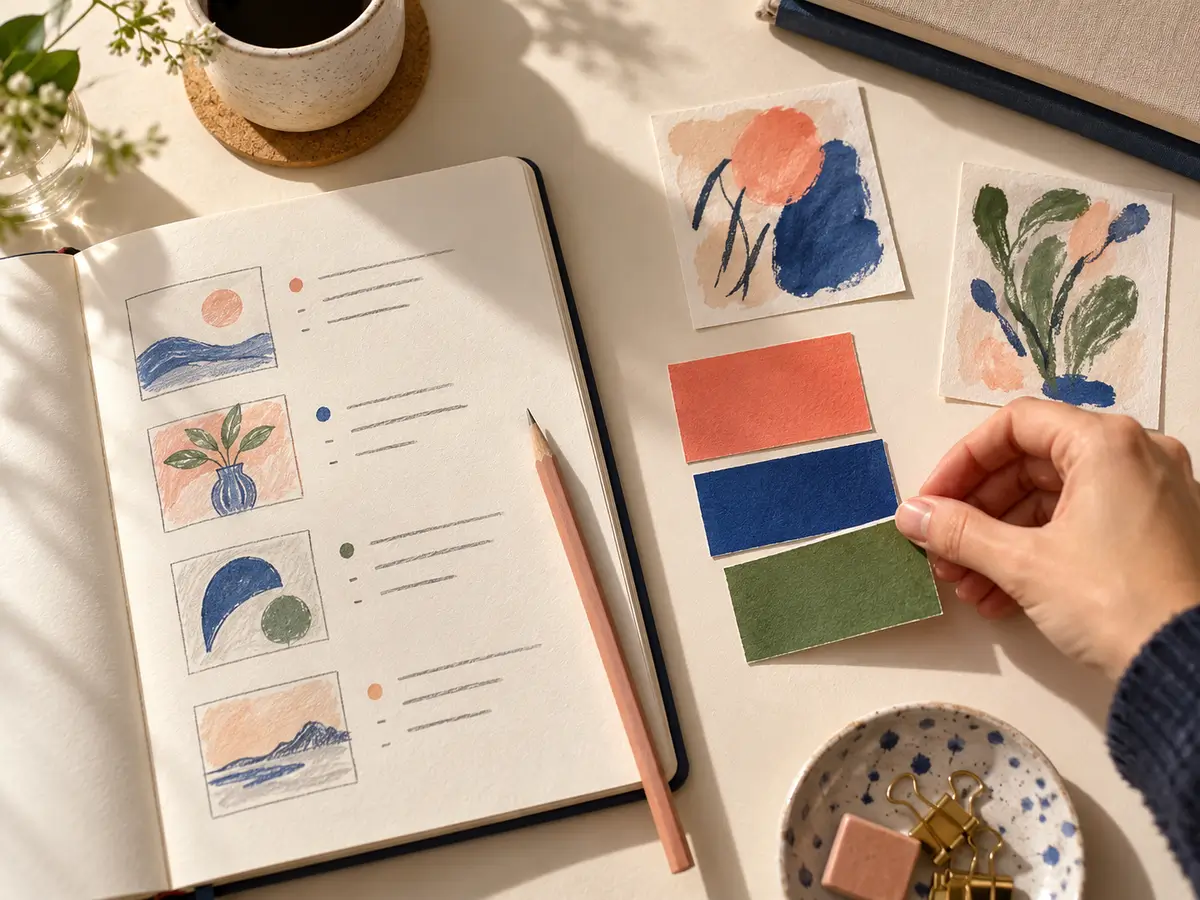
01
Paste the final prompt, including the subject, layout, lighting and exact text. For an edit, say what should change and which details need to stay fixed.
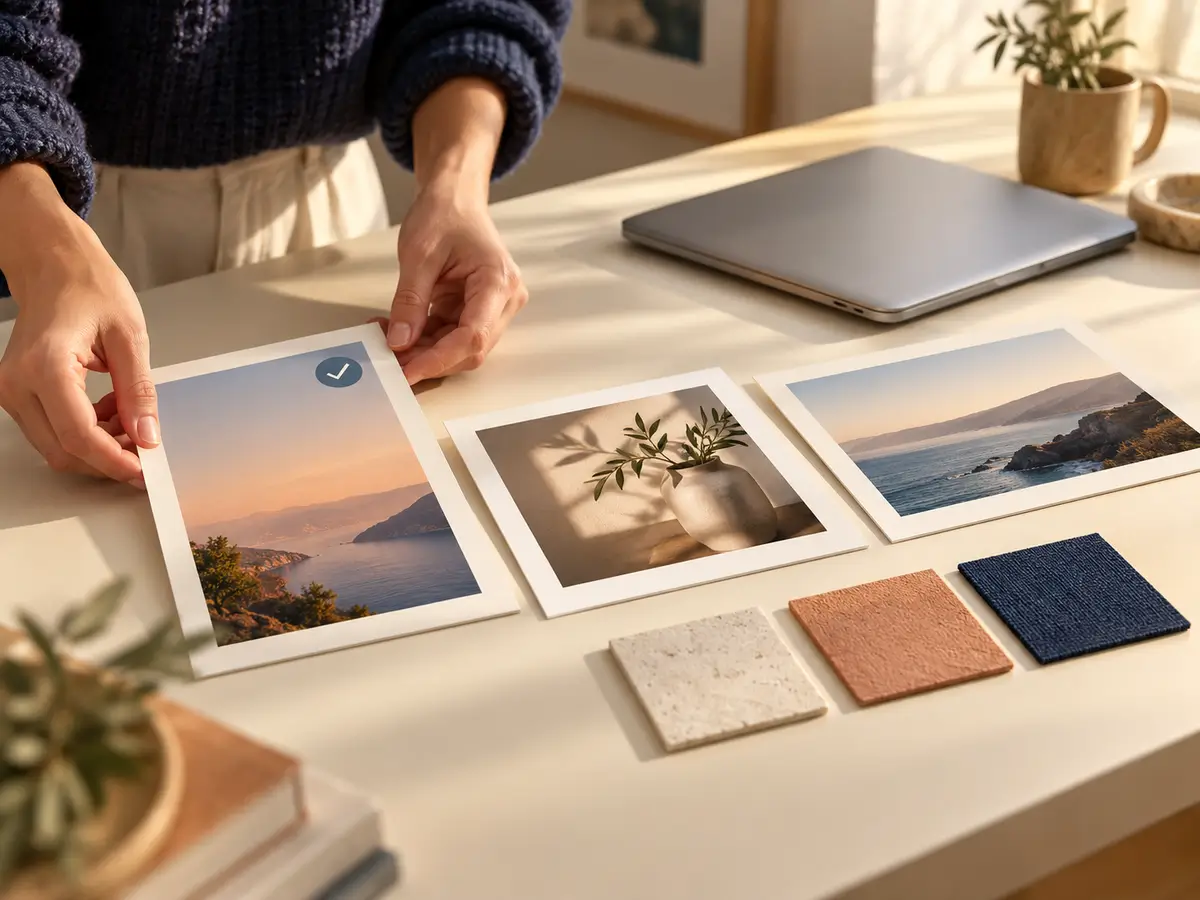
02
Start with Flare or select Sunburst for a reference-sensitive edit. Add references in Image to Image, choose the ratio, resolution and background, and check the displayed credit total.
03
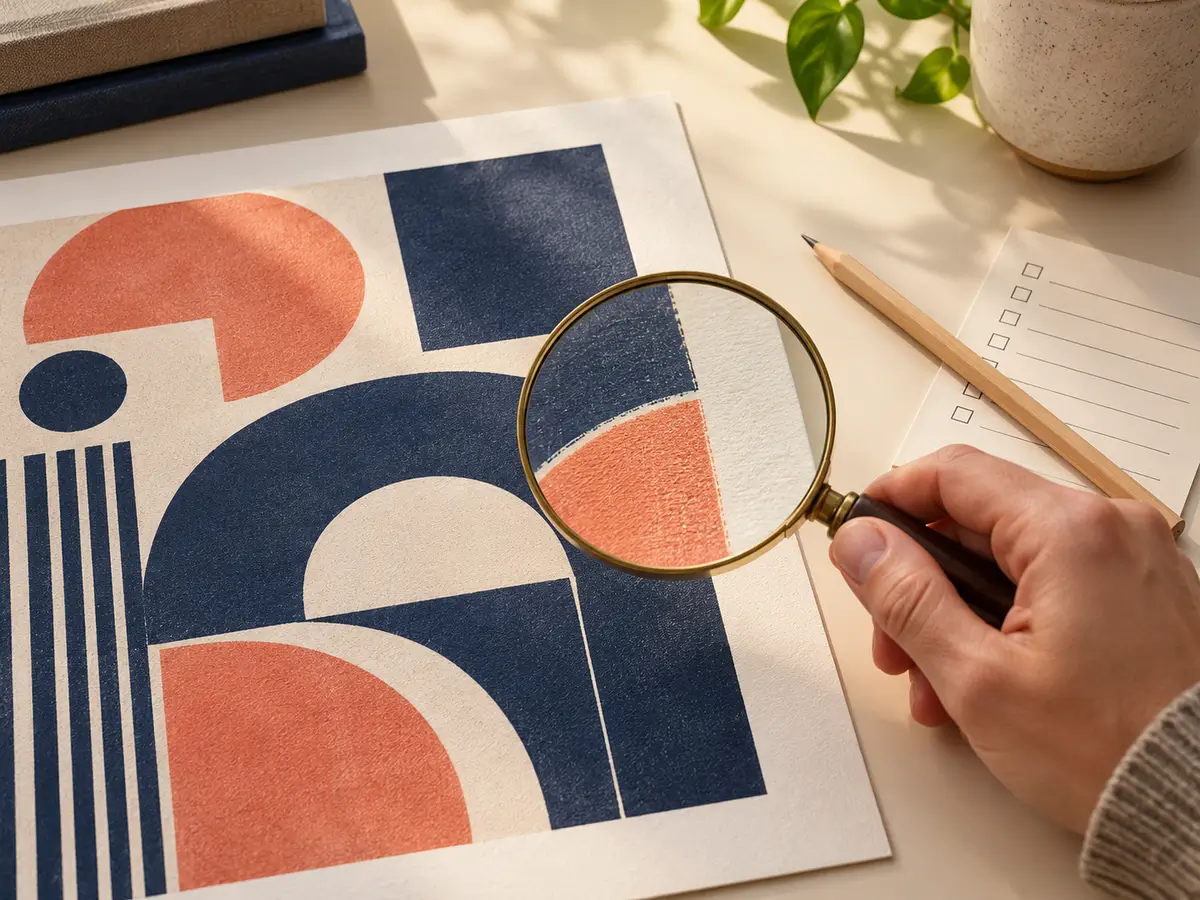
Inspect the saved result for lettering, anatomy, edges and missed objects. These workflow illustrations explain the process; check your own generated output at full size before another edit or publication.
Generate professional images with your favorite Nano banana 2 AI plan.
Perfect for getting started with nano banana 2 AI image generation.
Includes
Credits never expire!
For professionals who need high-volume image generation.
Everything in Pro, plus
Credits never expire!
Great for educators, designers, and marketers.
Everything in Basic, plus
Credits never expire!
Nanabanana2 is an independent tool and is not affiliated with, endorsed by, or sponsored by OpenAI. ChatGPT and GPT are trademarks of OpenAI.
The default is GPT Image 2.5 Flare. You can select GPT Image 2.5 Sunburst in the model menu. The displayed model, prompt, references and settings are used for the new job.
Generation here uses Nanabanana2 site credits. Both GPT Image 2.5 variants cost 3 credits at 1K, 5 at 2K or 10 at 4K per output. Check your account balance for any available credits; a ChatGPT subscription does not cover jobs on this site.
No ChatGPT account or OpenAI API key is required to use this page. Sign in to your Nanabanana2 account and use site credits. Your ChatGPT conversations and subscription are separate.
This page defaults to GPT Image 2.5 Flare and also offers Sunburst. The site’s GPT 4o Image workflow has its own page. Open it to review the earlier workflow and model-specific options.
Open GPT 4o Image →There is no conversation import or shared chat memory. Paste a complete image prompt and upload the references again. Replace phrases such as “the earlier version” with explicit instructions.
Outputs can differ because the conversation context, model variant and generation settings may differ. Reuse the brief as a starting point, then review composition, text and reference details.
For either GPT Image 2.5 variant, one 1K image costs 3 site credits, 2K costs 5, and 4K costs 10. The generator shows the total for your selected output count. Site credits are separate from any ChatGPT plan.
Choose Image to Image and attach the source. For a cutout, select Transparent and ask for an isolated subject without a backdrop or external shadows. There is no brush, mask or editable layer interface here.
For GPT Image 2.5, add up to 16 JPEG, PNG or WebP images, each at most 30 MB. Include only references that matter and identify their roles by order in the prompt.
Review short text, repeated characters, faces, fine edges and layout at full size. Dense typography or production-critical artwork may need finishing in a design tool even when the preview looks convincing.
The hero, example pair and same-prompt outputs were generated for this page with the labeled GPT Image 2.5 API variants. The three step images are new workflow illustrations. All images are distinct from the GPT Image 2.5 model page’s media.
Compare Flare and Sunburst, inspect the supported reference limits, and choose resolution or background settings for your next request.
Open the earlier GPT Image model and check its distinct aspect ratio and resolution limits before choosing your output settings.
Browse prompt examples and adapt the brief to your own images and selected model.