
Best Free Transparent Background Maker 2026
Updated October 20, 2026
The best free transparent background maker in 2026 is the one that gives you a usable cutout at the size you need. A free preview can be enough for a small presentation graphic. A product catalog, large banner, or detailed logo may need a larger export and some manual cleanup.
For a simple preview workflow, consider CleanBG. For automatic removal with a free daily allowance, Adobe Firefly is another option. Photopea and GIMP are useful when you want to adjust the selection yourself and export without buying credits for each image.
Here are six tools worth considering, with their free features and download restrictions explained.
Free transparent background makers compared
| Tool | Recommended use | What you can use for free | Main limitation |
|---|---|---|---|
| CleanBG | Quickly previewing a cutout | Background removal preview and preview download after signing in | HD processing uses credits |
| Adobe Firefly | Automatic removal in an Adobe workflow | Background removal within the daily free allowance and transparent PNG output | Adobe account required; unlimited use is paid |
| Photopea | Refining a selection in your browser | Magic Cut and PNG export | Detailed selections take some practice |
| GIMP | Repeated editing on a desktop | Selection tools, masks, and PNG export in free software | Installation and manual editing required |
| Photoroom | Preparing product photos | Free access to background removal | Exports count toward your allowance; higher resolution may require an upgrade |
| Canva | Using a cutout in a design | Limited free high-resolution downloads through its standalone remover | Unlimited downloads require a paid plan; transparent design export requires an eligible plan |
The free download matters as much as the preview. Before editing a whole folder, finish one image and check its dimensions, transparency, and any export limit.
What makes a good transparent background maker
Start with the final use. A small portrait in a slide deck has different requirements from a product image that customers will enlarge.
Check the edges. Look around hair, fur, handles, straps, and the gaps between objects. An attractive thumbnail can hide a missing detail or a strip of the old background.
Check the export size. A tool may process your upload for free while charging for a larger download. Compare the exported pixel dimensions with the space the image will occupy.
Check whether you can correct mistakes. Automatic removal is convenient, but a brush, selection tool, or layer mask helps when the subject blends into its surroundings.
Check the file itself. A white backdrop is still a background. A checkerboard can also be part of the picture rather than a transparency indicator. Place the downloaded image over a solid color to see whether the area around the subject is actually empty.
CleanBG for quick transparent previews
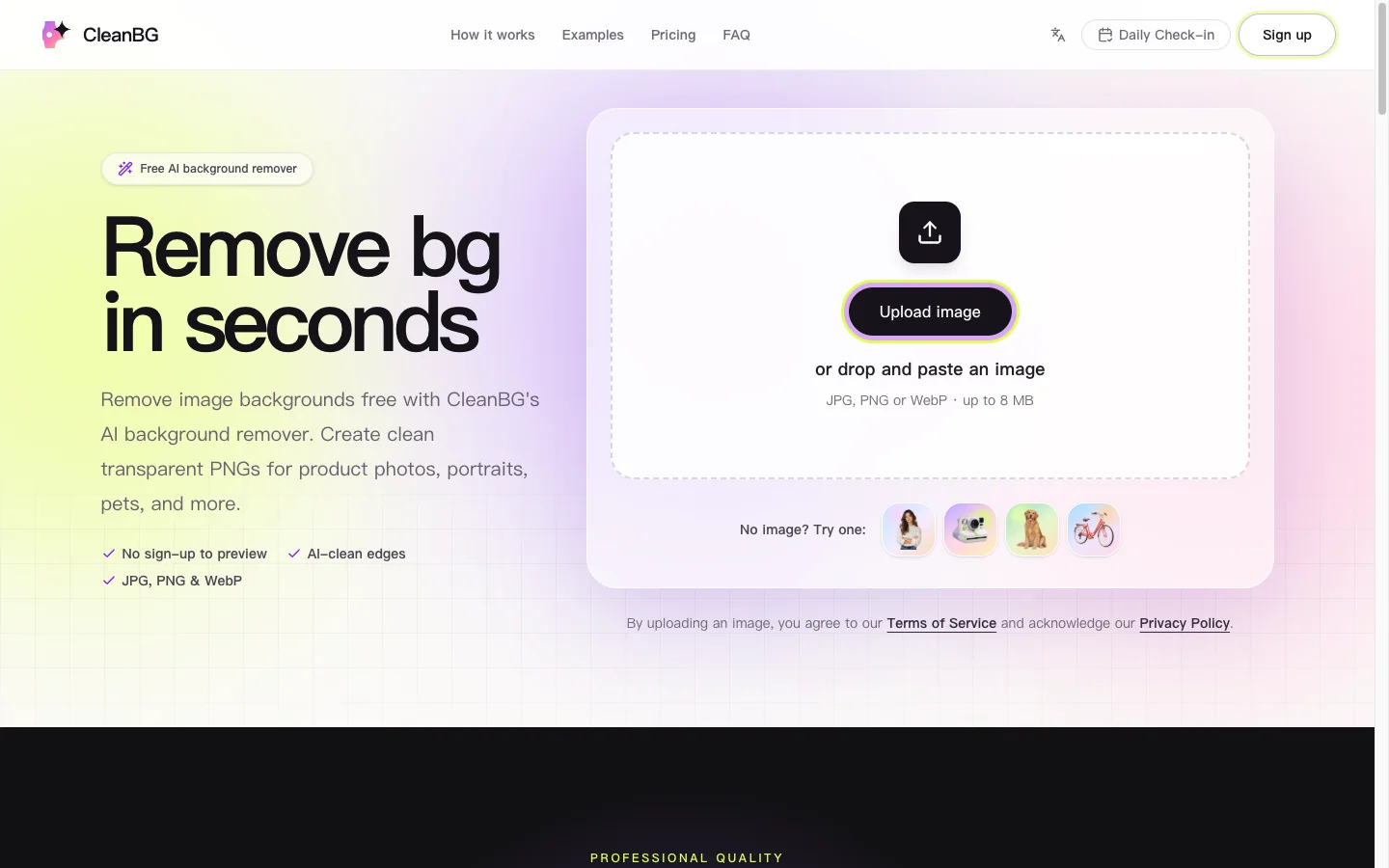
For a focused upload-and-preview workflow, try the CleanBG transparent background maker. It accepts JPG, PNG, and WebP images up to 8 MB and lets you preview background removal without creating an account.
The before-and-after slider gives you a way to inspect the cutout before downloading. Sign in to download the free preview as a transparent PNG. Higher-resolution processing uses credits, with the site advertising 2048px HD downloads.
CleanBG is a useful choice when you want to check a portrait, product photo, pet image, or graphic without opening a full editor. If the preview suits your intended layout, the workflow stays short. For a larger asset, factor the HD credit requirement into your decision.
Adobe Firefly for automatic PNG cutouts
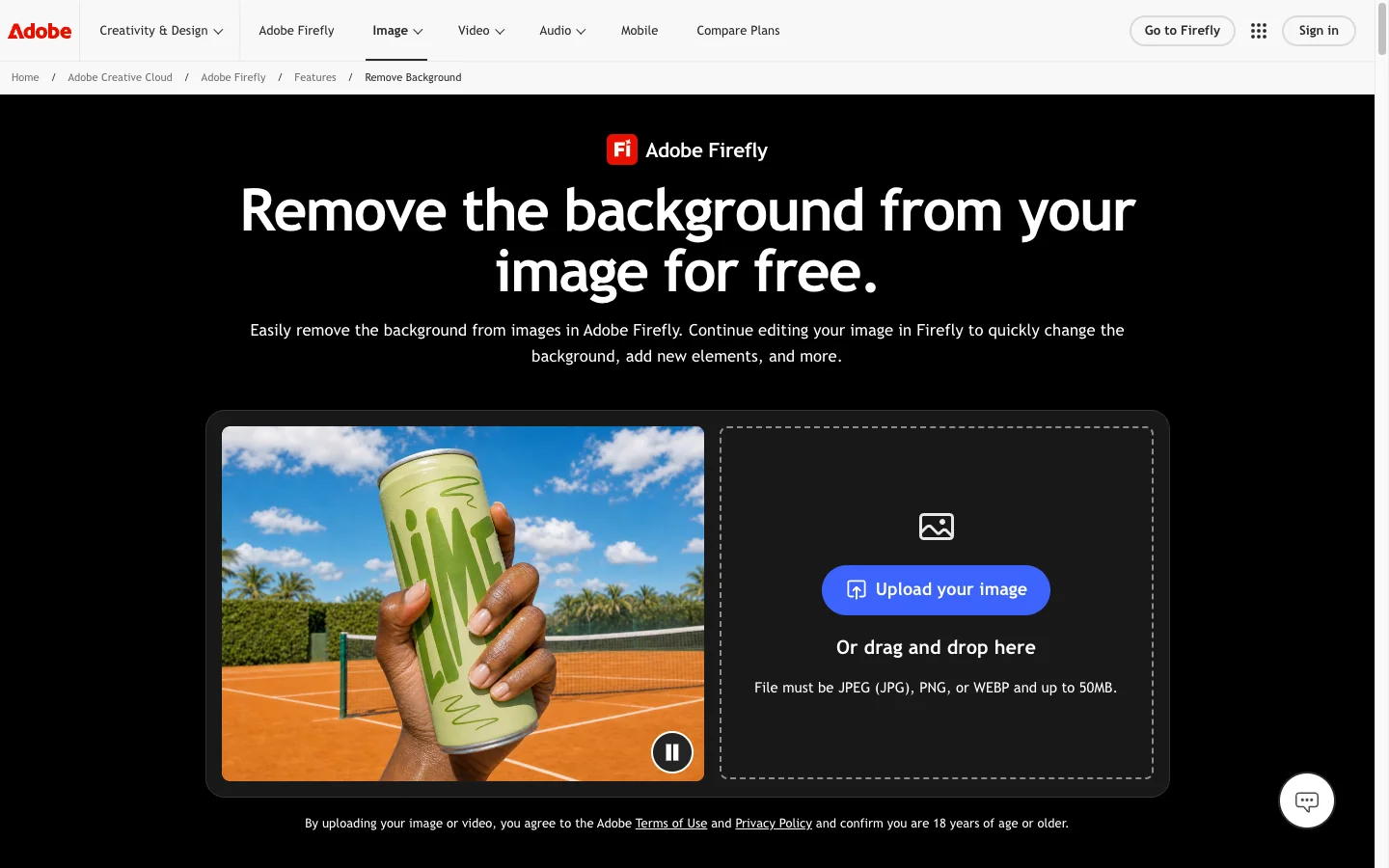
Adobe's background remover currently presents the removal workflow through Firefly. You can remove backgrounds for free with an Adobe account using the daily free allowance; unlimited use requires a paid Firefly plan.
The tool accepts JPEG, PNG, and WebP uploads up to 50 MB and downloads the result as a PNG with a transparent background. It also provides a path into further Adobe editing.
Consider it if you already use Adobe tools or want an automatic cutout before making a larger composition. Keep the free allowance in mind if you have many images to process in one session.
Photopea for fixing difficult edges in your browser
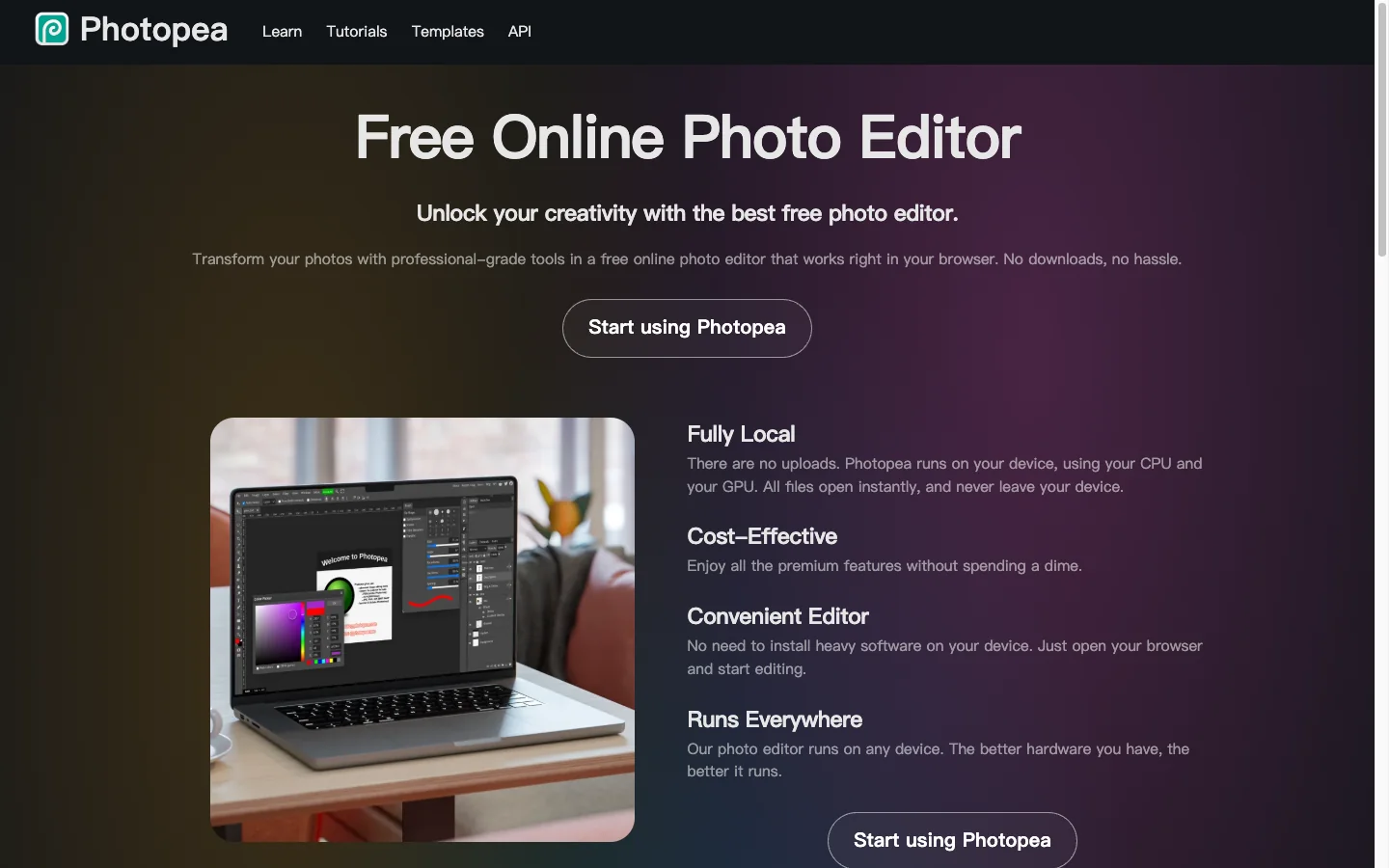
Photopea is useful when you want to guide the selection instead of accepting the first automatic result. Its free Magic Cut tool lets you mark the subject in green and the background in red, with a preview alongside your edits.
Open your image, choose Select > Magic Cut, and correct the foreground and background markings. Adjust the border softness if needed, then confirm the result and choose File > Export As > PNG.
This approach suits images with a few problem areas, such as a handle that disappears into the background. It takes more attention than a single upload button, but you can direct the tool toward the parts you want to preserve.
GIMP for a free desktop editing workflow
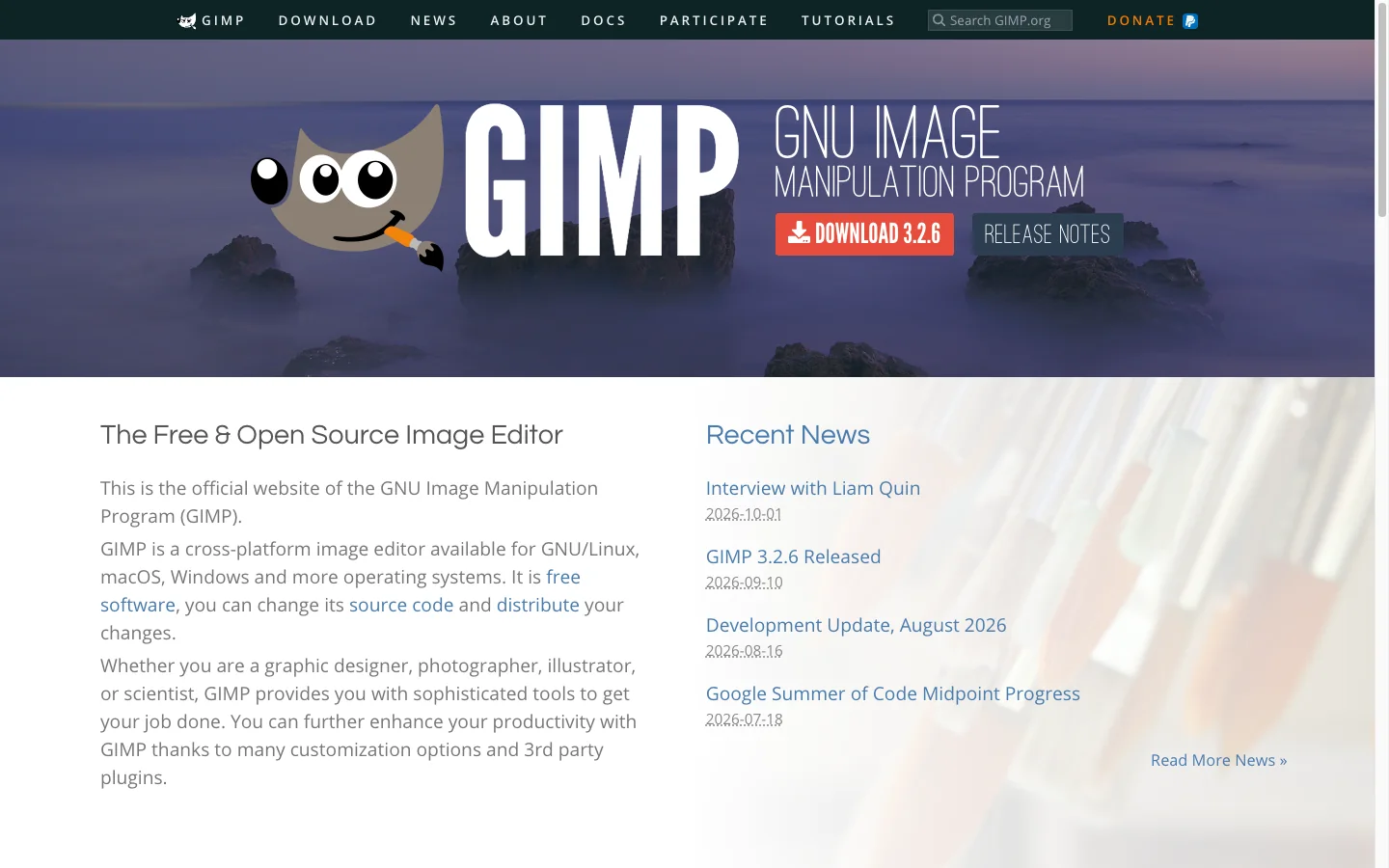
GIMP is a free, open-source image editor available for Windows, macOS, and Linux. It is a practical option if you regularly edit images and prefer an installed application.
Its selection tools and layer masks let you isolate a subject and refine the boundary. For a simple transparent cutout, first make sure the image layer has an alpha channel, which stores transparency. Then select the subject, invert the selection, and remove the background.
GIMP's background separation guide explains the selection and transparency steps. Export the finished image as PNG to retain the empty areas.
Choose GIMP when you are willing to spend time learning the tools in exchange for control over repeated edits. The work happens in a desktop editor, so the process involves more setup than a browser upload tool.
Photoroom for product photo workflows
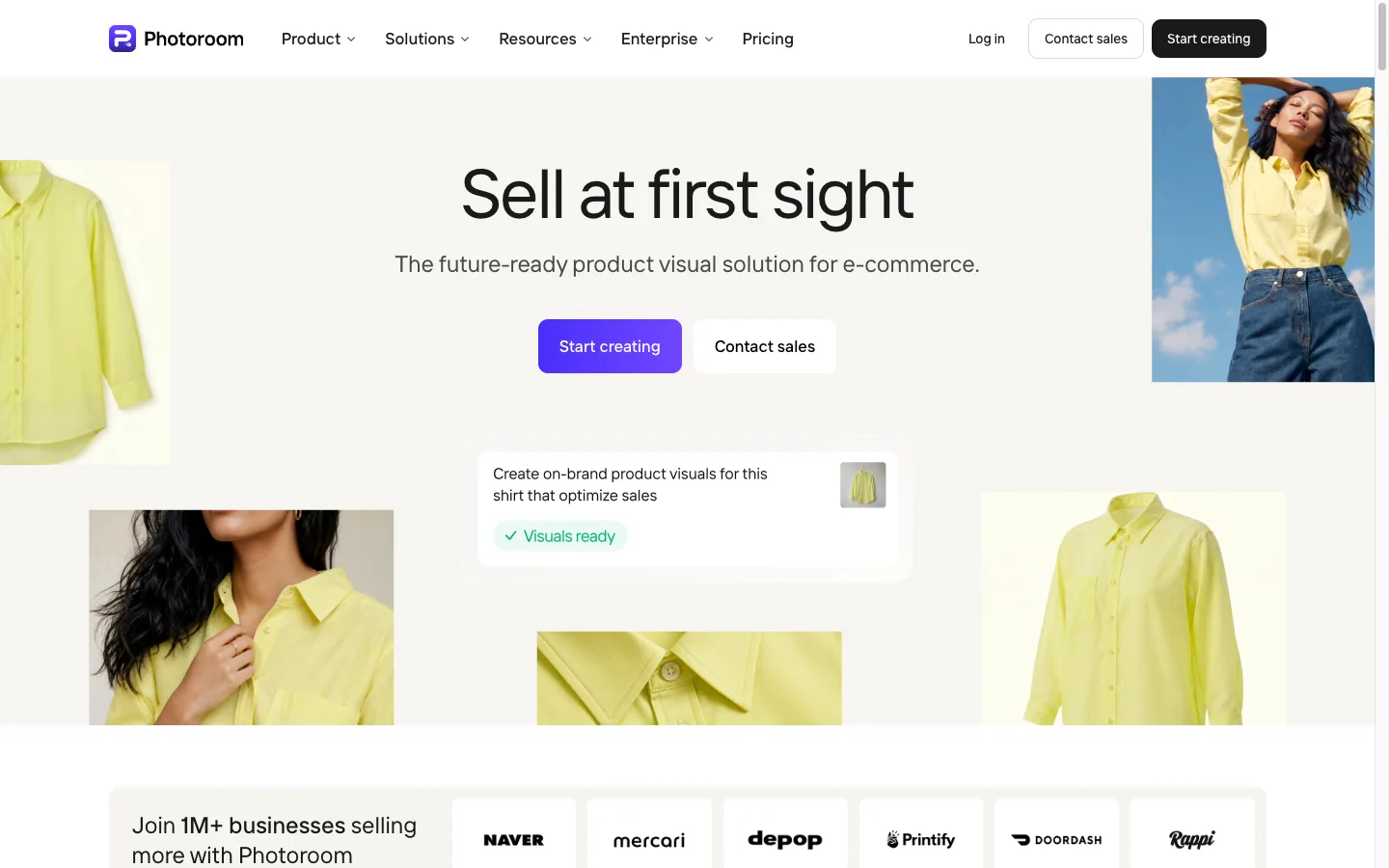
Photoroom's background remover focuses on product photography. It can remove a background, keep the result transparent, and let you continue into other product image editing tools.
Free access makes it worth considering for an occasional listing image. Its background remover help page says removal does not require AI credits, while exporting counts against the export limit. The product page also identifies higher-resolution exports as an upgrade benefit.
If you sell online, try a representative product first: a shoe with laces, a bag with handles, or an item with reflective edges. Inspect the exported image at the size you will publish before committing to the same workflow for an entire catalog.
Canva for adding cutouts to designs
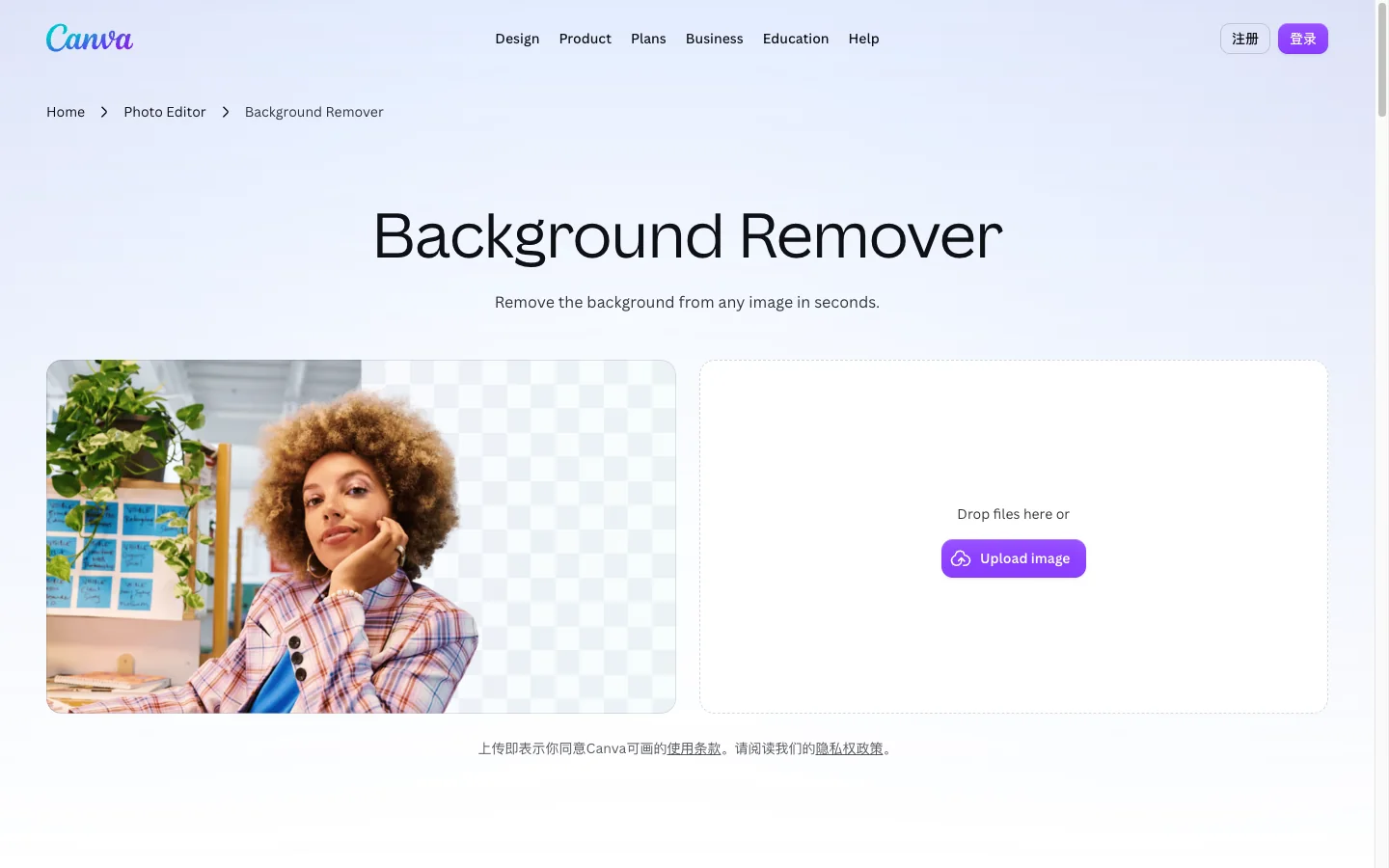
Canva's standalone background remover offers a limited number of free high-resolution downloads. It lets you isolate a subject, refine it with Erase and Restore, and continue building a design. Unlimited downloads require a paid plan.
It is convenient when the cutout will become part of a social post, presentation, or other Canva project. However, downloading a cutout through the standalone tool and exporting a whole design with a transparent background have different access rules. Canva's transparent background export guide lists eligible plans for that editor feature.
Complete a download through the workflow you intend to use before spending time on a larger design.
How to make a transparent background for free
- Start with the clearest original. Use a sharp image with enough separation between the subject and its surroundings. Avoid a compressed screenshot when you have the original photo.
- Remove the background. Upload to an automatic remover, or use selection tools in Photopea or GIMP.
- Inspect the boundary. Zoom in around fine details and enclosed spaces. Correct missing parts of the subject and any remaining background.
- Export as PNG with transparency. Check the download dimensions and keep a copy of your editable project if you may need revisions.
- Test it in the destination. Place the PNG over both a light and a dark background, then view it at its intended display size. This helps reveal pale halos and rough edges.
For example, a cutout that looks clean on a white slide can show a bright outline on a dark website. Checking both backgrounds before publishing saves another editing round.
Frequently asked questions
Can I make a transparent background completely free
Yes. Photopea's Magic Cut workflow and GIMP let you create and export transparent PNGs without purchasing image credits. Automatic online removers can also offer free downloads, with limits on resolution or usage. Choose based on the file you need to keep.
Why does my PNG still have a white background
PNG supports transparency, but a PNG file can still contain an opaque white background. You may have exported a visible background layer or selected a solid canvas color. Remove or hide that background and export again. JPEG does not preserve transparency.
Which tool should I use for a transparent logo
For a simple raster logo, try a remover and inspect every letter and enclosed shape. Photopea or GIMP can help correct the selection. Keep the original SVG if one exists, since removing a background from a raster image does not turn it into a vector file.
If you are developing a new concept, our AI logo generator can help you explore ideas before you prepare the final cutout.
Does asking AI for a transparent background guarantee transparency
No. An image can show a white or checkered backdrop without containing transparent pixels. Check the exported file by placing it over another color. If the backdrop remains visible, remove it before using the image in a layered design.